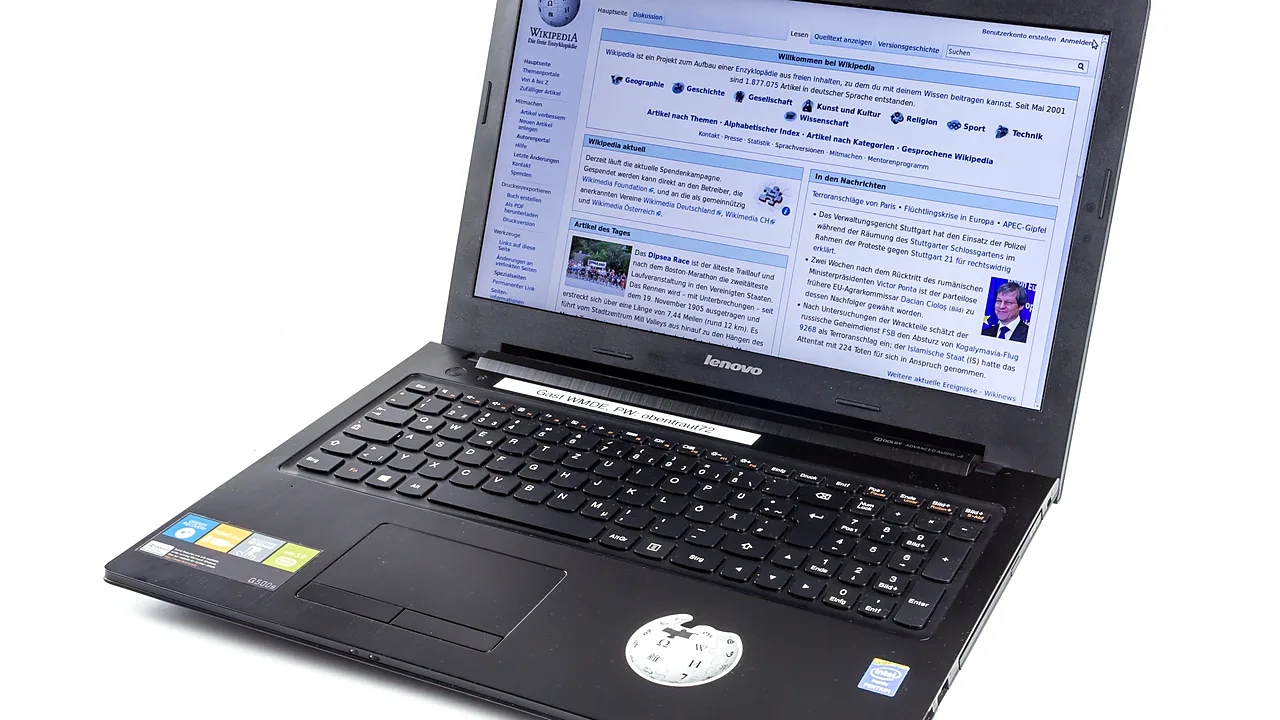
Brightness problems on Windows 11 split into three different faults that look identical from the outside: the slider is missing, the slider is there but does nothing, or the brightness keeps changing on its own. Each has a different cause, and trying fixes in the wrong order wastes a lot of time. This guide identifies which one you have, then fixes it.
Last checked: October 2026. Tested against Windows 11 version 26H2.
First, is this a laptop or an external monitor?
This single question resolves a large share of “brightness not working” cases. The Windows brightness slider controls a panel backlight directly, which is something built-in laptop displays expose and most desktop monitors do not.
If you are on a desktop with an external monitor and there is no brightness slider in Settings, nothing is broken. Use the buttons on the monitor itself. Some monitors support DDC/CI, which allows software control, but Windows does not expose it natively — that needs a third-party utility, and support varies by model.
Everything below applies to laptops and all-in-ones, where the slider should exist.
Where the setting actually lives
- Open Settings → System → Display.
- The Brightness slider is at the top under Brightness & colour.
- Quick Settings (Win + A) has the same slider, which is the faster route day to day.
If the slider is absent here on a laptop, it is a driver or device problem, and the next two sections are where the fix is.
Re-enable the Generic PnP Monitor
A disabled monitor device removes the brightness slider entirely. It is a surprisingly common state after a driver update goes wrong.
- Right-click Start and open Device Manager.
- Expand Monitors.
- If the entry has a small down-arrow on its icon, right-click it and choose Enable device.
- If it is already enabled, right-click and choose Update driver → Search automatically for drivers.
- Restart and check the slider.
Fix the display driver
This is the most frequent cause. If Windows is running on the Microsoft Basic Display Adapter — its fallback driver — there is no brightness control at all, because the generic driver does not implement it.
- In Device Manager, expand Display adapters and read the name. “Microsoft Basic Display Adapter” means the real driver is missing.
- Install the proper driver for your graphics hardware. On laptops, prefer the version on your laptop maker’s support page — manufacturers customise the display pipeline, and the generic chipmaker package sometimes drops brightness control on specific models.
- Restart, then check Settings again.
Our model-specific guides cover the download pages worth using: updating Intel graphics drivers, installing NVIDIA drivers, and the AMD Radeon driver. The general guide to updating drivers on Windows 11 explains why hunting drivers through third-party updater apps tends to cause exactly this problem.
When the Fn keys do nothing
The brightness keys on a laptop keyboard are not handled by Windows alone. They depend on the manufacturer’s hotkey or power-management software, and a clean Windows install leaves that software out.
Install your vendor’s utility — Lenovo Vantage, Dell Power Manager, HP Support Assistant, MyASUS and their equivalents — from the manufacturer’s own site. If the slider in Settings works but the keys do not, this is almost always the answer. Check the firmware settings too: some laptops have an Action Keys Mode or Fn Lock option that swaps whether F-keys act as function keys or media keys by default.
When brightness changes by itself
Two separate features do this, and they are in different places:
- Settings → System → Display → Brightness — expand it and turn off Change brightness automatically when lighting changes. This is the ambient light sensor.
- In the same section, turn off the option to help improve battery by optimising the content shown. This is content-adaptive brightness, which dims the panel according to what is on screen. It is the one people describe as “the screen dims when I open a dark window”.
- Check Settings → System → Power & battery → Battery saver. Battery saver lowers brightness when it activates, which looks like a fault if you have not noticed the threshold being crossed.
Troubleshooting
The slider moves but nothing happens. The driver is accepting the command and not applying it. Roll the display driver back: Device Manager → the adapter → Driver tab → Roll Back Driver, if the button is available.
It broke right after a Windows update. Windows Update sometimes replaces a working vendor display driver with a generic one. Reinstall the vendor driver, then check whether brightness returns.
The screen is stuck at maximum or minimum. Try the vendor utility first. If the panel is stuck at minimum and the image is only visible under a torch, that can also be a failing backlight or inverter — a hardware fault, not a software one.
Brightness resets after every reboot. Power plan settings override the slider on some systems. Check the brightness levels in your active power plan under Control Panel’s power options, for both battery and plugged-in states.
Only one of two displays can be adjusted. Expected. The built-in panel has software control; the external one does not, and needs its own buttons.
FAQ
Why is there no brightness slider on my desktop PC? Because desktop monitors are adjusted with their own controls. Windows only offers a slider for panels it can drive directly.
Does lowering brightness save battery? Noticeably, yes. The backlight is among the largest power draws in a laptop.
Is night light the same as brightness? No. Night light shifts colour temperature towards warmer tones; it does not change the backlight level.
Can I set brightness with a keyboard shortcut if my laptop has no brightness keys? Not natively, but the Quick Settings panel (Win + A) puts the slider two keystrokes away.
If other hardware on the same laptop is also behaving oddly after an update, the pattern is usually driver-related rather than coincidence — see our guide to fixing Bluetooth missing in Windows 11 for the same approach applied to a different device.
Featured image: Photo: Raimond Spekking / Wikimedia Commons, CC BY-SA 4.0