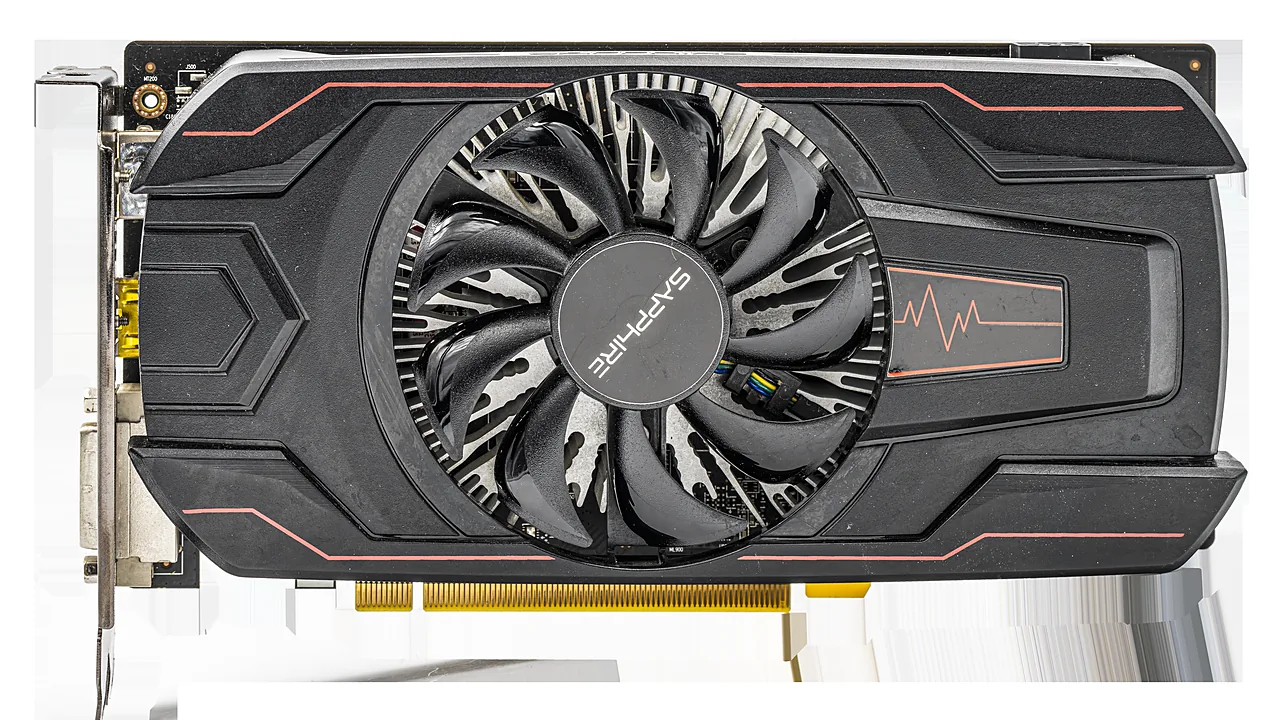
AMD graphics drivers are a case where “how” matters more than “whether”: updated carelessly they cause the black screens people blame on the hardware, updated properly they fix games and add features for free. This guide covers identifying your GPU, getting the right Adrenalin package from AMD, the clean-install routine that avoids 90 percent of driver misery, and what to do when an update goes wrong anyway.
Last checked: September 2026. Current release: AMD Software Adrenalin Edition 26.9.1 (September 3, 2026).
First: know your exact GPU
Press Win+X → Device Manager → Display adapters, or run dxdiag. You need the exact model (say, RX 7800 XT vs RX 580) because AMD splits support: current cards get the main Adrenalin branch; older generations (Polaris-era RX 400/500 and earlier) moved to a maintenance branch that updates rarely — that is normal, not a download error.
Download from AMD, choose one path
- Go to amd.com → Drivers & Support.
- Either pick your product manually from the list, or download the auto-detect tool, which identifies the card and fetches the matching package. Manual selection is worth the extra minute if the tool ever seems confused (rebrands and laptop variants trip it).
- Prefer the WHQL/recommended release for daily stability; take an optional release only when its notes name a fix for a game or issue you actually have (26.9.1, for instance, is an optional release with game-specific fixes).
Skip driver-updater utilities and download portals entirely. The card maker’s package (Sapphire, ASUS, etc.) is just an older AMD driver; AMD’s site is the source.
Install cleanly
- Close games and GPU tools (overlays, tuners).
- Run the Adrenalin installer. Under Additional Options, choose Factory Reset if you’re coming from an older major version, switching from NVIDIA, or fixing an issue — it wipes stale settings and leftovers during the install.
- Reboot when asked, even if it doesn’t insist.
- In Windows Settings → Windows Update → Advanced → optional updates, avoid installing Microsoft’s older display driver on top of AMD’s newer one; let Adrenalin manage itself.
When an update goes wrong
- Black screen after install. Wait two full minutes first (first-boot driver compilation can blank the screen). If it persists: boot into Safe Mode, run DDU (Display Driver Uninstaller) — the community-standard cleanup tool — then install the previous WHQL driver from AMD’s site.
- “Driver timeout detected” pop-ups. Adrenalin’s factory-reset reinstall is step one; disabling aggressive memory overclocks (including one-click RAM profiles) is the underrated step two — marginal system RAM shows up as GPU timeouts surprisingly often.
- Game runs worse after updating. Roll back: AMD keeps prior versions linked on each driver page. Nothing forces you to stay on the newest release; many people sit on the last WHQL until a game demands more.
- Laptop with AMD graphics. If the laptop maker provides its own validated driver, and the machine is business-managed, that driver wins. Otherwise AMD’s generic package generally works and is fresher.
A sane update policy
If your system is stable and your games run: update every few months, WHQL only, factory reset on major jumps. If you play new releases on launch day: take the optional drivers that name your game. And when someone insists you must update drivers weekly — that is how the black-screen stories start.
FAQ
Where should I get AMD drivers? Only from amd.com: use the auto-detect tool or pick your exact model. Avoid third-party driver updaters.
What is a clean install? An install option (or DDU in Safe Mode) that wipes old driver data first, which fixes most driver bugs.
If the fault turns out not to be the graphics driver at all, work through the general driver update routine for Windows 11 first — it covers Device Manager, rollbacks, and why the “update all drivers” utilities cause most of the damage.
Related on AppInstall.info: our NVIDIA driver guide, and how to keep drivers and apps updated automatically.
Featured image: Sapphire Radeon RX 560 — Image: PantheraLeo1359531 / Wikimedia Commons, CC BY 4.0