Out-of-date software is the quiet security risk on most Windows PCs — old browsers, media players, and PDF readers are the things attackers target. Windows Update handles the operating system, but not your third-party apps. The fix is built into Windows: winget, the package manager, can update everything you installed with one command — and you can schedule it to run on its own.
Last checked: September 2026. winget ships with Windows 10 (1809+) and Windows 11 via App Installer.
The one command to update everything
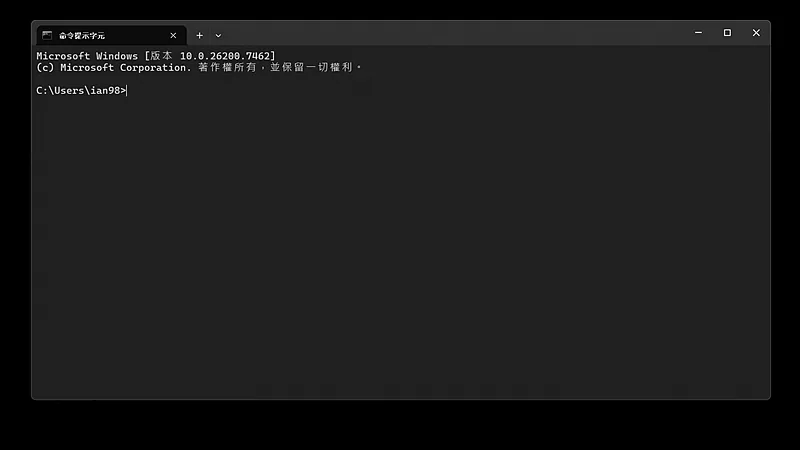
Open Terminal (right-click Start → Terminal) and run:
winget upgrade— lists every installed app that has a newer version available, with current and available version numbers.winget upgrade --all— updates all of them in one go.
That’s the whole manual routine. Run it once a week and your browsers, editors, and tools stay current without visiting a dozen download pages. New to winget? Our winget guide covers the basics of installing and removing apps too.
Make it automatic with Task Scheduler
You can have Windows run the update for you on a schedule:
- Open Task Scheduler (search it from Start) → Create Basic Task.
- Name it “Weekly app updates,” choose a trigger (for example, Weekly, Sunday, a time your PC is on).
- Action: Start a program. Program:
winget. Arguments:upgrade --all --silent --accept-source-agreements --accept-package-agreements. - Finish, then in the task’s properties tick Run with highest privileges so updates that need elevation don’t stall.
The --silent and --accept-* flags let it run unattended without prompts. Leave off --silent if you prefer to see what happens.
Useful refinements
- Update one app only:
winget upgrade --id Google.Chrome. - Skip an app you update manually (or that breaks on auto-update):
winget pin add --id Publisher.Appkeeps winget from touching it until you unpin. - See what’s pinned:
winget pin list.
Troubleshooting
- An app shows version “Unknown” and won’t upgrade. Apps installed outside winget don’t always report a version. winget lists them so you know they exist, but can’t upgrade what it can’t read — update those the app’s own way.
- “No installed package found matching input criteria.” Normal for Store apps and system components; the Microsoft Store updates those itself.
- Scheduled task runs but nothing updates. Make sure “Run with highest privileges” is on and the account has rights; test the exact command in a terminal first.
- An update broke an app. Reinstall the previous version from the vendor and
winget pin addit so the schedule leaves it alone. If it won’t uninstall cleanly, our stubborn-program guide helps.
What winget won’t cover
Keep getting GPU drivers from the vendor (see our AMD and NVIDIA guides) rather than a package manager, and let Windows Update handle the OS itself. For everything else you installed by hand, one scheduled winget upgrade --all is the closest thing Windows has to “keep all my apps current, automatically.”
Featured image: a wall clock — Photo: Islander61 / Wikimedia Commons, CC BY-SA 4.0