You downloaded a .rar file and Windows won’t open it by double-clicking. The good news: on Windows 11 you often don’t need any extra software at all, and where you do, the right tool is free. Here is how to open, extract, and fix RAR files the clean way.
Last checked: September 2026.
The fastest way: Windows 11 opens RAR built-in
Since late 2023, Windows 11 can open RAR, 7z, and TAR archives natively — no download needed:
- Right-click the .rar file.
- Choose Extract All (or open it to browse the contents first).
- Pick a destination folder and confirm.
If you’re on Windows 11 and just need the files out of a RAR occasionally, you’re done. This doesn’t work on Windows 10, and it can’t create RAR files — for those, read on.
The free tool for everything else: 7-Zip
On Windows 10, or when you want more control, install 7-Zip — free, open source, no nag screen. Get it only from 7-zip.org; archive tools are a common malware disguise, so skip third-party mirrors.
- Download and install 7-Zip (pick the 64-bit build).
- Right-click the .rar file → 7-Zip → Extract Here (into the current folder) or Extract to “foldername\” (tidy, into its own folder).
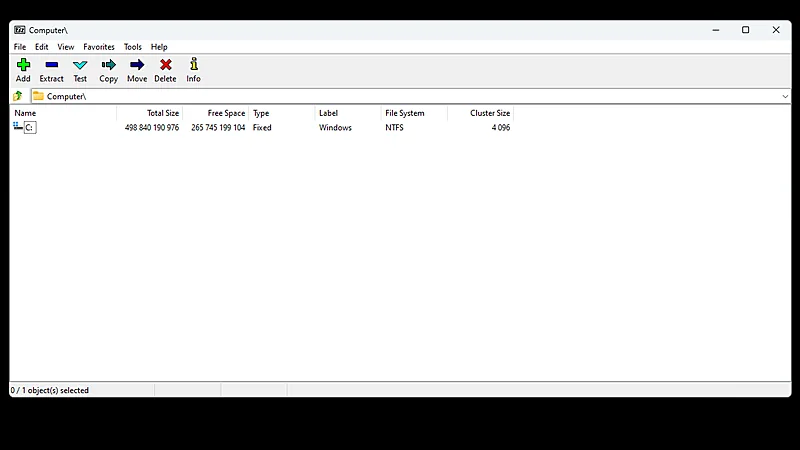
- To peek inside first, double-click the archive to open 7-Zip’s browser, then drag out just the files you need.
Password-protected RAR files
If the archive asks for a password, you need the one set by whoever created it — there’s no legitimate way around a forgotten RAR password, and any site promising to “recover” one is best avoided. Enter it when 7-Zip or Windows prompts, and the files extract normally.
Troubleshooting
- “Unexpected end of archive” / “cannot open file as archive.” The download is incomplete or corrupted. Re-download it from the source and compare the file size if the site lists one.
- Multi-part archives (.part1.rar, .part2.rar…). You need all parts in the same folder, then extract part1 only — it pulls in the rest. A missing part is the usual reason extraction fails halfway.
- Old split style (.r00, .r01, .rar). Same rule: keep them together and open the
.rarfile. - Corrupt but you need the data. In 7-Zip, open the archive and use Tools… or extract with “Keep broken files” ticked — you may recover part of the contents, especially if a recovery record was included.
- Right-click menu is missing 7-Zip (Windows 11). 7-Zip’s entries sit under Show more options in the modern menu.
Should you install WinRAR instead?
Only if you need to create .rar files — that’s the one thing 7-Zip can’t do. For opening RAR, 7-Zip (or Windows 11 itself) is all you need. We compare both in detail in our guide to 7-Zip vs WinRAR, and our WinRAR beginner guide covers creating archives. See also the best utility software for your PC.
Featured image: Photo: Mister rf / Wikimedia Commons, CC BY-SA 4.0