Quick summary
- Download only from the vendor’s own site; bundled toolbars and ad-heavy installers are the usual warning sign.
- Skip aggressive registry cleaners and anything promising huge speed gains, because those claims damage systems more often than they help.
- One scheduled cleanup beats five overlapping suites; duplicate tools with the same job slow the machine down.
Short answer: There is no single best utility program. Utility software splits into seven categories — cleaning, security, backup, disk management, compression, drivers and productivity — and most people need only a few of them. This guide covers what each category does, how to judge a tool safely, and the maintenance routine that keeps it useful.
If your device feels slow, runs out of storage, overheats, or gets cluttered with junk files, you’re not always forced to buy a new PC. Often, you just need the right set of utility tools and a simple maintenance routine.
One of those four is the exception: overheating is usually physical rather than software, and no cleaner will shift dust out of a radiator. Laptop overheating on Windows 11 works through the vents, the fan and the background processes in the order they are actually worth checking.
In this guide, you’ll learn:
- What utility software actually is
- The main types of utility tools you should know
- How to choose the right utility software for your needs
- Practical examples and use cases
- A safe weekly/monthly routine to keep your system healthy
What Is Utility Software?
Utility software is a category of programs designed to maintain, analyze, optimize, and protect your computer system.
If we compare it to something like this:
- Operating system = house
- Applications such as browsers, office suites, and editors = the occupants of the house
- Utility software = the cleaners, technicians, and security guards who keep the house tidy and safe.
Some of the main functions of utility software:
- Cleaning temporary and junk files
- Managing storage space (disk space)
- Protecting against malware, spyware, and other security threats
- Assisting with data backup and restoration
- Managing drivers and hardware
- Managing startup programs and system performance
Without utility software, your computer could:
- Get slower over time
- Become full of invisible junk files
- Become more vulnerable to security attacks
- At risk of losing important data
How to Choose the Right Utility Software
Before installing anything, it is important to know the basic criteria of good utility software:
1. Security and Reputation
- Only use software from official sites or trusted sources.
- Check reviews and the tool’s reputation.
- Avoid utilities full of ads, bundled toolbars, or questionable “bonus software.”
2. Operating System Compatibility
- Make sure it supports your version of Windows (10, 11, etc.) or other systems (macOS, Linux).
- Check 32-bit/64-bit compatibility if relevant.
3. Truly Necessary Features
- Don’t go for “all-in-one” if you only need a few functions. Focus on:
- Cleaning and optimization
- Security and privacy
- Backup and recovery
- File and storage management
4. Ease of Use
- Clear interface, uncomplicated settings
- Automatic or “one-click maintenance” mode for novice users
5. Transparency and Control
- See what’s been deleted/changed
- Undo options or create restore points
Main Types of Utility Software You Should Know
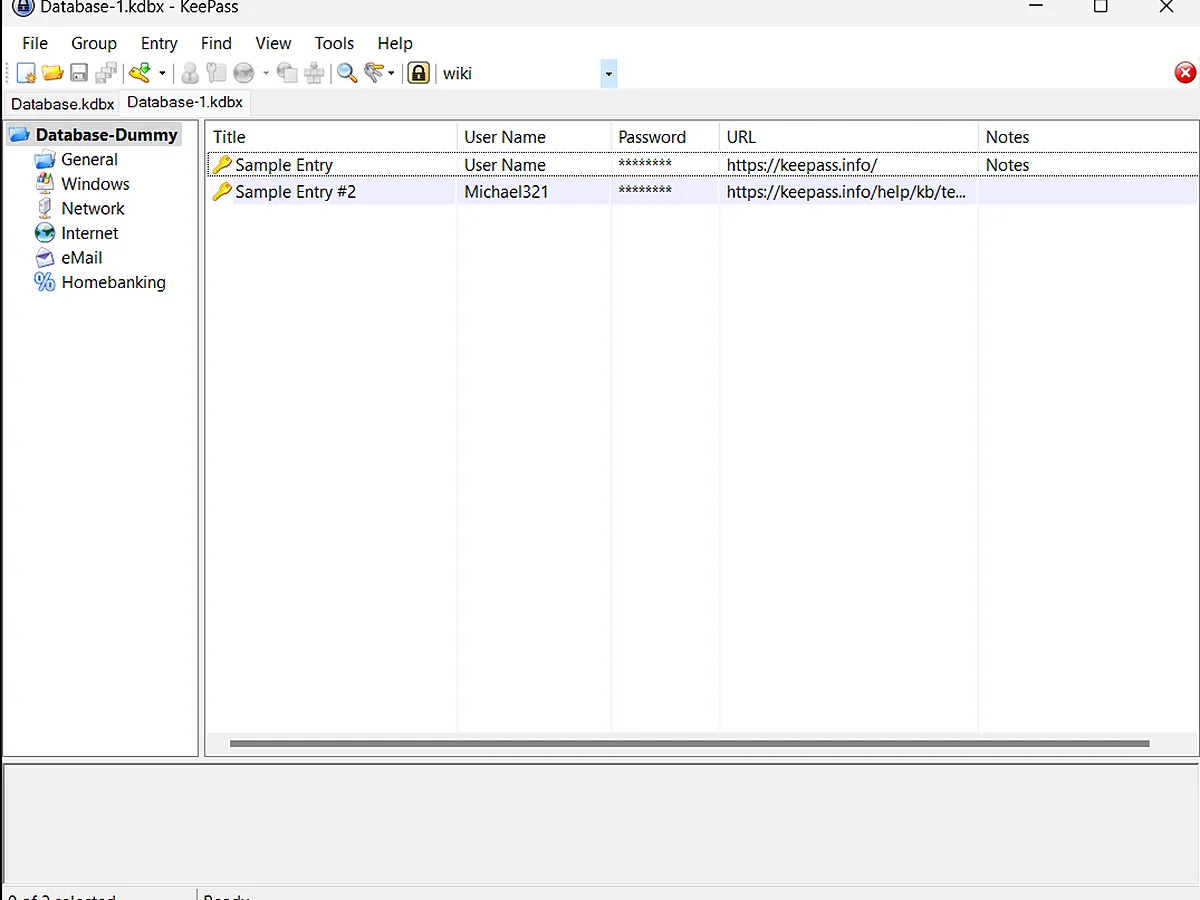
For simplicity, we’ve divided utility software into several categories:
1. System Cleaning & Optimization Tools
Function:
- Deletes junk files, cache, and temporary files
- Clears browser cache, old logs, and unused files
- Optimizes startup programs
Example benefits:
- Frees up storage space
- Fastens booting and application loading
- Reduces system load
Things to avoid:
- Aggressive registry cleaners (risk of system damage)
- Tools that promise “+300% performance”
Windows can do most of this itself; our guide to freeing up disk space on Windows 11 shows what is safe to remove and what only looks safe.
2. Security & Privacy Utilities
Function:
- Protects against viruses, malware, ransomware, spyware, and adware
- Removes adware embedded in browsers
- Adds a layer of security above the OS’s built-in antivirus
Example benefits:
- Prevents data theft
- Reduces malicious pop-up ads
- Keeps the system clean of suspicious programs
Ensure:
- The security utility does not conflict with the main antivirus
- The software source is clear and trusted
If something has already slipped through, removing spyware and the leftovers it hides behind covers the cleanup in order.
3. Backup & Recovery Tools
Function:
- Back up important files or the entire system
- Restore the system to a previous state (restore)
- Save data to an external hard drive or the cloud
Why it’s important:
- Hard drives can fail at any time
- Ransomware can lock data
- Human error (accidentally deleting important files)
A backup only helps if it happens on a schedule. The safe PC maintenance routine sets out when to run one and where to keep the copy.
4. Disk & File Management Utilities
Function:
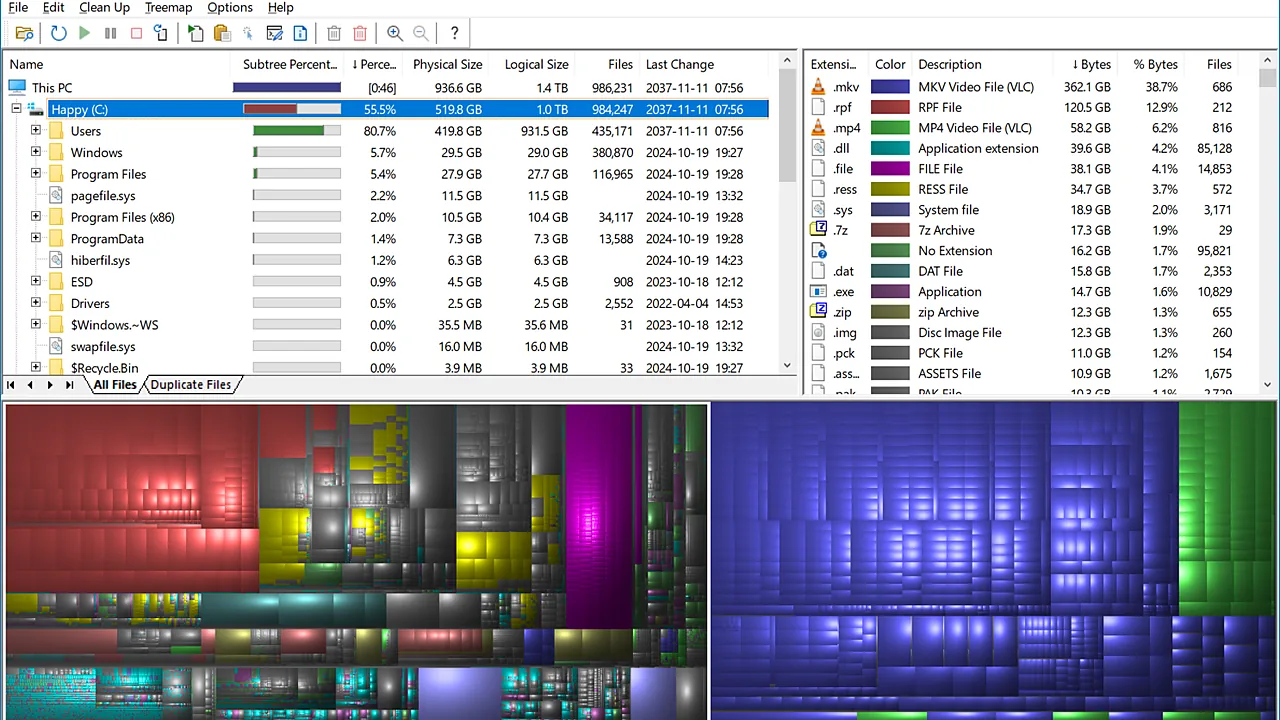
- Displays the largest files on the disk (for cleanup)
- Finds duplicate files
- Manages partitions
- Provides SSD/HDD health information
Benefits:
- Helps understand where storage space is “lost”
- Makes it easier to organize data
- Helps detect hard disk problems
5. Compression & Archive Utilities
Function:
- Compress files to .zip, .rar, .7z, etc.
- Extract archive files
- Split large files into multiple parts
Example benefits:
- Easier emailing
- Storing multiple files in one package
- Saves storage space
Which tool to use is a short argument: 7-Zip versus WinRAR compares the two, opening RAR files on Windows covers the format Windows now handles natively, and password-protecting a zip file is the step most people skip.
6. Driver and Hardware Utilities
Function:
- Helps with driver updates
- Manages printers, scanners, and other devices
- Detects hardware compatibility issues
Examples:
- Printer drivers (e.g., Epson Event Manager, HP ePrint)
- Graphics card drivers (e.g., AMD Radeon Driver Utilities)
- Tools for remote desktop and network connections
- For users with limited USB ports, the Unifying Receiver provides a simple solution
Most driver work needs no extra software at all — the driver update routine for Windows 11 covers Windows Update, Device Manager, and why the “update all drivers” utilities cause the damage they promise to fix.
7. Productivity and Focus Tools
Function:
- Tracks app usage time
- Blocks distractions
- Manages appointments and tasks
Example benefits:
- Identifies how you spend your time
- Helps you focus at work
- Reduces unnecessary multitasking
Application Examples for Utility Software
- WinRAR / 7-Zip / File Compression → for compressing and extracting files
- PDF Tools (Adobe Acrobat, etc.) → for editing, merging, or performing optical character recognition (OCR) on PDFs
- Printer Utilities (Epson Event Manager, HP ePrint) → for optimal scanning and printing
- Remote Access Utilities / Remote Desktop Tools → for remote access to a computer
- Multimedia Utilities (Media Players, Codec Packs) → for playing various audio/video formats
You can add your own table of recommendations per category in other sub-articles, while this main page focuses on training and organization.
How to Develop a Safe Utility Routine
Installing more tools is not a routine; running a few of them on a schedule is. The short version: watch for anything unexpected daily, clear junk and apply updates weekly, then back up and check drive health monthly.
The full timetable — what each step involves, which built-in tools to use, and what to leave out — is in the safe PC maintenance routine for Windows.
Common Mistakes When Using Utility Software
To avoid damaging your system, you should avoid the following:
1. Installing too many utility programs with the same function
- For example, 3 registry cleaners, 4 antivirus programs, 5 “booster tools”
2. Deleting files whose function you don’t understand
- When in doubt, don’t delete them
3. Using “cracks” or pirated copies of utility software
- High risk of malware
4. Believing exaggerated promises
- For example, “Instant 500% performance boost”
5. Not reading logs or change summaries
- Even though this is the best way to find out what changes the software has made
FAQ: Utility Programs
Q: Are utility programs essential?
They are not essential, but they can be very helpful in the long run for keeping your computer healthy, secure, and user-friendly.
Q: Can utility programs replace antivirus software?
No. Utility programs can improve security, but they do not replace your primary antivirus program or the operating system’s built-in security features.
Q: Are all “PC boosters” safe?
No. Many “boosters” make empty promises, and some even contain adware. Choose only programs with a good reputation.
Q: How many utility programs are ideal?
This depends on your needs, but generally, the following are sufficient:
- 1 additional security/anti-malware tool (if needed)
- 1 lightweight cleaning/optimization program
- 1 backup tool
- 1–2 file/disk/driver utilities
Conclusion: A Toolkit Is Not a Problem
Utilities may not seem particularly exciting at first glance, but they work tirelessly behind the scenes to keep your computer running smoothly for years.
By:
- selecting the right utilities,
- using them sensibly and regularly,
- and avoiding tools that are aggressive or make exaggerated promises,
you will achieve:
- a faster system
- more storage space
- a significantly lower risk of data corruption and loss
Next step:
Create a list of your favorite utilities and use this main article as a central reference for all other articles about software tools on your website.
Featured image: WinDirStat screenshot by MagicalBlob / Wikimedia Commons, CC0