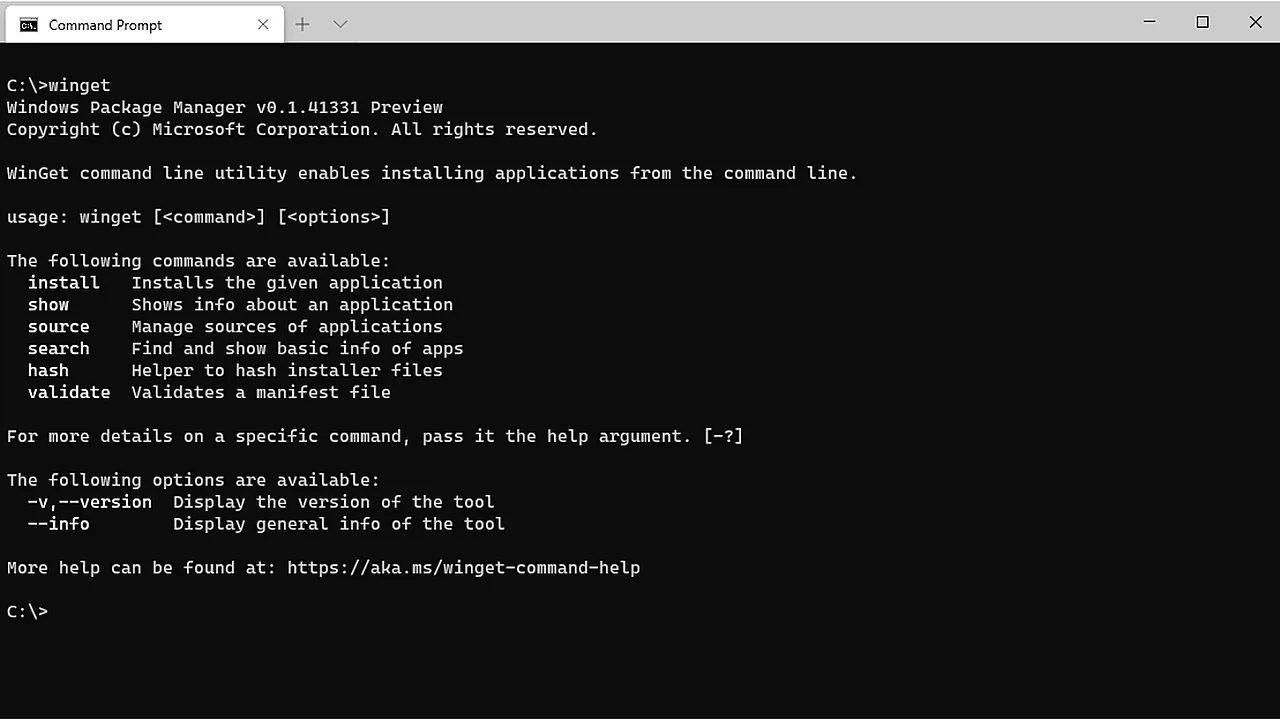
Windows has had a package manager built in for years, and most people have never typed its name. winget installs, updates, and removes software from one command line — no download portals, no “Next, Next, decline the toolbar, Finish”, no hunting for the 64-bit link. If you install software more than a few times a year, learning five winget commands pays for itself immediately.
Last checked: September 2026. Winget ships with Windows 10 (1809 and later) and Windows 11 via App Installer; its catalog passed 12,000 packages in 2026.
Why this beats downloading installers
Every package in winget’s community repository points at the vendor’s own installer and is verified by checksum — the same “official sources only” rule this site applies to every download guide, enforced by tooling instead of discipline. One command updates everything it installed. And nothing in the pipeline adds bundled extras.
The five commands that matter
Open Terminal (right-click Start → Terminal) and try them in order:
winget search vlc— find a package and its exact ID.winget install --id VideoLAN.VLC— install by exact ID (using--idavoids grabbing a similarly named package).winget list— what’s installed, including things you installed the old way.winget upgradethenwinget upgrade --all— see available updates, then apply every one of them. This single command is the feature people stay for.winget uninstall --id VideoLAN.VLC— clean removal, same syntax.
Real examples that work as typed: winget install --id 7zip.7zip, winget install --id Google.Chrome, winget install --id Telegram.TelegramDesktop — the same programs our guides cover, minus every download-page detour.
What winget is not for
- GPU and hardware drivers — get those from the vendor as covered in our AMD driver guide; a package manager is the wrong tool there.
- Microsoft Store apps — winget can install them (
--source msstore), but the Store handles its own updates anyway. - Software with interactive installers that demand choices — winget runs them silently with defaults; when you need a custom install path or components, run the installer yourself.
Troubleshooting
- “‘winget’ is not recognized.” Update App Installer from the Microsoft Store (search it there → Update), then reopen the terminal. On unmanaged corporate images and LTSC editions it may be absent by policy.
- Installer hash does not match. The vendor changed their installer and the manifest hasn’t caught up. Don’t force it — try again in a day or install manually from the vendor for now. The mismatch check is the security feature working.
- A package needs elevation. Run the terminal as administrator, or accept the UAC prompt per install.
- Upgrade shows a version “unknown”. Programs installed outside winget don’t always report versions; winget still lists them so you know they exist, but can’t upgrade what it can’t read. Update those the old way.
A sane way to adopt it
Don’t migrate anything. Just install the next program with winget, and run winget upgrade --all when you think of it. Within a few months most of your software is winget-managed without a single dedicated afternoon — and if you ever need to remove something that fights back, our guide to uninstalling stubborn programs picks up where winget uninstall leaves off.
FAQ
Do I need to install winget? No. It ships with Windows 10 (1809 and later) and Windows 11 via App Installer; update App Installer from the Microsoft Store if the command is not found.
Is it safe? Yes. Packages point at each vendor own installer and are verified by checksum.
Featured image: winget in Command Prompt — Microsoft / Wikimedia Commons, public domain