
Some programs refuse to leave: the uninstaller errors out, the entry sits greyed in Settings, or the removal “finishes” and the program is still there after a reboot. There is a reliable order of escalation for this, from gentle to scorched-earth, and it never involves buying a “PC cleaner”. Work down the list; stop at the first step that works.
Last checked: September 2026. Everything below is free, and every tool is from Microsoft or the program’s own vendor.
Step 1: Make sure it isn’t running
The single most common reason an uninstall fails is that the program — or its tray icon, updater, or background service — is still running and has its own files locked.
- Close the program, including its system-tray icon (right-click → Exit).
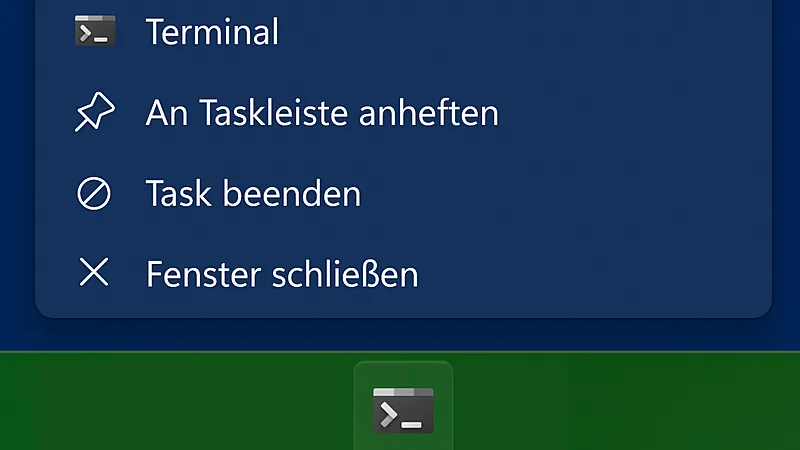
- Open Task Manager (Ctrl+Shift+Esc) → find any of its processes → End task.
- Run the uninstall again from Settings → Apps → Installed apps.
Step 2: Use the program’s own uninstaller
Settings sometimes calls a broken shortcut while the real uninstaller works. Look in the program’s install folder (usually under C:\Program Files) for an unins000.exe or uninstall.exe and run it directly, as administrator.
Step 3: Microsoft’s uninstall troubleshooter
For installs that error with “another installation is in progress”, missing MSI sources, or corrupted registry entries, Microsoft ships a dedicated fixer: the Program Install and Uninstall troubleshooter. Download it from that Microsoft support page only, choose Uninstalling, pick the stubborn program from the list, and let it strip the broken installer data. This official tool resolves a remarkable share of “impossible” cases.
Step 4: The vendor’s removal tool
Security software and some big suites hook so deep that they ship dedicated removers — Norton, McAfee, Avast, AVG, and most other antivirus vendors all publish one. Search the vendor’s own site for “[product] removal tool” and use theirs, not a third party’s. If you’re removing an antivirus, remember Windows Defender reactivates by itself afterward, so you’re not left unprotected.
Step 5: Try winget
Windows’ built-in package manager can often remove what Settings can’t, because it calls the uninstaller with clean silent switches: open Terminal and run winget uninstall "program name". (New to it? Our winget guide covers the five commands worth knowing.)
Step 6: Safe Mode
If something still locks files or restarts itself, uninstall from Safe Mode, where third-party services don’t load: Settings → System → Recovery → Advanced startup → Restart now → Troubleshoot → Startup Settings → Safe Mode, then remove the program from Settings → Apps as usual.
Step 7: Clean up what’s left
After a forced removal, harmless leftovers may remain in C:\Program Files and %AppData% — folders you can simply delete once nothing is running from them. Skip registry-cleaning utilities; on modern Windows they create more problems than the orphaned keys they hunt, and orphaned keys cost you nothing.
When it’s malware wearing a costume
A “program” that reinstalls itself after every removal, has no uninstall entry at all, or breaks your browser when you try, has left normal-software territory. Switch playbooks: our spyware removal guide handles exactly that escalation, ending — if truly necessary — at Windows’ built-in Reset.
FAQ
What if a program has no uninstall entry? Use Microsoft Program Install and Uninstall troubleshooter, or the vendor own removal tool.
Should I use a registry cleaner afterward? No. On modern Windows they cause more problems than the orphaned keys they remove.
Featured image: Photo: Ervins Strauhmanis / Wikimedia Commons, CC BY 2.0