Quick summary
- A phone withholds its storage by default because an unknown computer at the other end may not be safe.
- The prompt that decides this appears on the handset, which is where almost nobody is looking.
- A connected phone has no drive letter and never reaches Disk Management, so drive advice does not apply.
Short answer: Look at the phone, not the computer. Android connects in charging mode and waits for you to tap the notification and pick File transfer; an iPhone charges until you answer Trust This Computer on its screen. Neither choice survives unplugging, which is why the problem keeps returning.
Last checked: October 2026. Tested against Windows 11 version 26H2.
The phone decides this, not the PC
Most people start looking in Windows, and Windows is rarely where the answer is. A modern phone connects in charging mode by default and waits to be told otherwise, because that is the safer state when the other end might be a stranger’s charger in an airport.
Until you change that mode, the PC genuinely cannot see the phone’s storage. Nothing is broken, and no driver will help.
Android: choose File transfer
- Connect the cable and look at the phone, not the computer.
- A notification appears, usually reading Charging this device via USB. Tap it.
- Choose File transfer. The phone should appear in File Explorer within a second or two.
It resets every time you unplug. That is deliberate, and it is why the problem appears to come back. If you connect to the same computer constantly, open Developer options and set Default USB configuration to File transfer; on a machine other people can reach, leaving the default alone is the safer choice.
iPhone: the Trust prompt
An iPhone or iPad asks Trust This Computer? the first time it meets a particular PC, and until you tap Trust and enter the passcode it will charge and nothing more.
The prompt is easy to miss, because it appears on the phone while you are watching the computer. Unplug, plug in again, and keep your eyes on the phone screen.
If it never appears and the phone has been connected to this PC before, the trust decision is already stored, possibly as a refusal. On the phone, open Settings → General → Transfer or Reset → Reset → Reset Location & Privacy. That clears the stored answers so the prompt comes back on the next connection.
What you should see when it works
A phone is not a drive. It appears in File Explorer under This PC as a device rather than a lettered drive, because it uses a transfer protocol instead of presenting storage directly.
That distinction matters when you go looking for it. It will not have a drive letter, and it will not appear in Disk Management at all — so the steps for a missing drive do not apply here. If a genuine external disk is what is missing, an external hard drive not showing up is the right guide instead.
In Device Manager a connected phone sits under Portable Devices. Seeing it there with no warning triangle means Windows is happy and the phone is simply not sharing its files yet.
If the phone does nothing at all
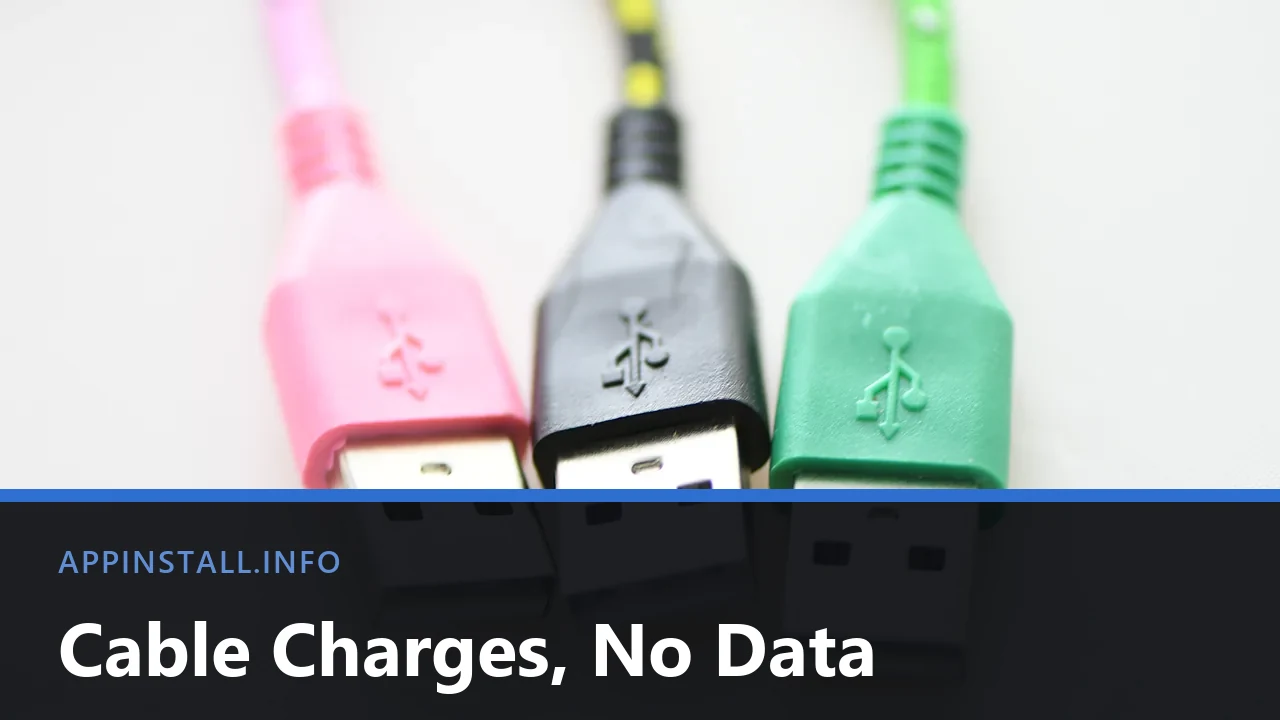
Everything above assumes the phone at least charges. If it does not charge either, the data path is not the problem and the cable or the port is — a USB device not recognized in Windows covers the swaps worth making, including the charge-only cables that carry power and no data.
Between the two sits a phone that charges but produces no reaction at all on the PC: no sound, no notification, nothing in Device Manager. That pattern also points at the cable rather than the phone.
Only the photos appear
This is normal on an iPhone. Windows is shown the camera folder and nothing else; music, documents and app data need Apple’s own software or a third-party tool.
On Android you generally see the whole user storage, but not the system areas, and some app folders are hidden by design. A folder that exists on the phone and not on the PC is usually one the operating system keeps private rather than one that failed to copy.
Troubleshooting
It worked last week and now it does not. Check the notification again. A phone update can reset the default, and the mode never persists across unplugging anyway.
The phone appears and disappears while connected. Usually the cable flexing near the plug. Data wires are thinner than power wires and fail first, so charging carries on while the connection drops.
Windows shows the phone but the folders are empty. Unlock the phone screen. Many devices present an empty structure while locked and fill it the moment you unlock.
Nothing appears, and Device Manager shows a warning triangle. That is a driver problem rather than a settings one; updating drivers on Windows 11 covers removing and reinstalling the entry.
Transfer starts and then fails partway. Copy in smaller batches. The protocol phones use is reliable for a few files and fragile across thousands at once.
FAQ
Why does my phone default to charging only? Security. An unlocked data connection to an unknown computer is a genuine risk, so the phone waits to be told.
Can I make the choice permanent? On Android, through Developer options. On iPhone, trusting a computer is already remembered until you reset it.
Do I need the manufacturer’s software? Not for Android file transfer. For an iPhone, anything beyond photos does need Apple’s software.
Is wireless transfer easier? For a handful of files, often yes. For tens of gigabytes the cable is still faster and does not depend on the network.
Does the charger brick matter? No. It is not part of the circuit when the phone is plugged into a computer.
Featured image: Photo: Jonatan Svensson Glad / Wikimedia Commons, CC BY-SA 4.0, title text added by AppInstall.info