Quick summary
- Pocket lint packed into a laptop socket holds the plug short, and the speakers simply carry on.
- Two rings on the plug means no microphone; three means a headset, and laptops now expect the second kind.
- A channel that cuts out when the cable moves near the plug is broken wire, not a Windows setting.
Short answer: Set the output by hand first: press Win + A and pick the headphones beside the volume slider, because Windows does not always switch for you. If that list looks right, check the socket for pocket lint, which stops the plug a millimetre short and leaves the speakers playing.
Last checked: October 2026. Tested against Windows 11 version 26H2.
Did Windows actually switch over?
Plugging headphones in is supposed to move the sound automatically, and quite often it does not.
- Press Win + A and click the arrow beside the volume slider.
- Pick the headphones from the list of outputs. They may be named after the socket rather than the headphones — something like Realtek Audio or Speakers/Headphones.
- If one app stays silent while everything else works, open Settings → System → Sound → Volume mixer and set that app’s output separately.
Where nothing produces sound at all, through headphones or speakers, this is the wrong guide — fixing no sound in Windows 11 starts at the output device and the audio service.
Count the rings on the plug
This is the part almost nobody checks, and it explains a whole category of odd behaviour.
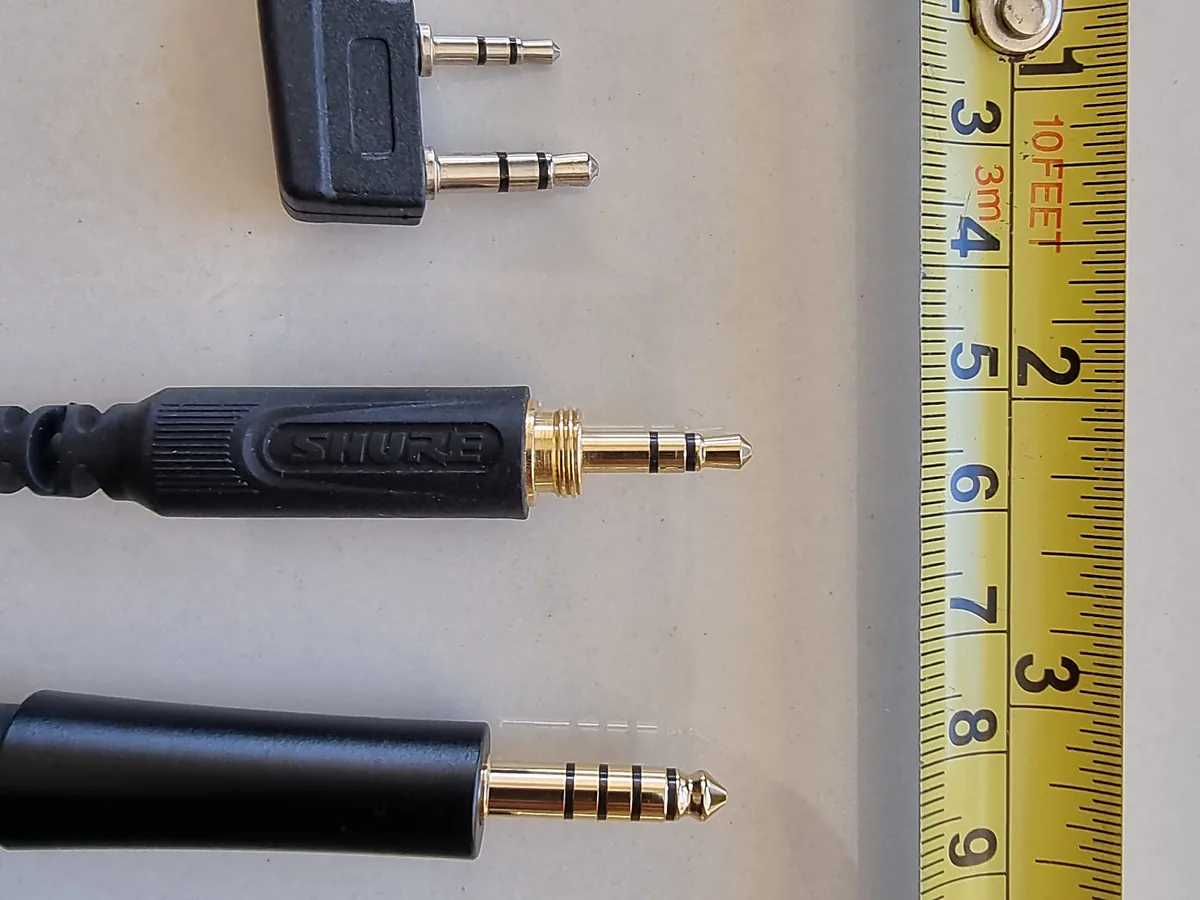
- Two black rings means three conductors: left, right and a shared earth. Stereo headphones, no microphone.
- Three black rings means four conductors, with the extra one for a microphone. That is a headset.
Most laptops now have a single combination socket that expects the four-conductor kind. Put a two-ring plug in and you usually get sound but no microphone, which is fine until a meeting starts. The reverse — a headset in an older machine with separate green and pink sockets — often gives thin or one-sided sound, because the socket is reading the wrong contact as earth.
Lint in the socket
A laptop that lives in a bag collects pocket fluff in its headphone socket, and the plug then stops about a millimetre short of where it should sit. The symptom is distinctive: sound continues from the speakers as though nothing is plugged in, or you hear one channel only.
- Shine a torch into the socket and look. Compacted lint is usually visible as a grey plug at the bottom.
- Switch the machine off.
- Pick it out with a wooden cocktail stick or a dry plastic tool. Nothing metal, nothing wet.
- Push the plug in again until it stops. A good connection usually has a faint click.
Two minutes of this fixes a surprising number of laptops that are otherwise about to be taken for repair.
When the socket stops detecting anything
If the plug is clean and fully seated but Windows never notices it, the detection switch inside the socket may have failed, or the audio driver is not handling it.
- Open Device Manager, expand Sound, video and game controllers, right-click the audio device and choose Uninstall device, then restart.
- If the vendor supplies its own audio software with a jack-detection setting, reinstall that from the laptop maker rather than relying on Windows; updating drivers on Windows 11 explains where to look.
- Test the headphones on a phone. Working there confirms the headphones and points at the socket.
Sound in one ear, or crackling
- One side only, and it changes when you wiggle the cable near the plug. The cable has broken inside its sleeve. This is the most common way headphones die and it cannot be repaired usefully.
- Crackling that follows the cable, not the music. Same cause, caught earlier.
- One side only, steady, on every device. A failed driver in the earpiece itself.
- Balance set wrongly in Windows. Worth ruling out before blaming hardware: open the output device’s properties and check the left and right levels match.
Troubleshooting
They work on a phone but not the laptop. Socket or software. Work through the lint check and the driver reinstall above, in that order.
The microphone works but there is no sound. Windows has selected the headset as an input but left the output on the speakers. Set the output explicitly in the volume flyout.
A USB headset is not recognised at all. That is a different path entirely, since it bypasses the audio socket and appears as its own device — a USB device not recognized in Windows applies instead.
Sound is quiet and tinny through good headphones. Check whether a sound enhancement or spatial audio setting is on in the output device’s properties. Those flatter cheap speakers and spoil decent headphones.
It only happens after waking from sleep. Unplug and replug once; if that fixes it every time, the detection is being missed on wake, and a driver reinstall is the thing to try.
FAQ
Can I use a headset with separate microphone and headphone plugs on a laptop? Yes, with a splitter adapter that turns one combination socket into two. They cost very little.
Does the four-ring plug work in an older computer? For listening, usually. The microphone will not work in a headphone-only socket.
Is it safe to clean the socket with a cotton bud? It pushes lint deeper and leaves fibres. A wooden stick is better.
Why do my headphones sound better on my phone? Phones often have a stronger headphone amplifier than a thin laptop does. For sensitive headphones that difference is audible.
Would Bluetooth headphones avoid all this? They avoid the socket, and bring their own set of problems — connecting Bluetooth headphones to Windows 11 covers those.
Featured image: Photo: Pxchanh / Wikimedia Commons, CC0, title text added by AppInstall.info