Quick summary
- A single pair appears twice among the output devices, and one of those entries sacrifices quality for the microphone.
- Pairing mode expires quickly, so restart it on the headphones rather than waiting for the PC to notice.
- Headphones already holding a live link to a phone usually stay invisible to the PC until you disconnect them.
Short answer: Hold the headphones’ power button until the light flashes, then open Settings, Bluetooth & devices, Add device, Bluetooth, and pick them from the list. If they connect but the speakers keep playing, press Win + A and choose the headphones under the volume slider — pairing and output are separate steps.
Last checked: October 2026. Tested against Windows 11 version 26H2.
Pair them
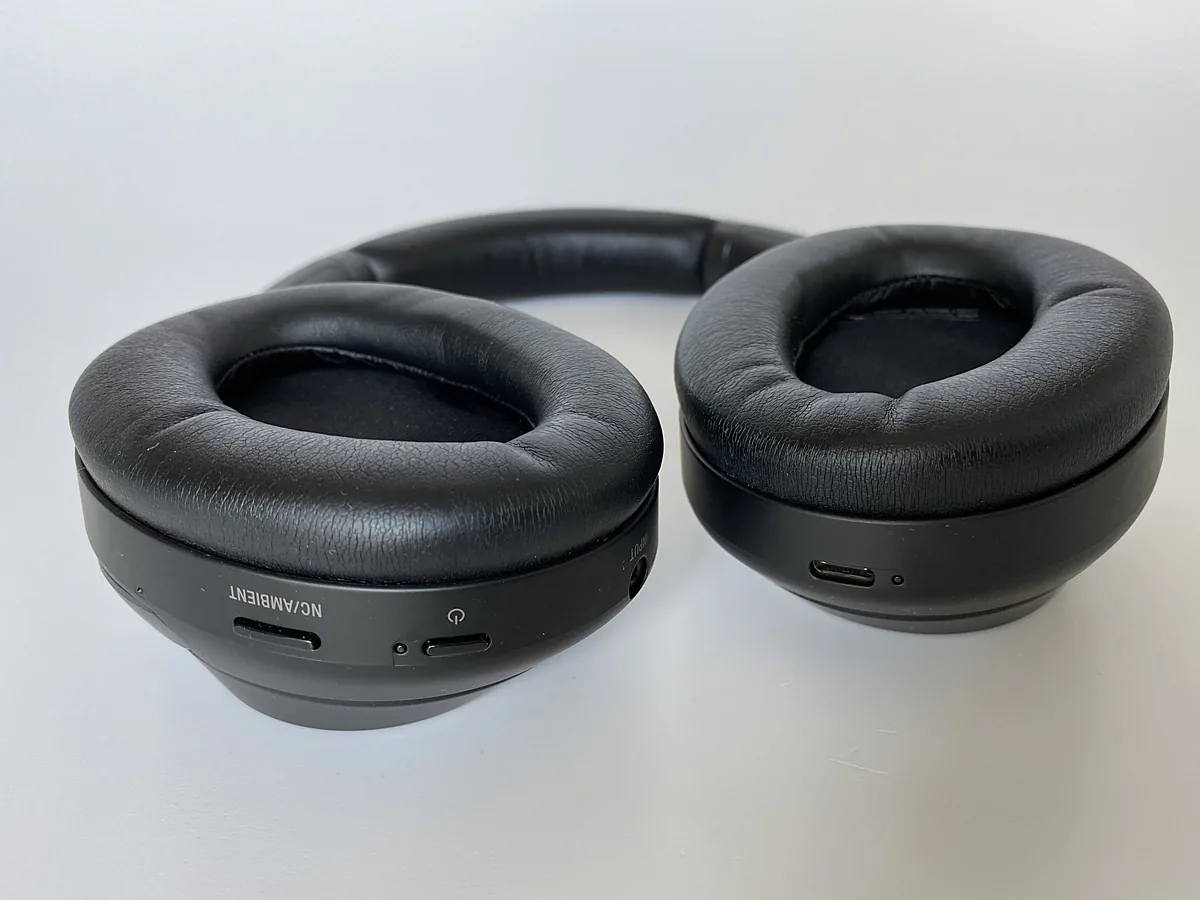
- Put the headphones into pairing mode. On most models that means holding the power button for about five seconds, past the normal switch-on, until the indicator flashes in a different pattern or a voice announces it.
- On the PC, open Settings → Bluetooth & devices and make sure Bluetooth is on.
- Click Add device, then Bluetooth.
- Pick the headphones from the list and wait for Connected.
Pairing mode times out, usually after a couple of minutes. If the headphones never show up, put them back into pairing mode and start the Add device step again rather than waiting longer.
A set already paired to a phone will often refuse to appear at all. Most headphones hold several pairings but connect to only one or two devices at once, so disconnect them in the phone’s Bluetooth settings first.
Connected, but the sound still comes from the speakers
Pairing and output are two separate things, and Windows does not always switch for you.
- Press Win + A and click the arrow beside the volume slider. Every available output appears; choose the headphones.
- If they are missing there, open Settings → System → Sound and look under Output.
- One app refusing to follow is a separate setting. Scroll to Volume mixer, expand the app, and set its output device individually.
If no device produces sound at all, this is not a Bluetooth fault — fixing no sound in Windows 11 starts at the output device and the audio service instead.
The two-entries problem, and why music suddenly sounds terrible
One pair of headphones shows up twice in the sound list: once as Stereo and once as Hands-Free or Headset. This catches almost everyone.
- Stereo gives full-quality audio and no microphone.
- Hands-Free enables the microphone but drops the audio to a narrow mono channel that sounds like a telephone call.
Bluetooth cannot do both at once, so a meeting app that grabs the microphone will switch the output to Hands-Free and the music quality collapses. It is working as designed, not breaking.
If you never use the headphone microphone and want Windows to stop switching, open Control Panel → Devices and Printers, right-click the headphones, choose Properties, open the Services tab and clear Hands-Free Telephony. The Hands-Free entry disappears and the quality stops dropping. Tick it again when you need the microphone back.
When they will not reconnect on their own
A pair that worked yesterday and ignores the PC today is usually connected to something else. Check the phone and the tablet first.
If the PC genuinely will not take them back, remove the pairing and start again: Settings → Bluetooth & devices → Devices, the three dots beside the headphones, Remove device. Then pair from scratch. A stale pairing record is a far more common cause than a hardware fault.
If the Bluetooth section has disappeared from Settings altogether, the adapter is the problem rather than the headphones — Bluetooth missing in Windows 11 covers that case from the Device Manager end.
Lag, stutter and dropouts
Bluetooth shares the 2.4 GHz band with Wi-Fi, microwave ovens and a great deal else, and in a crowded flat that congestion is audible.
- Move closer, and keep your body out of the line between the PC and the headphones. The signal passes through air far better than through people.
- A USB 3 port or an unshielded USB 3 cable right beside the Bluetooth adapter is a known source of interference. Move the dongle to a different port, or use a short extension lead to get it away from the case.
- If the Wi-Fi also struggles at the same moment, the band is simply busy — Wi-Fi not working on Windows 11 explains the same congestion from the network side.
- Audio and video out of step in a video call is a protocol limit, not a fault. Bluetooth always adds delay; the wired 3.5 mm cable most headphones ship with removes it completely.
Troubleshooting
The headphones pair but immediately disconnect. Charge them. A low battery often has just enough power to pair and not enough to hold a connection, and several models give no warning.
They connect but the microphone is not listed. The Hands-Free service is probably switched off, either by you or by a previous profile. Re-tick it in the Services tab described above.
Add device finds nothing at all. Press Win + R, run services.msc and check that Bluetooth Support Service is running. Nothing is discoverable while it is stopped.
It all stopped after a Windows update. Reinstall the Bluetooth driver from your laptop maker rather than letting Windows choose; updating drivers on Windows 11 explains why the generic one is sometimes worse.
Volume is far too quiet even at maximum. Check the absolute volume behaviour: some headphones keep their own level separate from the PC slider, so both need raising.
FAQ
How many devices can stay paired? Windows keeps as many pairings as you create. The limit is in the headphones, and most hold between five and eight.
Can I use them with the PC and the phone at the same time? Only if the headphones support multipoint. If they do not, connecting one drops the other.
Do I need a Bluetooth dongle for a desktop? Unless the motherboard has it built in, yes. They are inexpensive and need no extra software on Windows 11.
Why is call quality so much worse than music? Because the microphone forces the Hands-Free mode described above. It is a property of Bluetooth audio, not of your headphones.
Will a firmware update help? Sometimes, for reconnection bugs in particular. The maker’s companion app is where those updates live, and it usually runs on a phone rather than the PC.
Featured image: Photo: digitalpush.net / Wikimedia Commons, CC BY 4.0, title text added by AppInstall.info