Quick summary
- Wi-Fi and Bluetooth usually share one combo card, so losing both at once means a single failure.
- The two netsh reset commands change nothing until the machine restarts, which is why they seem to fail.
- Network reset reinstalls every adapter, and it clears the saved networks too, so keep the password within reach.
Short answer: Check a phone on the same network first: if that fails too, the fault is the router, not Windows. If only the PC fails, turn off aeroplane mode, then reinstall the wireless adapter in Device Manager. A connection with no internet is usually DNS or a leftover VPN adapter.
Last checked: October 2026. Tested against Windows 11 version 26H2.
One test decides half of these cases
Pick up a phone and open any web page over the same network. The answer splits the problem in two, and it takes ten seconds.
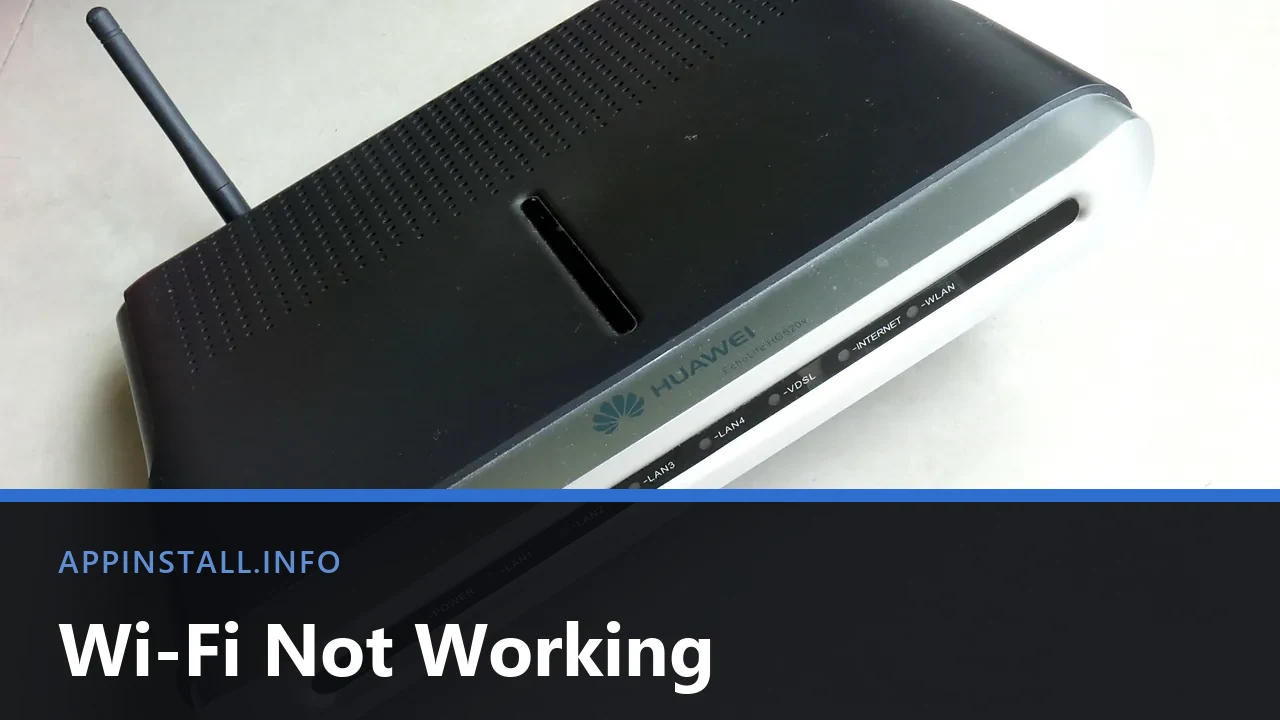
- The phone also fails. The PC is innocent. Restart the router, wait two full minutes for it to resync, and check whether the WLAN and internet lights come back on. Nothing in Windows will help here.
- The phone is fine. It is this machine, and everything below applies.
Skipping this step is why people spend an hour reinstalling drivers for a line fault.
The switches people forget
- Press Win + A for Quick Settings. Check that Aeroplane mode is off and the Wi-Fi tile is on. Aeroplane mode switches itself on by accident more often than anyone admits.
- Look for a hardware switch. Some laptops still have a physical slider on the edge of the chassis, and many have a radio key in the function row that toggles the adapter independently of Windows.
- Open Settings → Network & internet → Wi-Fi and confirm the network is in the list at all. A network that has stopped broadcasting its name will not appear, and that is a router setting, not a fault.
When Wi-Fi has vanished from Settings entirely
No Wi-Fi tile, no Wi-Fi section, only Ethernet: Windows has lost the adapter rather than the network.
- Right-click Start, open Device Manager and expand Network adapters.
- Look for an entry with Wireless, WLAN or Wi-Fi in its name. A yellow triangle means a driver problem; no entry at all means Windows cannot see the hardware.
- Open View → Show hidden devices and look again before concluding it is gone.
- If it is listed but faulty, right-click it, choose Uninstall device, tick the box to remove the driver, and restart. Windows reinstalls it on boot.
Reinstall from the laptop maker’s support page rather than letting Windows pick, which is the part updating drivers on Windows 11 goes into. One detail worth knowing: most laptops put Wi-Fi and Bluetooth on a single combo card, so if both disappeared together you are looking at one failure, not two — Bluetooth missing in Windows 11 covers the other half.
Reset the networking stack
If the adapter is present and the network simply refuses to connect, clear the configuration underneath it. Open Terminal (Admin) from the Start right-click menu and run these in order:
netsh winsock resetnetsh int ip resetipconfig /releaseipconfig /renewipconfig /flushdns
Restart afterwards. The first two do nothing until you do.
If that fails, Settings → Network & internet → Advanced network settings → Network reset removes and reinstalls every adapter. It also forgets every saved network, so have your Wi-Fi password to hand before you press it.
Connected, but no internet
A connection with no traffic is a different fault from no connection at all.
- Name resolution. If an IP address loads a page but a domain name does not, DNS is the problem. Set it manually under the adapter’s DNS server assignment, or run
ipconfig /flushdnsfirst. - A VPN that exited badly. Disconnected VPN clients sometimes leave their virtual adapter in charge of routing. Disable the VPN adapter in Network Connections and test again.
- Metered connection. A connection marked as metered holds back updates and some background traffic, which looks like a broken connection to whatever is waiting. The toggle is in the network’s properties.
- MAC filtering. On a network that only admits known devices, Windows 11’s Random hardware addresses setting defeats the whitelist. Turn it off for that network.
It drops out after sleep
Windows is allowed to power the adapter down, and some drivers do not bring it back cleanly.
In Device Manager, open the wireless adapter, go to the Power Management tab and clear Allow the computer to turn off this device to save power. It is the same tab, and the same fix, as the wake behaviour described in disabling the touch screen in Windows 11.
Troubleshooting
It works on other networks but not this one. Forget the network and rejoin it. Open Settings → Network & internet → Wi-Fi → Manage known networks, remove it, then connect again with the password. A saved profile holding a stale security setting behaves exactly like a wrong password.
It says the password is wrong and it is not. Check which band you are joining. Some routers publish 2.4 GHz and 5 GHz under one name with different settings, and an adapter that cannot do the faster band will fail quietly.
Everything broke after an update. Windows Update sometimes swaps a working wireless driver for a generic one. Reinstall the vendor driver and check whether the connection returns.
The adapter exists but nothing will connect. Press Win + R, run services.msc and check that WLAN AutoConfig is running with its startup type set to Automatic. When that service is stopped, Windows finds no networks at all.
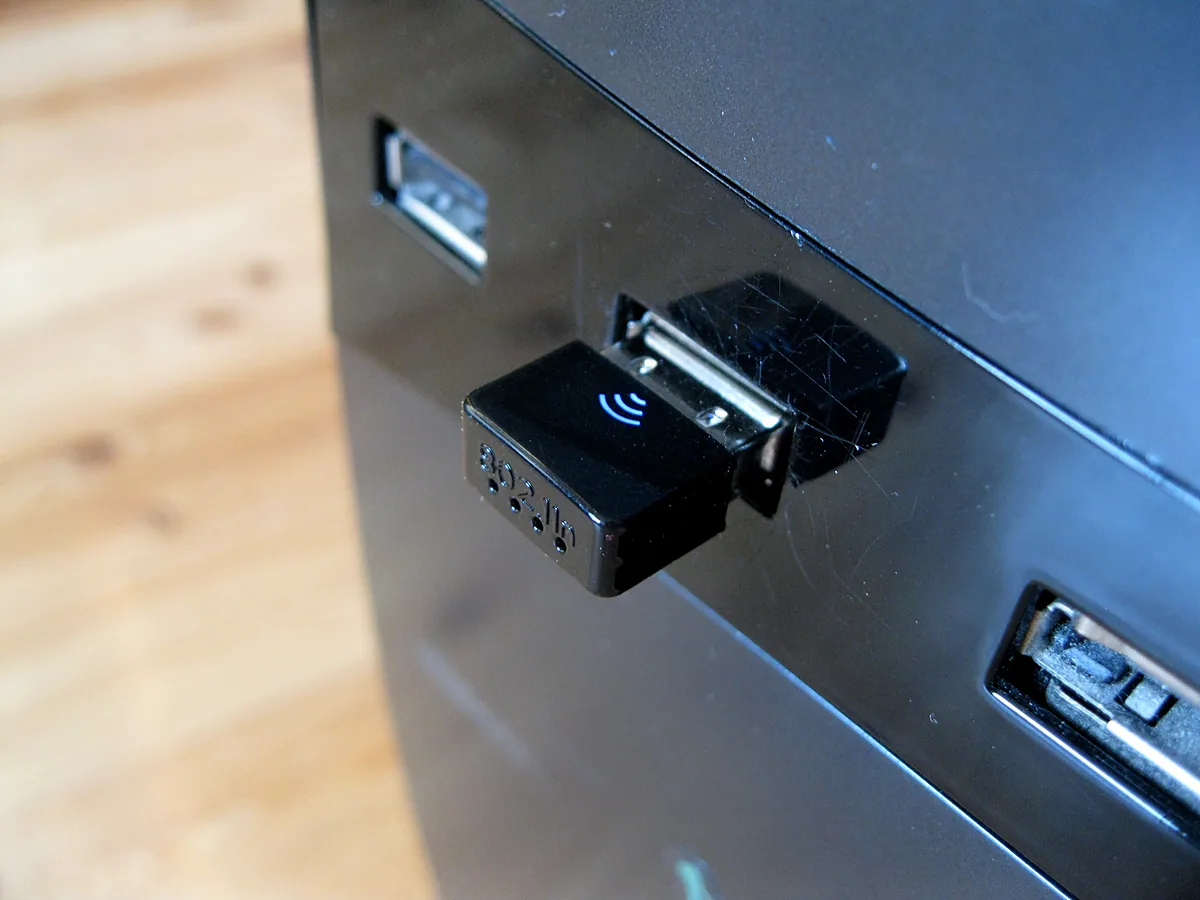
A USB adapter is not recognised. Try a different port, preferably one on the back of a desktop rather than a front panel or a hub. If Windows still ignores it, a USB device not recognized in Windows works through the port, the cable and the driver in order.
FAQ
Will a USB Wi-Fi adapter fix a dead internal card? Yes, and it is also the fastest way to prove the internal card is the problem. They cost very little and need no tools.
Does moving the router help? Noticeably, if the signal is weak. Walls, metal and microwave ovens all interfere, and 5 GHz loses range faster than 2.4 GHz does.
Should I use the network troubleshooter? It is worth one run. It fixes little on its own but it names the fault, which narrows what to try next.
Why does my laptop prefer the slower band? Windows picks on signal strength, not speed. Closer and weaker beats faster and distant, by design.
Is it worth updating the router firmware? Occasionally, yes, but do it when the PC is wired in. A firmware update interrupted over Wi-Fi can leave the router unusable.
Featured image: Photo: Mk2010 / Wikimedia Commons, CC BY-SA 3.0, title text added by AppInstall.info