Quick summary
- Charge-only cables look identical to proper data cables, and they explain a surprising share of these failures.
- A full power drain, not merely a restart, clears a USB controller that is stuck in a bad state.
- Windows may power a port down on its own, and waking it again does not always work.
Short answer: Swap three things before changing any setting: the port, the cable, and the computer. That tells you whether the device, the cable or Windows is at fault. Most cases turn out to be a charge-only cable or a port that cannot supply enough power.
Last checked: October 2026. Tested against Windows 11 version 26H2.
Narrow it down before touching Windows
“USB device not recognized” is a symptom, not a diagnosis. Three swaps tell you which part to blame, and they take about a minute:
- A different port. Prefer one on the back of a desktop or directly on a laptop body. Front-panel and hub ports share power and fail first.
- A different cable. Charge-only cables carry power but no data, and they look identical to proper ones. This single mistake accounts for a large share of cases.
- The device’s own permission, if it is a phone. A handset that charges happily can still refuse to share its files until you say so on its screen — a phone that charges but will not show up on your PC covers that side, which no amount of swapping will fix.
- A different computer. If the device fails everywhere, it is the device. If it works elsewhere, the fault is on this PC.
Only once you know which side is at fault is it worth changing settings.
The fixes that work most often
- Power-cycle properly. Unplug the device, shut Windows down fully, then disconnect the PC from mains for thirty seconds. On a laptop, hold the power button for ten seconds. This drains the residual charge that keeps a confused USB controller in its confused state.
- Let Windows rebuild the device. Open Device Manager, find the entry, right-click and choose Uninstall device, then Action → Scan for hardware changes.
- Reinstall the USB controllers. Still in Device Manager, expand Universal Serial Bus controllers, uninstall each USB Root Hub entry, then restart. Windows reinstalls them on boot. This sounds drastic and is routine.
“Unknown USB Device (Device Descriptor Request Failed)”
This specific wording means the device never completed its introduction to Windows. The handshake failed, so Windows has no idea what was plugged in.
It is usually power or cabling rather than software. Work through the swaps above first, then try the device without any hub in between. External drives are the common victim: a 2.5-inch disk can draw more current than a front-panel port supplies, and a Y-cable that feeds it from two ports often solves it outright.
Stop Windows switching the port off
Windows is allowed to power down USB ports to save energy, and it sometimes fails to wake them.
- In Device Manager, open each USB Root Hub, go to the Power Management tab, and clear Allow the computer to turn off this device to save power.
- Open Control Panel → Power Options → Change plan settings → Change advanced power settings, expand USB settings, and set USB selective suspend to Disabled.
Fast Startup causes a related pattern: the PC resumes from a saved state instead of initialising hardware cleanly, so a controller that failed stays failed across restarts. Hold Shift while clicking Restart to force a full boot and rule it out.
Troubleshooting
The device works on one port only. That is normal when the device needs more power than some ports supply. Keep it on a rear or powered port; it is not a fault to chase.
It appears, disappears, then appears again. A loose connector or a damaged cable. Wiggle-test gently with the device connected and watch whether the connection sound repeats.
Everything stopped working after a Windows update. Open Device Manager, double-click the controller, and use Roll Back Driver on the Driver tab if the button is available. Our guide to updating drivers on Windows 11 covers getting the vendor’s chipset driver, which is what actually governs USB on most desktops.
Only one category of device fails. If every keyboard and mouse works but no storage does, the controller is fine and the problem is narrower — look at the device class instead.
A USB printer is not detected. Printers add their own driver layer on top of the USB connection, so clear the port and cable first. Once Windows can see the hardware, our guide to installing a printer on Windows 11 covers adding it cleanly.
A wireless receiver is not detected. Treat it as a radio problem rather than a port problem; our guide to Bluetooth missing in Windows 11 covers the same adapter-level checks.
FAQ
Does a USB 3 device work in a USB 2 port? Yes, at the slower speed. It is not a cause of non-recognition, though a power-hungry drive may struggle.
Is it safe to uninstall USB Root Hub entries? Yes. Windows recreates them at the next boot. Have a PS/2 or laptop keyboard available in case the USB one drops out meanwhile.
Why does the same device work on a phone but not the PC? Phones supply power differently and use simpler drivers. It tells you the device has power, not that its data path is fine.
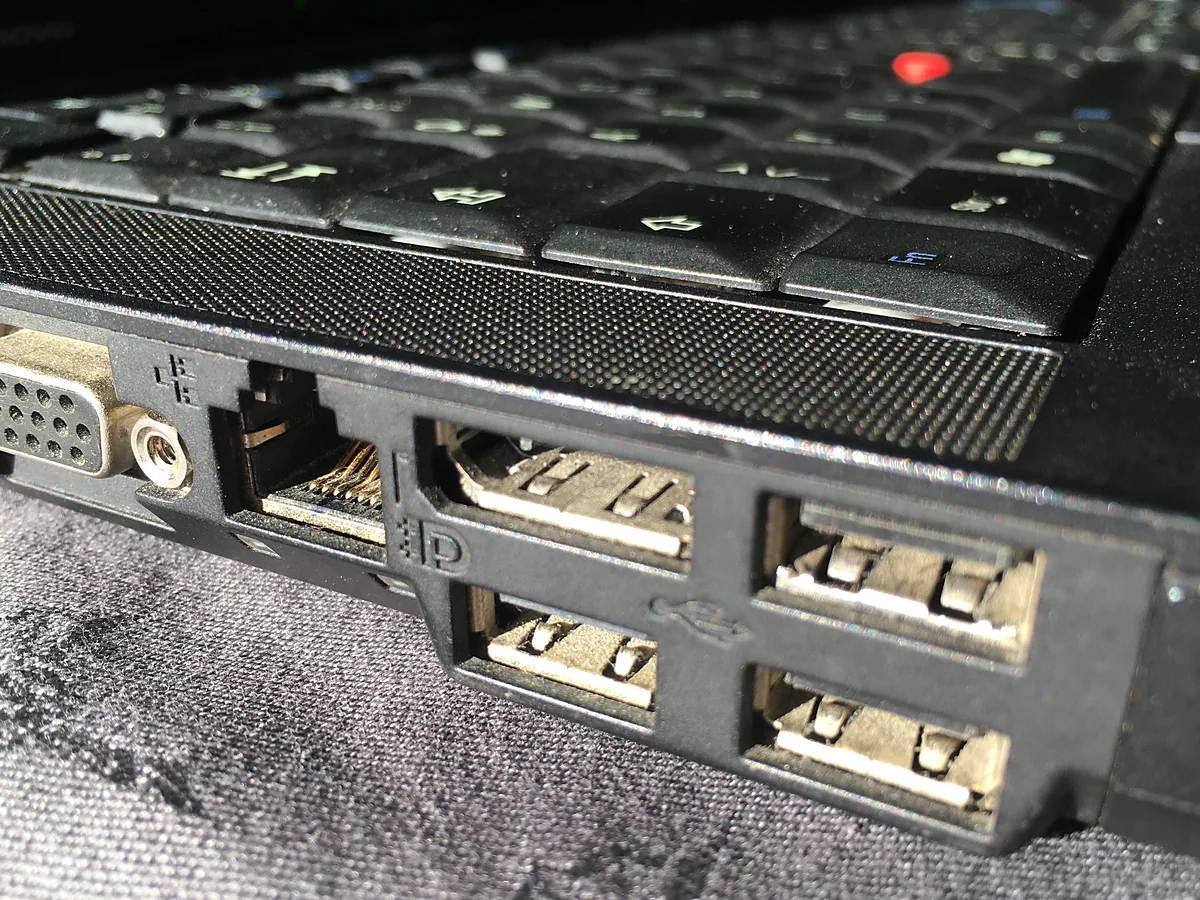
Can dust in the port really matter? Yes. Compressed air and a non-metal pick fix more ports than people expect, especially on laptops carried in bags.
Should I use a powered hub? For external drives, webcams and anything with a motor, yes. A powered hub supplies its own current instead of splitting what a single port can provide.
Featured image: Photo: Tony Webster / Wikimedia Commons, CC BY 2.0, title text added by AppInstall.info