Quick summary
- Let the printer test itself first; that single page decides whether the fault is hardware or Windows.
- A protective strip left on a new cartridge is the most common cause of all, and the quickest to rule out.
- Head cleaning helps twice at most; beyond that it only burns ink without changing the printed result.
Short answer: Print a self-test page from the printer itself before changing anything. If that page is blank too, the cause is ink, toner, a protective seal or a dried print head. If it prints normally, the fault is on the Windows side: the wrong device, a stuck queue, or the driver.
Last checked: October 2026. Tested against Windows 11 version 26H2.
First, find out which side is at fault
A printer that feeds paper and returns it blank has either run out of something to print with, or never received anything to print. Those are very different problems, and one test separates them.
Print a self-test or status page from the printer’s own control panel, not from Windows. Most inkjets have it under Setup, Tools or Reports; many laser printers print one by holding the Go or Cancel button for a few seconds.
- The self-test page is blank too. The fault is in the printer: ink, toner, print head or a protective seal. Windows is not involved.
- The self-test page prints normally. The printer is fine. The problem is the driver, the application, or what Windows is sending — skip to the Windows section.
When the self-test page is blank: ink and cartridges
- Check real ink levels, not the estimate. Software gauges are guesses based on page counts. A cartridge can report 20 percent and be dry, especially after sitting unused.
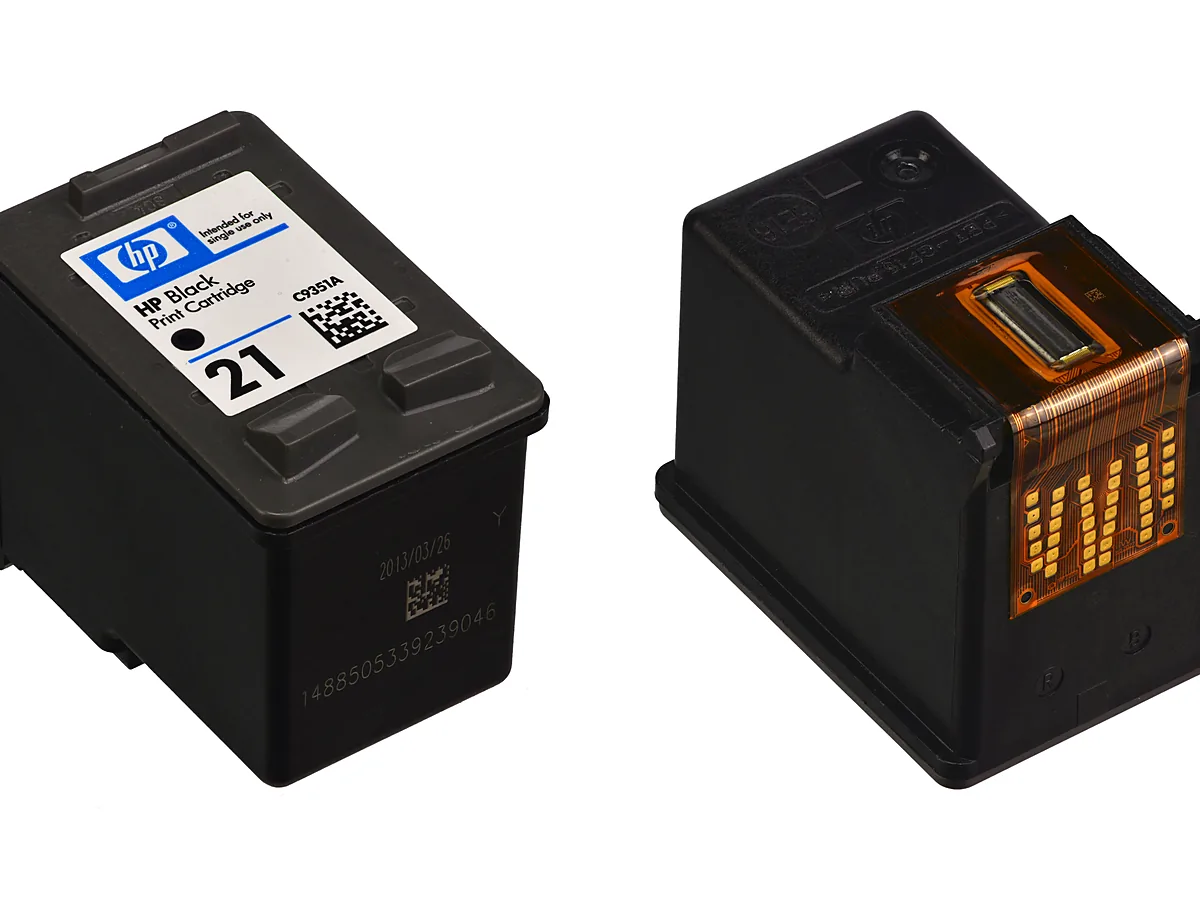
- Look for the protective strip. New cartridges ship with tape over the nozzle plate. If it is still attached, nothing can come out. This is the single most common cause on a brand-new printer.
- Reseat the cartridge. Remove it, check the copper contacts are clean and dry, and click it back in until it latches. Poor contact means the printer never sees the cartridge as ready.
- Consider the age of third-party ink. Refilled and compatible cartridges dry out faster and clog more often than originals. That is a cost trade-off, not a defect.
Clean the print head
Inkjet nozzles dry out when a printer sits idle for weeks. The print head cleaning routine lives in the printer’s own menu, and also in its Windows properties under Maintenance or Tools.
Run it, print a nozzle check, and repeat at most twice. Each cycle uses a measurable amount of ink, and if three cycles change nothing, more cycles will not help either — at that point the head needs manual cleaning or replacement.
Laser printers have no nozzles to clog. If a laser prints blank, look for the orange seal still in the toner cartridge, a toner cartridge that is genuinely empty, or a drum unit at the end of its life.
When the self-test page prints but Windows pages are blank
- Confirm you are printing to the right device. Windows keeps virtual printers such as Microsoft Print to PDF and XPS Document Writer in the same list, and a stale default sends pages nowhere visible.
- Clear the queue. Open Settings → Bluetooth & devices → Printers & scanners, choose the printer, and open the print queue. Cancel everything, then try one short document.
- Restart the print spooler. Press Win + R, type
services.msc, find Print Spooler, right-click and choose Restart. A stuck spooler sends empty jobs surprisingly often. - Reinstall the driver. Remove the printer, then add it again so Windows fetches a current driver. Our guide to installing a printer on Windows 11 covers the clean route, and updating drivers on Windows 11 explains why the vendor’s own package is usually the better one.
Troubleshooting
Only some pages are blank. That is usually the document, not the printer. Check for empty pages in the source file, and in the print dialog set the range explicitly rather than printing the whole file.
Text prints but images do not. Look in the printer’s Windows properties for a draft or toner-save mode, and in the application’s print dialog for an option to skip background graphics.
Pages come out blank only from one program. Print the same file from a different application. If it works there, the fault is that program’s print handling, not the printer or the driver.
It worked yesterday and stopped today. A Windows update can replace a working printer driver with a generic one. Reinstall the manufacturer’s driver before changing anything else.
The printer shows as offline instead. That is a different fault with its own causes — our guide to fixing a printer that shows as offline in Windows walks through it.
FAQ
Does printing a page occasionally really prevent clogs? Yes. Printing something in colour and black once a week keeps inkjet nozzles wet and is cheaper than a cleaning cycle.
Is it worth cleaning a print head by hand? On a cheap inkjet, the cartridge often carries the nozzles, so a new cartridge is simpler. On printers with a separate head, careful cleaning is worth trying before replacement.
Why did a brand-new cartridge print nothing? Almost always the protective tape, or contacts that did not seat. Both take seconds to check.
Can a low-quality USB cable cause blank pages? It can cause failed or truncated jobs. If the self-test page is fine but Windows jobs are not, swapping the cable is a cheap thing to rule out.
Featured image: Photo: MarcoTangerino / Wikimedia Commons, Public domain, title text added by AppInstall.info