Your printer is plugged in, powered on, and Windows still says Offline — so nothing prints. It’s one of the most common and most fixable printer problems on Windows 11, and it’s almost never a broken printer. Work through these in order; the first two solve most cases, and the rest cover the stubborn ones.
Last checked: September 2026. Steps are for Windows 11; Windows 10 is almost identical.
Why printers go “offline”
“Offline” rarely means the printer is dead. It means Windows tried to reach it and didn’t get an answer, so it flags the printer as unavailable and stops sending jobs. The usual culprits are a stuck print service, a manual “Use Printer Offline” toggle, a changed network address, or a jammed queue. Fixing it is about restoring that connection, not repairing hardware.
1. Uncheck “Use Printer Offline”
Windows can get stuck in a manual offline mode — sometimes it switches itself there after a failed job:
- Open Settings → Bluetooth & devices → Printers & scanners and click your printer.
- Click Open print queue.
- In the Printer menu, check whether Use Printer Offline is ticked. If it is, click it to turn it off.
2. Restart the Print Spooler
The Print Spooler is the Windows service that manages all printing, and restarting it clears most phantom-offline and stuck-queue states:
- Press Win+R, type
services.msc, press Enter. - Find Print Spooler in the list, right-click → Restart.
- Try printing a test page.
If it goes offline again within minutes, move on to the network checks — the spooler is fine; the connection isn’t.
3. Fix the network (for Wi-Fi printers)
An “offline” network printer has usually lost or changed its connection:
- Confirm the printer and PC are on the same network. A printer on a 2.4 GHz guest network won’t be reachable from a PC on the main network — a surprisingly common cause.
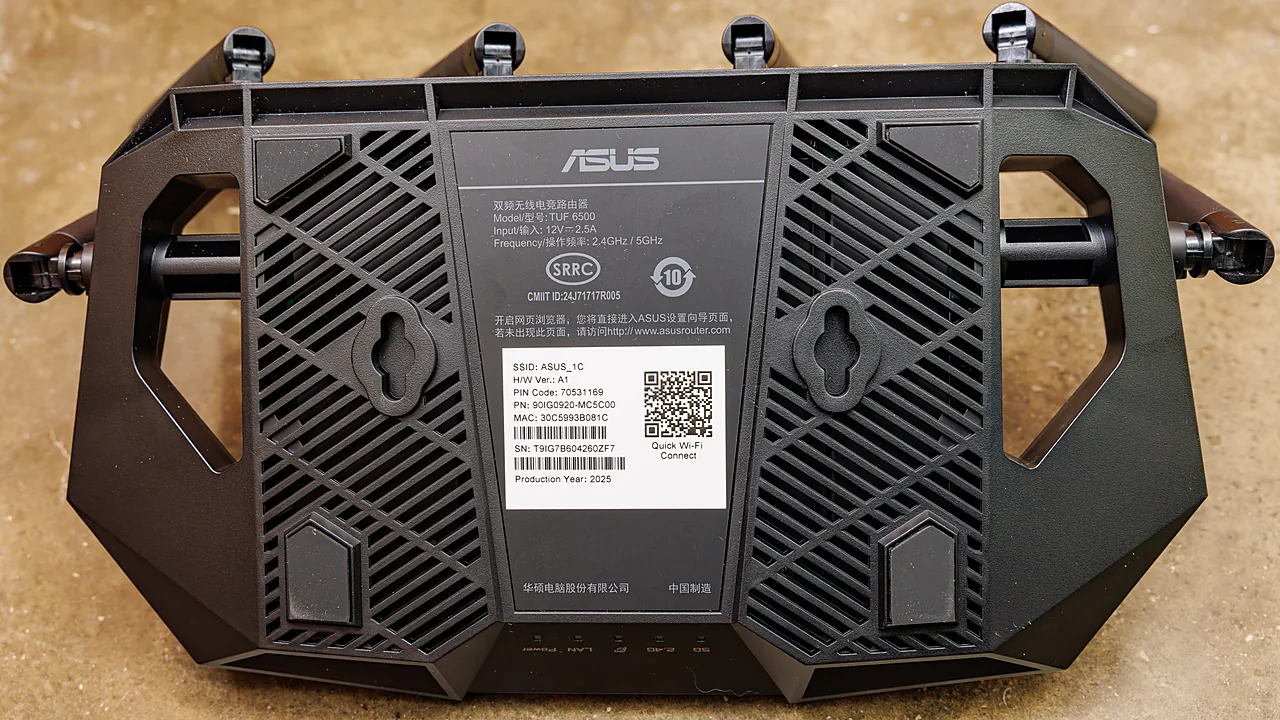
- Restart the printer and your router. Many printers get a new IP address after a router reboot, which silently breaks the saved connection on your PC.
- If the printer keeps changing IP, set a DHCP reservation in your router so it always gets the same address. This permanently fixes the “works then goes offline” cycle.
Before blaming the printer, check whether the PC itself holds the connection reliably. If both keep dropping, the network is the common factor rather than either device — Wi-Fi not working on Windows 11 covers the adapter, the saved profile and the settings that quietly cut a connection after sleep.
4. Clear a jammed print queue
A single stuck document can freeze everything behind it and leave the printer looking offline. Open the queue, cancel all documents, then restart the Print Spooler (step 2) if they refuse to clear. Try one page again afterward.
5. Reinstall the printer
If it’s still offline, remove and re-add it:
- Printers & scanners → your printer → Remove.
- Reinstall the maker’s driver if Windows can’t supply one, then Add device. The full walkthrough is in our guide to installing a printer on Windows 11.
6. Update or reinstall the driver
A corrupted driver can report the printer as offline even when it’s reachable. Get the current driver from the maker’s site and reinstall it — our guides to Epson and HP printing software show where to look. If the printer prints but a button or scan feature is what’s failing, the helper utility (not the offline status) is usually the cause.
When it really is the hardware
If none of this works and the printer won’t respond even over USB with a fresh driver, test it on another device. A printer that’s offline everywhere may have a failed network card or a deeper fault — but that’s rare, and only worth suspecting after the steps above.
FAQ
Why does my printer keep going offline? Usually a changing IP address. Set a DHCP reservation in your router so the printer always keeps the same address.
What is the Print Spooler? The Windows service that queues and sends print jobs. Restarting it fixes most stuck and offline states.
My printer is offline after a Windows update — normal? It can happen if the update reset the driver or network stack. Restart the spooler and re-add the printer if needed.
USB printer shows offline too? Try a different USB port directly on the PC, reinstall the driver, and restart the spooler.
A printer that is online and still produces nothing is a different fault with its own checklist — fixing a printer that prints blank pages starts from the printer’s own self-test page.
On an all-in-one, the scanning half can keep working while the printing half is offline, and the reverse happens just as often — the two use separate drivers. If it is scanning you are stuck on, scanning a document to your computer covers both built-in Windows apps and the Scan button on the machine itself.
Featured image: Photo: Dinkun Chen / Wikimedia Commons, CC BY-SA 4.0