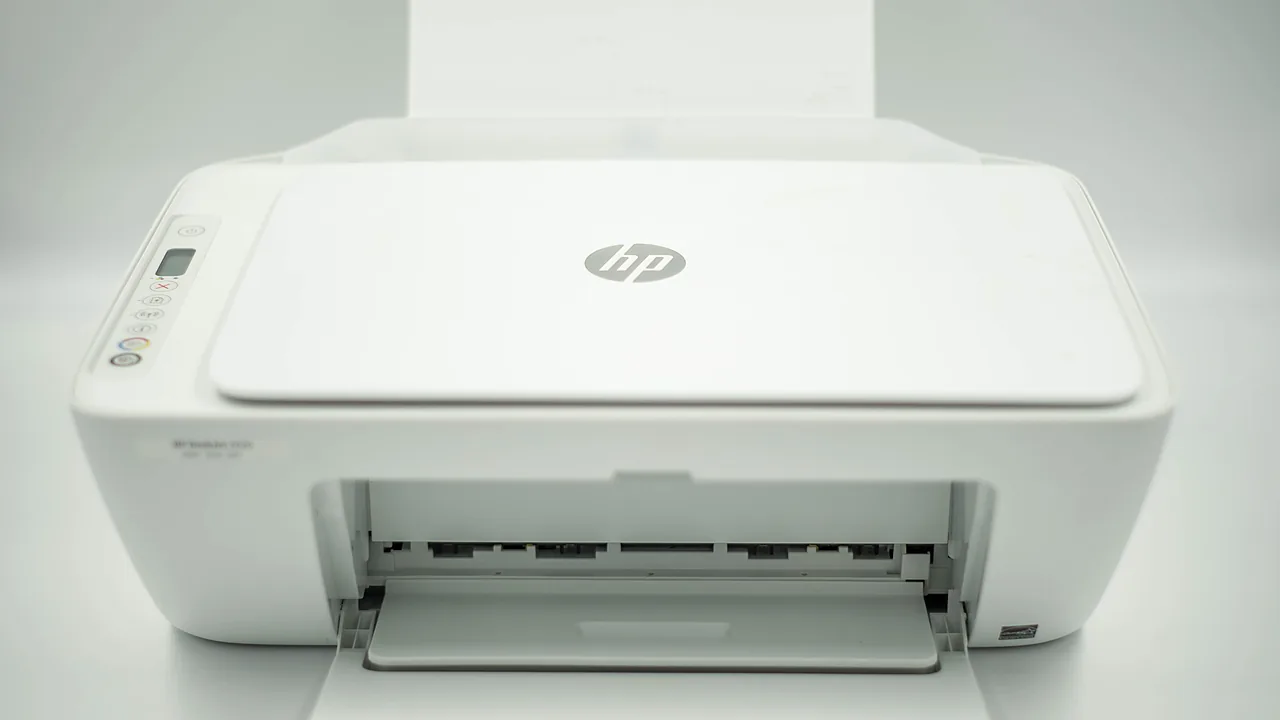
HP ePrint — the service that gave every printer an email address so you could print from anywhere — is dead. HP shut the @hpeprint.com email service down in January 2023 after phasing it off new printers back in 2020, and the old “HP ePrint software” for Windows and Mac prints nothing today. If you landed here looking for that download: it no longer exists, and any site still offering the installer is distributing abandonware. Here is what replaced it and how to cover the same needs now.
Last checked: September 2026.
What HP uses now: the HP app
HP’s software story has consolidated twice: printer utilities merged into HP Smart, and HP Smart is now being replaced by the plainly named HP app — one program to set up, manage, print, scan, and fax across HP devices. Depending on your OS, you’ll be handed one or the other; both are current and official, and HP Smart remains the fallback where the new app isn’t offered yet.
- Get it from HP directly: support.hp.com (or the Microsoft Store / App Store listing linked from there). Setup at 123.hp.com also routes you to the right app for your system.
- Sign in or create an HP account when prompted — remote and account-based features hang off it.
- Add your printer while it is on the same Wi-Fi network as your computer; the app finds it and pulls the correct driver.
Replacing what ePrint actually did
- Print from your phone anywhere in the house: nothing to install beyond the HP app — plus Windows, macOS, iOS, and Android all print natively to network printers now (AirPrint / Mopria / IPP), which is why the whole “printing utility” category shrank.
- Print while away from home: the ePrint email trick is gone. The practical modern equivalents: send the document to yourself and print on arrival, use the HP app’s remote print where your printer and account support it, or — for the office-scenario ePrint served — print through a remote-desktop session to your home PC (our Chrome Remote Desktop guide covers that in five minutes).
- Emailing scans: scan in the HP app and share to email — the direction that still works fine.
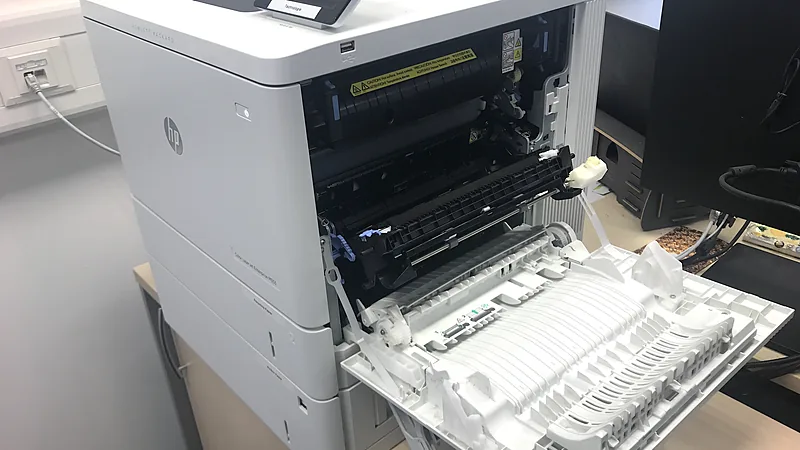
Troubleshooting the transition
- “ePrint” still shows on the printer’s panel or reports an error. On models from the ePrint era, the menu item lingers after the service died. Ignore it; a firmware update (HP app → printer settings → firmware) removes or quiets it on many models.
- Old HP Smart nagging or missing features. Where the HP app is available for your OS, install it and let it take over; where it isn’t, current HP Smart still carries full printing and scanning.
- Printer works from the phone but not the PC. Remove the printer in Windows Settings → Bluetooth & devices → Printers, then re-add while on the same network — or let the HP app redo the connection; it repairs the driver association.
- Very old printer, no app support. HP hosts legacy full-feature drivers on support.hp.com under your exact model. A 2010-era LaserJet can still print perfectly over USB with its plain driver; it just lives outside the app ecosystem.
The takeaway
ePrint solved a 2011 problem: phones and laptops that couldn’t talk to printers. Operating systems absorbed that job, so HP retired the service and folded everything into one app. Set up the HP app once, confirm printing and scanning work from every device you own, and there is nothing else from the ePrint era worth chasing — least of all its installer.
Related on AppInstall.info: Epson Event Manager scan fixes, and our winget install guide.
Featured image: HP DeskJet all-in-one — Photo: CartridgeSave Images / Wikimedia Commons, CC BY 2.0