Quick summary
- Hardware is seldom at fault here, since the pad normally responds correctly to every diagnostic the operating system provides.
- Two incompatible standards have coexisted for decades, and a title built around the newer one ignores devices using the older.
- Steam can impersonate a supported device for you, rescuing some games while making others register every press twice.
Short answer: A pad that lights up and then does nothing in a game is usually healthy and simply misunderstood. Windows accepts two controller standards, XInput and DirectInput, while most titles accept only one, so a PlayStation or unbranded pad can pass every check Windows offers and still stay invisible where it matters.
Last checked: October 2026. Tested against Windows 11 version 26H2.
First check whether Windows sees the pad at all
Press Windows + R, type joy.cpl and press Enter. An old control panel opens listing every pad Windows has recognised, each with a status column that should read OK.
Select yours, click Properties, then push the sticks and press buttons. Markers move and numbered squares light up as you do.
Plenty of people arrive at this screen expecting a corpse and find the pad fully alive. That is not a dead end. It narrows things considerably, because the cable, the radio and the driver have just proved themselves, and whatever is wrong sits above all three.
Two controller languages, and your game speaks only one
Windows has carried two unrelated ways of talking to gamepads for about twenty years, and they were never merged.
DirectInput is the older one. It hands a program a bag of numbered buttons and unlabelled axes with no opinion about what any of them mean, which is why games from that era made you assign every function by hand.
XInput arrived alongside the Xbox 360 pad and fixed precisely that. Button one is always A, a trigger is always a trigger, and a developer can draw the correct on-screen prompt without asking anybody. Almost everything released in the last fifteen years is built on it.
Here is the trap. XInput only acknowledges devices that introduce themselves as Xbox pads. A PlayStation pad or an unbranded USB one introduces itself as a generic device in the older language instead, so a title listening for XInput alone registers nothing whatsoever — while joy.cpl, which still speaks the older language fluently, shows the same pad responding to every press.
One device, two descriptions, and only one of them reaches the game.
Xbox pads use three different connections
An Xbox pad is the easy case only when you pick the right one of these three, and they are not interchangeable.
- USB cable. Always works, needs nothing installed, and is the fastest way to rule the wireless side out entirely.
- Bluetooth. Built into pads from the Xbox One S onward. The launch Xbox One pad has no Bluetooth radio in it at all, so no amount of pairing will help.
- Xbox Wireless. A proprietary radio, not Bluetooth, requiring Microsoft’s own dongle. Pads sold with a console assume this one.
If the pad never appears while pairing, confirm which of the three it actually supports before troubleshooting the computer. A PC with no Bluetooth stack showing at all is a separate fault, covered in Bluetooth missing from Windows 11.
PlayStation pads connect easily and then go quiet
A DualShock 4 or DualSense pairs with Windows in seconds and passes the joy.cpl test without complaint. Then you start a game and nothing responds, for the reason above: Windows knows it as a generic device, and the game wanted an Xbox one.
Steam solves this by lying on your behalf. With the pad connected and Steam running, it presents a virtual Xbox pad to the game while reading your real one, and the game is satisfied. Launch the same title outside Steam and the translation disappears with it.
When Steam helps, and when it doubles everything
The same translation layer causes the second most common complaint: every input registering twice. Menus skip two entries per press, cursors fly across the screen.
That happens when a game reads both the virtual pad Steam created and the real one underneath it. Open the game’s properties in your library, find Controller, and switch Steam Input off for that title specifically. Games with native support for your pad do not need the layer and behave badly with it.
Troubleshooting
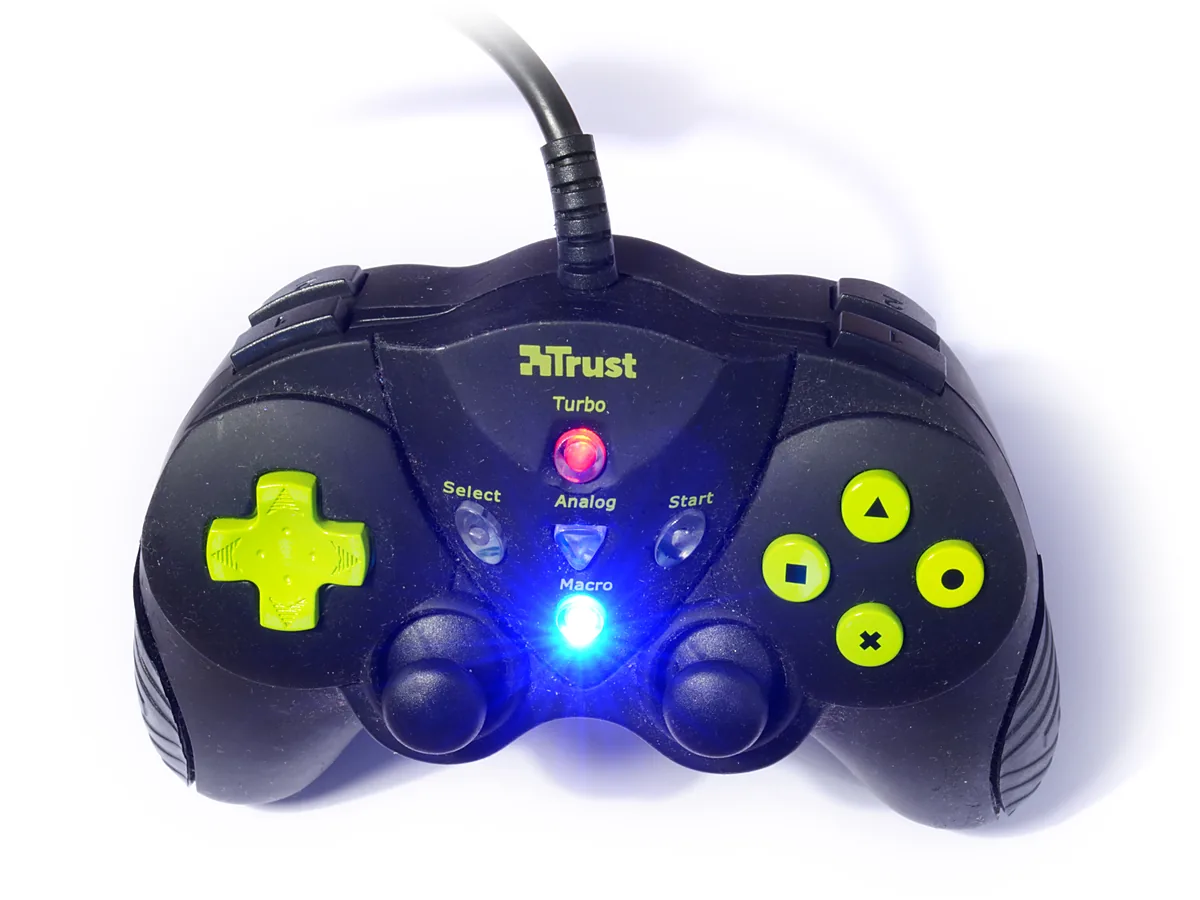
The sticks do nothing but the buttons work. Older third-party pads carry a mode toggle, usually labelled Analog, with a small light beside it. Press it and watch the light change.
Nothing appears in joy.cpl over USB. Treat it as a port problem rather than a controller one, and try another port directly on the machine. A USB device Windows will not recognise covers cables that only carry power and the Device Manager steps worth trying.
It worked yesterday and now stutters. On a wireless pad this is almost always interference or distance rather than a fault; the same crowded band affects other peripherals, as a wireless mouse that stops responding explains.
It disconnects after a few minutes. Windows powers down radios to save energy. In Device Manager, open the pad’s Power Management tab and clear the permission to switch it off.
It behaves in one game only. Check that title’s own input settings before anything else, since many ship with a controller option that is off by default, and some ignore a pad entirely while a mouse is being moved.
FAQ
Do I need to install a driver? Not for an Xbox pad, which Windows handles itself. Generic pads occasionally ship with one, and updating drivers on Windows 11 covers finding a trustworthy copy.
Can I use two pads at once? Yes, and XInput supports four. Which player each becomes is decided by connection order.
Why does my pad vibrate on the console but not the PC? Rumble is sent separately from button data, and the translation layers often drop it. Native support restores it.
Does a wired connection reduce lag? Slightly, and reliably. For anything timing-critical it remains the safer choice.
My pad charges but never connects. Charging proves the cable carries power, nothing more. Data and power travel on separate wires, and cheap cables frequently omit the data pair.
Featured image: Photo: uKER / Wikimedia Commons, CC BY-SA 4.0, title text added by AppInstall.info