Bluetooth disappearing from Windows 11 takes two forms, and they need different fixes. Either the toggle is there and refuses to turn on, or Bluetooth has vanished from Settings entirely as though the PC never had it. The second case looks alarming and is usually the easier of the two. This guide works through both, in the order that finds the cause fastest.
Last checked: October 2026. Tested against Windows 11 version 26H2.
First: does this PC have Bluetooth at all?
Worth two minutes before you troubleshoot something that was never there. Laptops almost always have it. Desktops frequently do not — Bluetooth usually arrives as part of a Wi-Fi card, so a desktop with wired Ethernet and no Wi-Fi card typically has no Bluetooth radio either.
- Right-click Start and open Device Manager.
- Look for a Bluetooth category. If it is there, the hardware exists.
- If it is not, open View → Show hidden devices and look again, then check Other devices and Network adapters for anything with a yellow warning triangle.
A yellow triangle means the hardware is present but has no working driver — skip to the driver section. Nothing at all, even with hidden devices shown, means there is no radio and a USB adapter is the answer.
The quick checks
- Press Win + A to open Quick Settings and look for the Bluetooth tile. If the tile is missing, click the pencil icon and use Add to put it back.
- Open Settings → Bluetooth & devices and check the master toggle.
- Make sure Airplane mode is off. It disables Bluetooth along with Wi-Fi, and it is easy to trigger by accident with a function key.
- On a laptop, check for a physical wireless switch on the side or an Fn key with a radio or aeroplane symbol.
Restart the Bluetooth Support Service
If the service is stopped, Bluetooth vanishes from Settings entirely — which is exactly the symptom that makes people think the hardware died.
- Press Win + R, type
services.mscand press Enter. - Find Bluetooth Support Service in the list and double-click it.
- Set Startup type to Automatic.
- Click Start if the service is stopped, then OK.
- Restart the PC and check Settings again.
Reinstall the driver
This fixes the majority of cases where the adapter is visible but will not work.
- In Device Manager, expand Bluetooth and right-click the main adapter — usually named after Intel, Realtek, Qualcomm or Broadcom, not the generic “Bluetooth Device” entries beneath it.
- Choose Uninstall device. Tick Attempt to remove the driver for this device if the option appears.
- Restart the PC. Windows reinstalls a working driver on boot in most cases.
- If it does not, download the driver from your laptop manufacturer’s support page for your exact model — not from a general driver site. Vendor builds include the firmware and power-management pieces that generic packages leave out.
Our guide to updating drivers on Windows 11 covers finding the right vendor page and why automatic driver updaters tend to make this worse rather than better.
Stop Windows switching the adapter off
Power management is a quiet cause of Bluetooth that works until the PC sleeps and then never comes back.
- In Device Manager, double-click the Bluetooth adapter and open the Power Management tab.
- Clear Allow the computer to turn off this device to save power.
- Click OK.
Fast Startup causes a related problem: the PC resumes from a saved state rather than initialising hardware cleanly, so a half-crashed adapter stays broken across restarts. To rule it out, hold Shift while clicking Restart, which forces a full shutdown and boot.
When there is no built-in radio
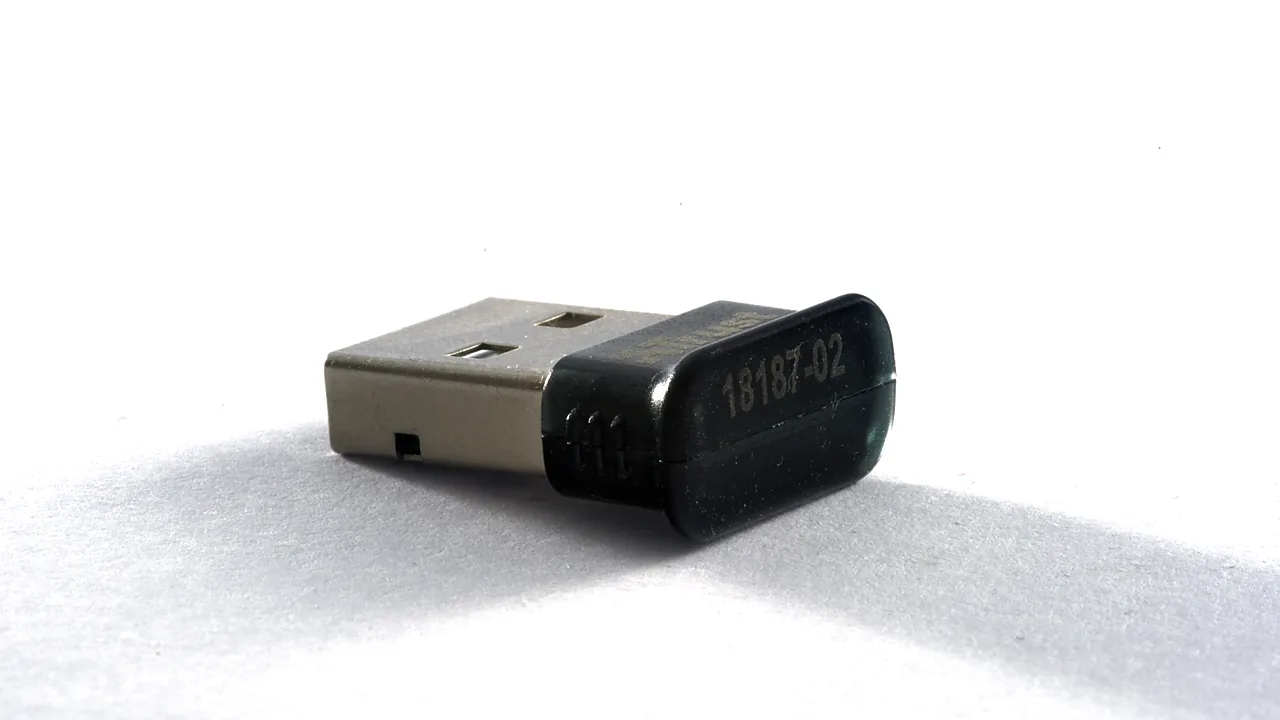
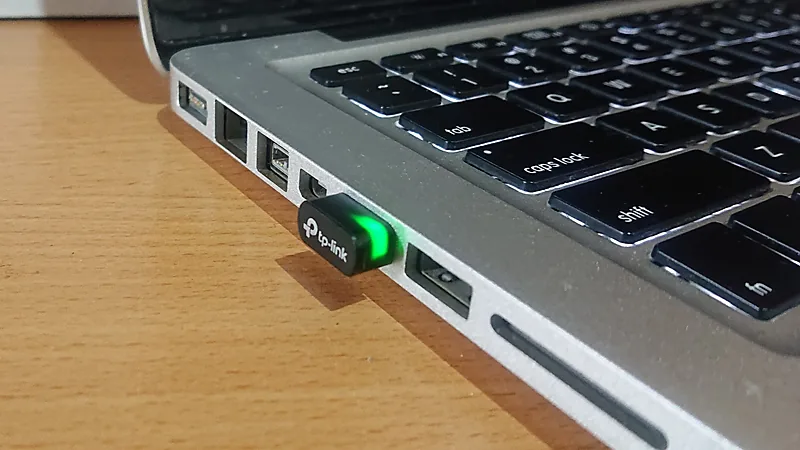
A USB Bluetooth adapter is the straightforward fix for a desktop. They are inexpensive, and Windows 11 installs a driver for most of them automatically. Two things to check when buying: that it states Bluetooth 5.0 or later, and that the maker lists Windows 11 support. Avoid the no-name adapters that ship with a driver CD — that is a sign the device needs a driver Windows does not have, and the CD is often years out of date.
Plug it into a rear port on a desktop if you can. Front-panel headers are electrically noisier and a common cause of adapters that keep dropping out.
Troubleshooting
Bluetooth works but devices will not pair. Remove the device from the list and pair again from scratch. Many headsets only accept a new pairing while in their own pairing mode, which usually means holding the power button until the light changes pattern.
Audio connects but sounds poor. Windows exposes two profiles for headsets: a high-quality stereo one and a low-quality one used when the microphone is active. Open Settings → System → Sound and select the stereo output rather than the hands-free entry.
Bluetooth returns after a restart but disappears again. That pattern points at power management or Fast Startup above, not the driver.
It broke immediately after a Windows update. Open Device Manager, double-click the adapter, and on the Driver tab use Roll Back Driver if it is available. That button is only active if a previous driver is still stored.
The adapter shows “Code 43” or “Code 10”. Both mean the device reported a failure rather than the driver being missing. Try a full shutdown with Shift held, then a vendor driver. Persistent Code 43 on an internal card often means the card itself is failing.
FAQ
Why did Bluetooth disappear from Settings completely? Windows hides the entire section when it sees no working adapter — which includes a stopped Bluetooth Support Service or an adapter in a failed state, not just missing hardware.
Can I add Bluetooth to any PC? Yes, with a USB adapter, as long as there is a free port.
Do I need the manufacturer’s Bluetooth software? Usually not. Windows 11 handles pairing itself. Vendor utilities matter mainly for extra features on specific headsets.
Is it safe to leave Bluetooth on? For normal use, yes. Turning it off when unused saves a little battery on laptops.
The same Device Manager routine solves the opposite problem too — switching off a touch screen that registers taps nobody made.
If other hardware on the same machine is also misbehaving, the cause is often shared — our guide to installing a printer on Windows 11 covers the same device-detection logic from the other end.
Featured image: Photo: VSchagow / Wikimedia Commons, CC BY-SA 4.0