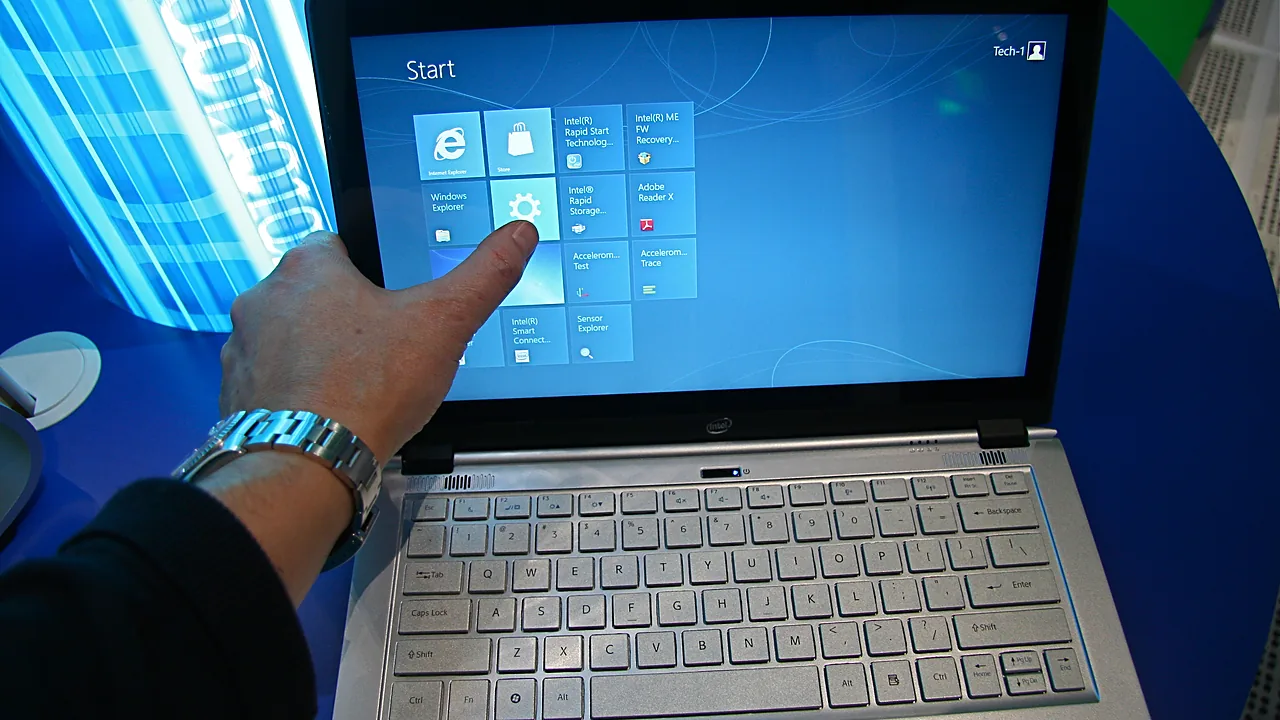
Turning off the touch screen on a Windows 11 laptop takes about thirty seconds, and the reason people look it up is almost always one of three: a cracked digitiser registering taps nobody made, a palm that keeps brushing the screen, or a machine being set up for someone who finds accidental touches confusing. This guide covers switching it off, switching it back on, and stopping Windows from quietly re-enabling it.
Last checked: October 2026. Tested against Windows 11 version 26H2.
Disable it from Device Manager
This is the standard method and it is fully reversible.
- Right-click Start and choose Device Manager.
- Expand Human Interface Devices. The list is long — it holds a lot of entries that are not the touch screen.
- Find HID-compliant touch screen.
- Right-click it and choose Disable device, then confirm.
- Touch input stops immediately. No restart needed.
Some laptops list the entry more than once — one per touch controller, or one for the screen and one for an active pen digitiser. Disable each HID-compliant touch screen entry you find. Leave anything named for a pen alone if you still want stylus input.
Turn it back on
Exactly the same path. Open Device Manager, expand Human Interface Devices, right-click the disabled entry — it has a small down-arrow on its icon — and choose Enable device.
If the entry has disappeared from the list, open View → Show hidden devices first. A disabled device is sometimes filtered out of the default view.
Do it from PowerShell instead
Useful if you need to repeat this across several machines, or script it as part of a setup routine. Open PowerShell as administrator:
- List what is there first:
Get-PnpDevice -FriendlyName "*touch screen*" - Check the output matches what you expect before going further. Never disable a device you have not identified.
- Disable it:
Get-PnpDevice -FriendlyName "*touch screen*" | Disable-PnpDevice -Confirm:$false - To reverse it:
Get-PnpDevice -FriendlyName "*touch screen*" | Enable-PnpDevice -Confirm:$false
The wildcard match is the part to be careful with. Run the Get-PnpDevice line on its own first and read the list — a badly chosen pattern can disable input devices you still need.
When it switches itself back on
A disabled device staying disabled is the normal behaviour. If touch returns on its own, something reinstalled the driver — usually a Windows Update driver package or a vendor utility doing a hardware scan.
On Windows 11 Pro, Group Policy can block the specific device from being reinstalled. In the Group Policy Editor (gpedit.msc), the relevant settings are under Computer Configuration → Administrative Templates → System → Device Installation → Device Installation Restrictions. You add the hardware ID of the touch screen — copy it from the device’s Details tab in Device Manager — to the list of devices Windows is not permitted to install.
That is a heavier tool than most people need. If touch only comes back occasionally, re-disabling it in Device Manager is less risky than policy changes that are easy to forget about later.
A cracked screen is a special case
If the reason you are here is a damaged panel sending phantom taps, disabling the digitiser is the right short-term move, but be aware of what it does not fix. Ghost touches from a cracked screen often arrive in bursts that open apps, dismiss dialogs and occasionally trigger destructive actions before you can disable anything. Two practical steps while you wait for a repair:
- Disable the touch screen from Device Manager before doing anything else on the machine, so the burst cannot interfere.
- If the taps are frequent enough that you cannot reach Device Manager, start the PC in Safe Mode — hold Shift while clicking Restart, then Troubleshoot → Advanced options → Startup Settings. The touch driver does not load there, giving you a quiet session in which to disable it permanently.
Pressure on a damaged digitiser can also worsen cracking, so keep the lid closed when the machine is in a bag rather than relying on the software fix alone.
Troubleshooting
There is no “HID-compliant touch screen” entry. Either the laptop has no touch screen, or the driver is already missing. Open View → Show hidden devices and check Other devices for an unknown device with a yellow triangle. If the screen is genuinely non-touch, nothing needs disabling.
I disabled the wrong device and lost the touchpad or keyboard. Plug in a USB mouse and keyboard, which will work regardless, then re-enable the device in Device Manager. On a tablet with no ports, an on-screen keyboard is still reachable from the sign-in screen’s accessibility button — but if you disabled the only input method on a tablet, a restart into Safe Mode is the way back.
Ghost touches continue after disabling. If the pointer still jumps, the input is coming from somewhere else — a faulty touchpad, or a pen digitiser that is a separate device. Disable the touchpad temporarily to isolate which one it is.
Touch stopped working and I did not disable it. That is the opposite problem: check whether the device shows an error code in Device Manager, and reinstall the driver from your laptop manufacturer’s support page. Our guide to updating drivers on Windows 11 covers finding the right one.
Disabling it did not stop the screen from waking the PC. Wake behaviour is separate. Check the device’s Power Management tab and clear Allow this device to wake the computer where the option exists.
FAQ
Does disabling the touch screen save battery? Marginally. The digitiser draws very little; the screen backlight is what costs power.
Will this affect my stylus? Only if the pen uses the same digitiser. Many laptops list the pen as a separate device, which stays working.
Is there a setting in the Settings app for this? No. Windows 11 has no toggle for turning the touch screen off; Device Manager is the supported route.
Can I disable touch for one user only? No — this is a hardware-level change and applies to everyone who signs in to that PC.
If other hardware on the machine has started misbehaving at the same time, work through it the same way — see fixing Bluetooth missing in Windows 11 and fixing brightness that stopped working, both of which start in the same place in Device Manager.
Featured image: Photo: Intel Free Press / Wikimedia Commons, CC BY 2.0