Quick summary
- Most of the work takes two minutes a day; the long jobs belong to a monthly slot.
- Windows ships with enough tools for nearly all of it, so extra software is rarely the answer.
- Anything promising instant speed gains or registry repair earns a wide berth, whatever its review scores.
Short answer: A maintenance routine is three short jobs on a schedule, not a toolbox. Check security and odd behaviour daily, clear junk and update weekly, and back up plus check drive health monthly. Everything here uses tools Windows already has, or free and reputable ones.
Last checked: October 2026. Tested against Windows 11 version 26H2.
What a maintenance routine is actually for
A routine is not a toolbox. It is a short list of checks on a fixed schedule, and its job is to catch small problems while they are still small: a drive filling up, an update that failed quietly, a program you never installed on purpose.
The reason to write it down as a schedule is that the opposite approach — doing nothing until the machine feels slow, then installing five cleaners at once — is what breaks Windows installations. Our guide to choosing utility software for your PC covers the categories in full; this page is the timetable for using them.
Daily: two minutes
- Notice anything new. Unexpected pop-ups, a changed browser home page, or a program in the system tray you did not put there are the earliest signs of unwanted software.
- Confirm protection is on. Open Settings → Privacy & security → Windows Security and check that the shields are green. Windows Security is enough for most people; a second antivirus running alongside it causes conflicts rather than extra safety.
That is the whole daily list. If it takes longer than two minutes, something is wrong and it belongs in the troubleshooting section below.
Weekly: ten minutes
- Clear the junk. Use Settings → System → Storage rather than a third-party cleaner. It shows what is actually taking room and removes temporary files safely.
- Look at free space. Below roughly 10 percent free, Windows slows down and updates start failing. Our guide to freeing up disk space on Windows 11 covers what is safe to delete and what only looks safe.
- Apply updates. Windows Update handles the system. Applications are easier in bulk from the command line — keeping apps updated automatically with winget replaces a dozen separate updaters.
Monthly: half an hour
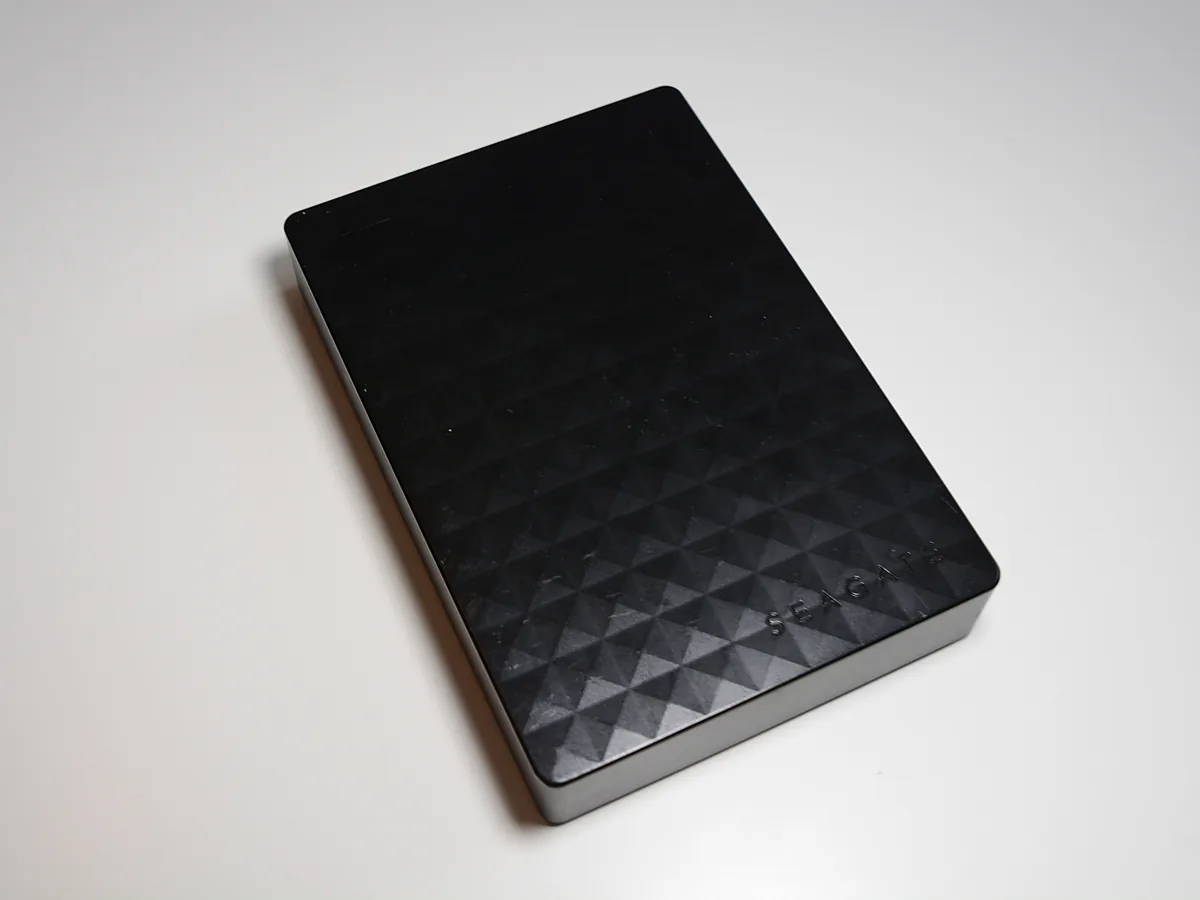
- Back up what you cannot replace. An external drive or a cloud folder both work; what matters is that the copy is not on the same disk as the original. Compressing older folders first keeps the copy small, and password-protecting a zip file is worth doing if the backup leaves the house.
- Check drive health. Windows reports basic status under Settings → System → Storage → Advanced storage settings → Disks & volumes. A drive reporting reallocated sectors is telling you to replace it, not to defragment it.
- Review installed programs. Open Settings → Apps → Installed apps, sort by install date, and remove what you no longer recognise or use.
- Update drivers only where it matters. Graphics drivers benefit from being current; most others do not. The driver update routine for Windows 11 explains which ones are worth touching.
What to leave out
A good routine is defined as much by what it excludes. Four things that belong on nobody’s schedule:
- Registry cleaners. The performance gain is imaginary and the failure mode is a system that will not boot.
- Anything advertising a percentage. “Speed up your PC by 300 percent” is marketing, not a measurement.
- Duplicate tools. Three cleaners, two antivirus programs, and four booster apps fight each other and consume the resources they claim to free.
- Defragmenting an SSD. Windows already handles SSD optimisation correctly; manual defragmentation just adds write cycles.
Troubleshooting
Storage keeps filling up even after a cleanup. Check the Storage page for a large “Temporary files” or “System” entry. Windows keeps a previous installation for ten days after a feature update, which can occupy tens of gigabytes.
Updates fail repeatedly. Free space is the usual cause. After that, run the Windows Update troubleshooter from Settings → System → Troubleshoot → Other troubleshooters before looking for third-party fixes.
The machine is slow but the disk is not full. Open Task Manager with Ctrl + Shift + Esc and sort by CPU, then by memory. A single misbehaving process is a far more common cause than accumulated clutter.
Something reinstalls itself after removal. That is bundled software with its own updater or scheduled task. Our guide to uninstalling a stubborn program covers removing the leftovers that reinstall it.
A program will not uninstall at all. Reboot into Safe Mode and try again; many installers hold file locks that disappear when their services are not running.
FAQ
How often should I actually defragment? On an SSD, never manually. On a mechanical drive, Windows schedules it automatically and that is sufficient.
Do I need a paid cleaner? No. Everything in this routine uses tools built into Windows or free, reputable ones.
Is restarting weekly worth it? Yes. A full restart clears memory leaks and lets pending updates finish, which fixes a surprising share of slowdowns.
What if I skip a month? Nothing breaks immediately. The risk is that a failing drive or a silent backup failure goes unnoticed until it matters.
Featured image: Photo: Tookapic / Wikimedia Commons, CC0, title text added by AppInstall.info