Quick summary
- Most of that message is filler, and a single line near the bottom carries nearly all of its diagnostic value.
- Every survived crash is logged, so a screen that disappeared within seconds can still be retrieved later on.
- Circumstances narrow the cause quicker than the wording does, particularly when failures cluster around one activity.
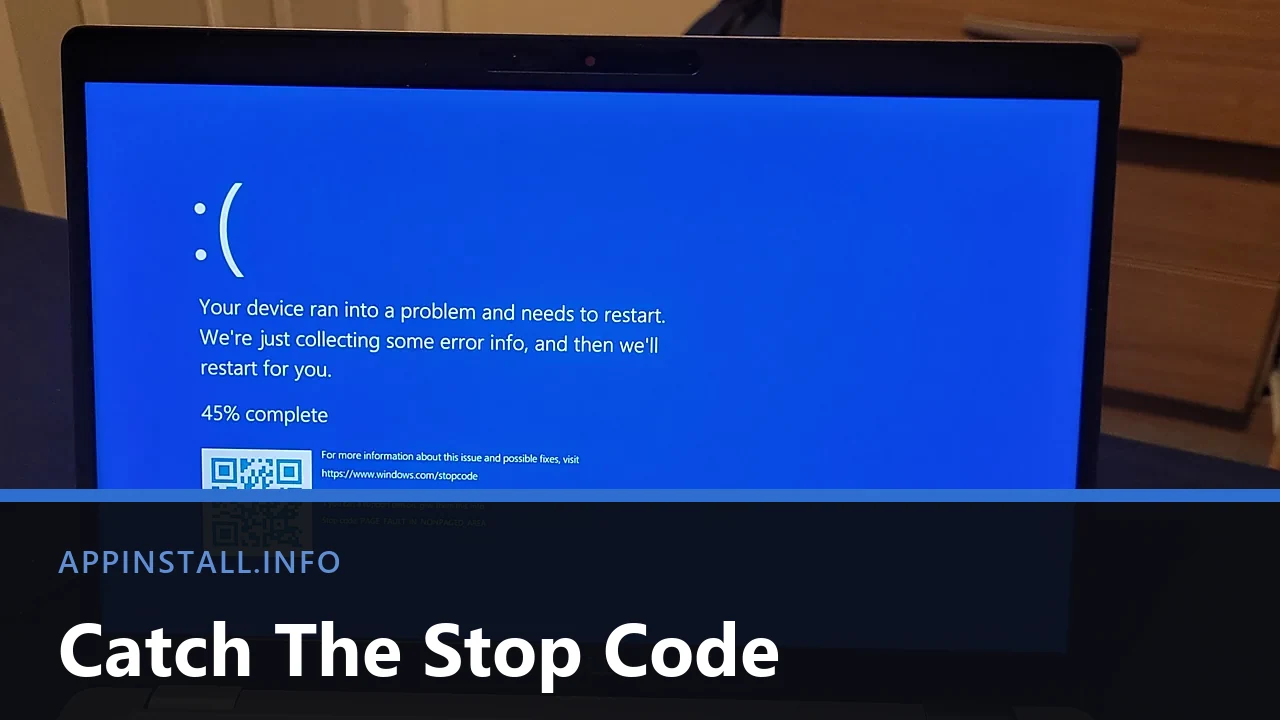
Short answer: Note the stop code before anything else, because it is the only part of that screen which narrows the cause. If the machine rebooted too quickly to read, Reliability Monitor still holds a copy. Switch the automatic restart off first so the next one waits on screen instead of vanishing.
Last checked: October 2026. Tested against Windows 11 version 26H2.
Stop it restarting before you have read it
Windows reboots itself a few seconds after a crash, which is why most people never see the one line that would have told them anything. Turn that off first, so the next crash waits for you.
Press Windows + R, type sysdm.cpl and press Enter. On the Advanced tab, open Settings under Startup and Recovery, and clear the Automatically restart box.
Nothing else in this article is as useful as that one checkbox, because every other step depends on knowing what the screen said.
One thing worth knowing before you go hunting: newer builds of Windows 11 show this message on a black background rather than a blue one, without the frowning face or the scannable square. People still call it a blue screen, and the important line survived the redesign intact.
The code is still there after the fact
If the machine already restarted, the crash was recorded anyway. Three places keep it, in increasing order of effort.
- Reliability Monitor. Search for reliability in the Start menu and open the view of your reliability history. It draws a calendar of everything that went wrong, and clicking a red cross on the day of the crash shows the technical detail behind it.
- Event Viewer. Under Windows Logs, open System and look for a source named BugCheck. The entry spells out the same numbers the screen displayed.
- The dump file. Windows writes one to C:\Windows\Minidump every time. You do not need to open it yourself, but its presence confirms a genuine crash rather than a power cut.
Reliability Monitor is the one to reach for. It costs thirty seconds and shows the pattern as well as the event, which is often the more revealing half.
What the common codes actually point at
The code is a category rather than a diagnosis. These five cover the large majority of what people meet.
- DRIVER_IRQL_NOT_LESS_OR_EQUAL and SYSTEM_SERVICE_EXCEPTION both accuse a driver, and both frequently name the offending file beside the code. That filename is the most valuable thing on the screen.
- PAGE_FAULT_IN_NONPAGED_AREA and MEMORY_MANAGEMENT point at memory, either the physical modules or a driver writing somewhere it should not.
- VIDEO_TDR_FAILURE means the graphics driver stopped responding and was restarted. Check the graphics driver first, then temperatures.
- WHEA_UNCORRECTABLE_ERROR is the hardware one. The processor reported a fault it could not correct, and software fixes rarely touch it.
- CRITICAL_PROCESS_DIED means something Windows cannot run without stopped. Often this follows a failed update or damaged system files.
Where a driver is named, treat that as the lead and go straight to updating drivers on Windows 11, which covers rolling one back when a recent version caused it. For a graphics file such as the NVIDIA or Intel display driver, installing NVIDIA drivers cleanly explains wiping the old one first.
When it happens narrows things faster than the code
Two machines can show one code for completely different reasons, so the circumstances are worth more than they look.
Only under load, in games or while rendering. Suspect heat or power rather than software. A laptop that throttles and then dies is behaving exactly as an overheating laptop describes.
Only when waking from sleep. Almost always a driver that mishandles power states, most often graphics, network or storage.
Only with one device attached. That device’s driver is the suspect. Unplug it and see whether a week passes quietly.
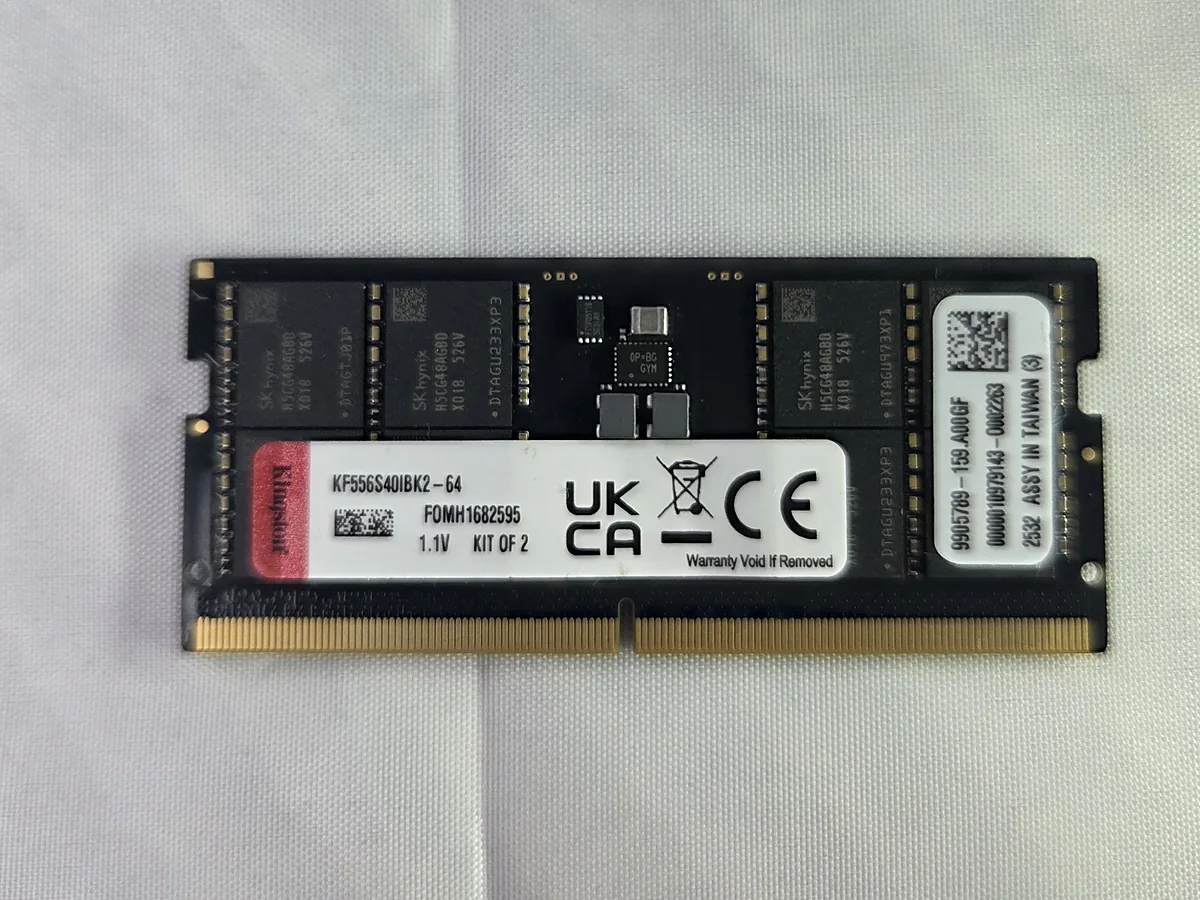
At random, including while idle. This is the pattern that most often turns out to be memory, which is the one thing you can test directly.
Testing the memory
Press Windows + R, type mdsched.exe and choose to restart now. Windows tests the memory before loading itself and reports afterwards.
A clean result is not quite proof, since the tool misses intermittent faults, but a failure is conclusive. If a machine has two modules and the test fails, run it again with one fitted at a time to learn which one is at fault. Checking your PC specs shows what is installed before you open anything.
When it crashes too often to work on
Hold Shift while clicking Restart, then follow Troubleshoot into Startup Settings and choose Safe Mode. Only Microsoft’s own drivers load there, so if the crashes stop entirely, something installed is responsible rather than the hardware.
A machine that cannot reach the desktop at all is a different problem, and a laptop that will not turn on starts further back.
Troubleshooting
It started after an update. Check the date in Reliability Monitor against your update history. Matching dates make the update the first thing to undo.
It only happens in one game. That points at the graphics driver or that title’s own files rather than Windows, so verify the game’s files before touching anything system-wide.
The code is different every time. Varying codes suggest hardware rather than one bad driver, with memory and power supply the usual candidates.
It restarts without showing anything. If no dump file appears either, suspect power. A genuine crash leaves evidence; a sudden loss of power leaves none.
It happened once and never again. Note the code and carry on. A single crash with no repeat is not worth dismantling a working computer over.
FAQ
Does a blue screen mean my PC is dying? Usually not. Most are software faults, and drivers alone account for a large share of them.
Do I lose unsaved work? Yes. The crash happens below the applications, so nothing gets a chance to save.
Should I scan the square on the screen? It opens a general support page rather than anything about your specific fault. The code itself is more useful.
Is reinstalling Windows the answer? Only once you know the cause is software. Reinstalling over failing memory gives you a fresh copy that crashes identically.
How many is too many? One a month with no pattern is tolerable. Several a week, or any that cluster around one activity, deserve the steps above.
Featured image: Photo: QueenBarenziah / Wikimedia Commons, CC BY 4.0, title text added by AppInstall.info