Quick summary
- Three unrelated faults share the same description, and ten seconds of watching tells you which one you have.
- Holding the button for thirty seconds with the charger removed clears residual charge and revives many dead machines.
- Keyboard lights or fan noise prove the computer runs, so the fault lies in the display path instead.
Short answer: Watch what happens when you press the button: no light at all is an electrical problem, lights with a black screen means the machine is running and you cannot see it, and starting then dying points at heat or the battery. Then do a hard reset — charger out, power button held thirty seconds.
Last checked: October 2026. Tested against Windows 11 version 26H2.
Three different faults wear the same description
“It will not turn on” covers three situations that have almost nothing in common, and sorting yours into one of them decides everything that follows. Press the power button and watch carefully for ten seconds.
- No light, no sound, nothing. No power is reaching the board. This is an electrical problem and the first section below is the whole of it.
- Lights come on, fans spin, screen stays black. The machine is running. You cannot see it, which is a different fault entirely.
- It starts, then dies after a few seconds. Power arrives but something stops it: heat, a failing battery, or a supply that cannot hold up.
Work through only the section that matches. Trying all three in order wastes most of an afternoon.
Nothing at all: follow the power
- Test the socket with something else. Switched sockets and extension leads fail silently and often.
- Look at the adapter. Most have a small light on the brick or near the plug. No light means nothing is leaving the adapter, and the laptop is innocent.
- Check both ends of the cable. On USB-C machines, try the other USB-C port: not every port on a laptop accepts charging, and the one you always use may have failed.
- Leave it charging for thirty minutes before concluding anything. A completely flat battery sometimes will not even light an indicator until it has taken some charge.
If a light appears but the battery never fills, that is its own problem rather than this one — a laptop battery that will not charge covers the charge limits and the driver side.

The hard reset, done properly
Laptops hold a small residual charge that can keep the board in a confused state, and clearing it fixes a surprising share of machines that appear completely dead.
- Unplug the charger and remove any dock, USB drive or external monitor.
- If the battery is removable, take it out.
- Hold the power button down for thirty seconds. Nothing will happen while you do, and that is expected.
- Put the battery back if you removed it, connect only the charger, and press power once.
Do this before anything more involved. It costs a minute and needs no tools.
Lights on, screen black
If you can hear fans or see keyboard lights, the computer is working and the display path is not. Prove which with one test.
- Connect an external monitor or a television by HDMI.
- Press Win + P and then the down arrow and Enter a couple of times, blind, to cycle the display mode.
- A picture on the external screen means the machine is fine and the laptop panel, its cable or its backlight is not.
No picture on either screen points back at the machine rather than the display. If the external screen is itself the uncertain part, a second monitor not detected on Windows 11 separates those cases.
Shine a torch at an angle across the laptop screen while it is on. If you can make out a faint desktop, the panel works and only its backlight has failed — a repair, but a cheaper one than it sounds.
It starts and then shuts off
- Within two or three seconds, repeatedly. Usually power delivery: a failing battery, a weak adapter, or a short somewhere. Try it on mains with the battery removed, if it is removable.
- After a minute or two, warm to the touch. Thermal shutdown. The machine is protecting itself, and the cause is almost always blocked vents or a packed radiator — laptop overheating on Windows 11 works through it.
- With a pattern of beeps or a blinking light. That is a diagnostic code, and it is specific to your model. Count the pattern, then look it up on the maker’s support site with the exact model code; checking your PC specs shows where that code lives, assuming another machine is available to look it up on.
Where to stop
Reseating memory behind a service hatch is reasonable if your laptop has one and you are comfortable with a screwdriver. Beyond that, the economics change quickly: a dead board costs more to diagnose than most laptops are worth, and opening a sealed chassis often breaks clips that cannot be replaced.
Stop immediately and get help if any of these apply: liquid has been spilled, the case is bulging, there is a burning smell, or the machine is still under warranty. In the first three cases, do not keep pressing the power button.
Troubleshooting
It works on mains but not on battery. The battery has failed or lost its connection. The machine is usable plugged in while you arrange a replacement.
It only starts after several attempts. An intermittent power button or a loose internal connector. It will get worse; back up your files now rather than later.
The fan spins loudly and nothing else happens. Often memory. If there is a service hatch, remove each module, wipe nothing, and reseat firmly until the clips click.
It was fine until a Windows update, and now it stops at a black screen with a cursor. That is not a dead laptop; it is Windows failing to finish starting. Hold the power button to force it off, then start it twice more — Windows opens its recovery options by itself after repeated failed starts.
It turns on but immediately goes back off when unplugged. A battery that reports a charge it cannot deliver. Treat it as failed.
FAQ
How long should I hold the power button? Thirty seconds for a reset with the power disconnected. Five to ten seconds is enough merely to force a running machine off.
Can a completely flat battery stop it starting even on mains? On some models, yes, briefly. Give it half an hour on the charger before deciding.
Is it worth replacing the charger first? If the adapter has no light, yes, and a correct replacement is far cheaper than a repair. Match the voltage exactly.
My files are on it and it will not start. Are they lost? Almost certainly not. The drive is usually the last thing to fail, and a technician can read it even when the laptop cannot start.
Does a hard reset erase anything? No. It clears residual electrical charge, not data or settings.
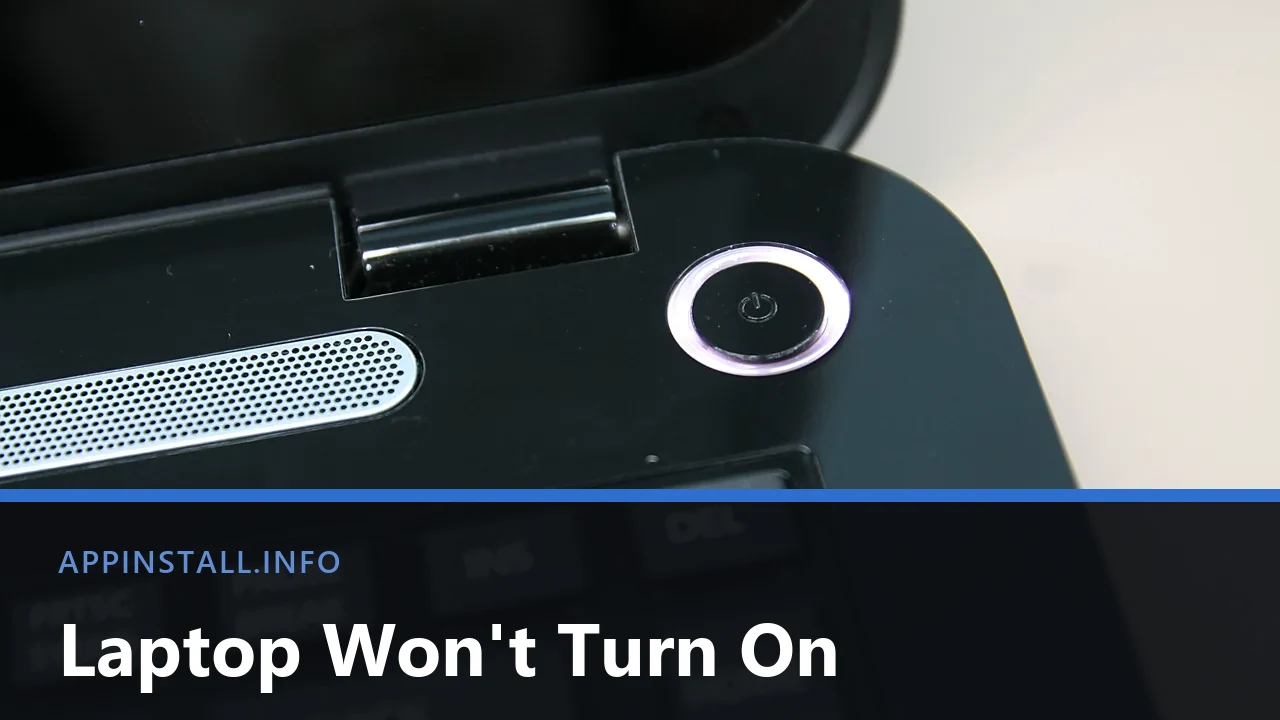
Featured image: Photo: liewcf / Wikimedia Commons, CC BY-SA 2.0, title text added by AppInstall.info