Quick summary
- A screen parked on an unused input looks identical to one receiving no signal, so step through its Input button first.
- Motherboard video ports are usually switched off once a graphics card is fitted, so both cables belong on the card.
- A black screen that arrives seconds after a picture points at resolution or refresh rate, not detection.
Short answer: Check the monitor’s own input source and the cable first, then press Win + P and pick Extend. If Windows still shows one screen, open Display settings and click Detect. On a desktop with a graphics card, make sure both cables go to the card and not to the motherboard.
Last checked: October 2026. Tested against Windows 11 version 26H2.
Check the monitor before you touch Windows
Two faults account for most of these cases, and neither is a Windows problem.
- The monitor is on the wrong input. A screen with three sockets does not know which one you plugged into. Press its own Input or Source button and step through the list until the right one shows a picture. A monitor sitting on an empty input displays the same black screen as one that is genuinely not receiving anything.
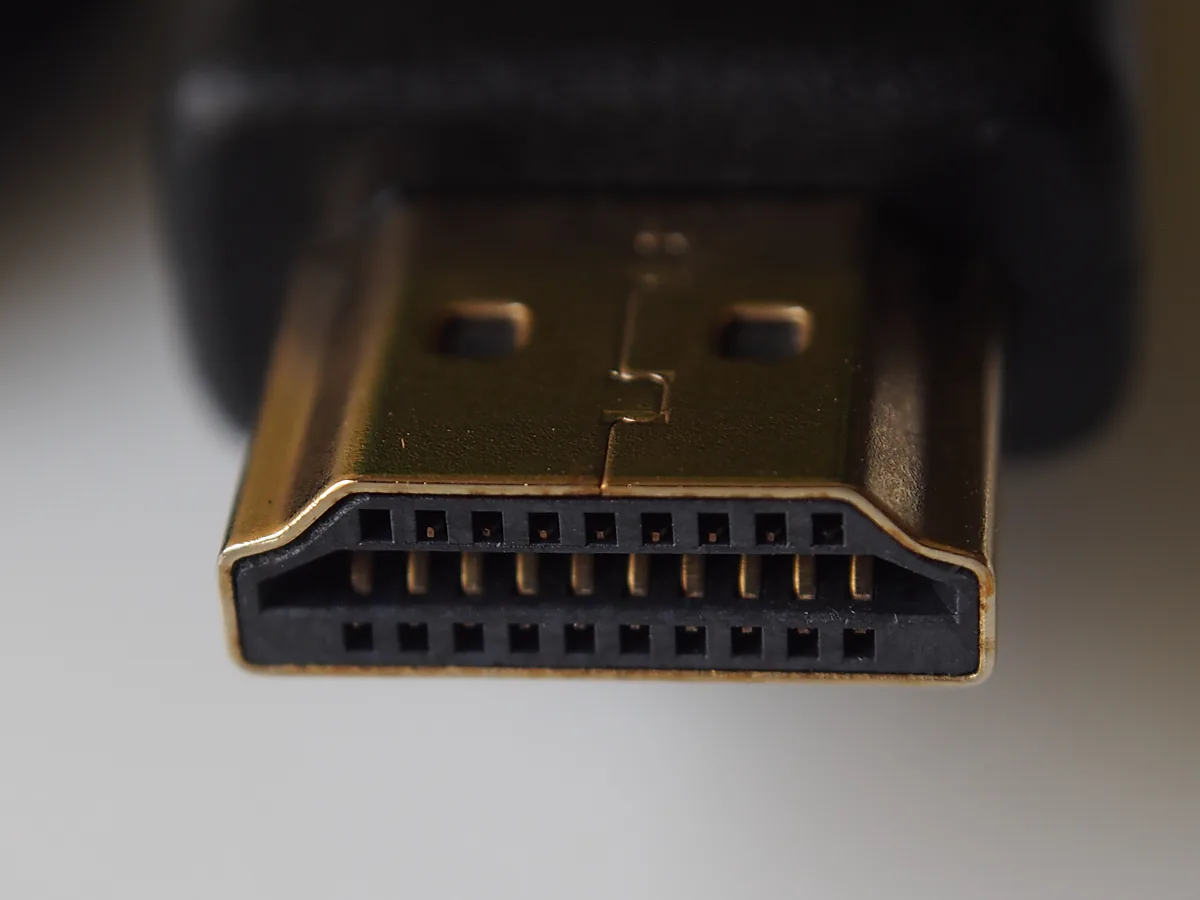
- The cable. Video cables fail more often than people expect, and a partly seated plug behaves exactly like a dead one. Unplug both ends, push them home firmly, and if nothing changes, try a different cable before anything else.
Do these two first. They cost a minute and they rule out the majority of cases.
Make Windows look again
- Press Win + P and choose Extend. If the display was set to PC screen only, this alone fixes it.
- Open Settings → System → Display, scroll to Multiple displays, expand it and click Detect.
- If the second screen appears but shows nothing, click Identify. Large numbers flash on each display, which tells you whether Windows has the two in the wrong order.
Dragging the numbered rectangles in that window arranges the desktop. Getting them the right way round is what stops the pointer leaving the wrong edge of the screen.
Which socket is actually wired
This is the one that catches people out, and it looks like a Windows fault when it is not.
On a desktop with a graphics card, the ports on the card and the ports on the motherboard are separate. If the card is installed, the motherboard ports are often disabled entirely, so a second monitor plugged into the motherboard gets nothing at all. Move both cables to the card.
On a laptop, not every port carries video. A USB-C socket may be data and charging only; the specification allows video, but the manufacturer has to wire it. Check the small icon beside the port, or your model’s specification page, before assuming the port is broken.
Through a dock or hub, a cheap adapter is a frequent culprit. Plug the monitor straight into the computer to find out whether the problem travels with the dock.
The display driver
If Windows is running on its fallback graphics driver, multi-monitor support is limited or absent.
- Right-click Start, open Device Manager, expand Display adapters and read the name there.
- “Microsoft Basic Display Adapter” means the real driver is missing. Install the proper one.
- If the right adapter is listed but the second screen still does not appear, reinstall the driver rather than updating it. Right-click the adapter, choose Uninstall device, tick the option to remove the driver software, and restart.
Our guides cover the download pages worth using: installing NVIDIA drivers and updating Intel graphics drivers. The general guide to updating drivers on Windows 11 explains why a driver-updater app is the wrong tool for this particular job.
A resolution the monitor cannot accept
A screen that flickers, goes black after a few seconds, or reports “input not supported” is being sent a signal it cannot display. That is a settings problem, not a detection problem.
In Settings → System → Display, select the second screen and lower the resolution, then check Advanced display and lower the refresh rate. Long or thin HDMI cables also cause this at high resolutions: a cable that carries 1080p happily can fail at 4K, and the symptom is an intermittent black screen rather than a clean failure.
Troubleshooting
It worked yesterday and stopped after an update. Windows Update sometimes replaces a working vendor display driver with a generic one. Reinstall the vendor driver and check again.
The second monitor flickers or keeps dropping out. Suspect the cable or the connection before the software. Swap the cable, then swap which port each monitor uses, which tells you quickly whether the fault follows the cable or the socket.
It is detected but stays black. Check the monitor input again. Windows can hand a display to a socket you are not currently watching.
Both screens show the same thing. That is duplicate mode, not a fault. Press Win + P and choose Extend.
Only one screen will adjust its brightness. Expected behaviour rather than a bug: the Windows slider drives a built-in panel, and a desktop monitor is adjusted with its own buttons. There is more on that in fixing brightness that stopped working.
The laptop screen goes dark when the lid closes. That is the lid action, set under Control Panel’s power options. Change it to Do nothing if you want to run the laptop closed with an external screen.
FAQ
How many monitors can I connect? It depends on the graphics hardware, not on Windows. Most modern cards and laptop chips handle three or four; the specification page for your model gives the real number.
Do both monitors have to be the same make? No. They can differ in size, resolution and refresh rate, and Windows scales each one separately.
Is HDMI or DisplayPort better for a second screen? DisplayPort generally carries higher resolutions and refresh rates on the same cable length. For an ordinary 1080p office screen the difference does not matter.
Will a USB-to-HDMI adapter work? Usually, though these use a separate driver of their own and can be slower for video. Plug it in and let Windows find the driver before judging it.
Why does the mouse leave the wrong side of the screen? The monitors are arranged the wrong way round in Display settings. Drag the numbered boxes until they match where the screens actually sit on your desk.
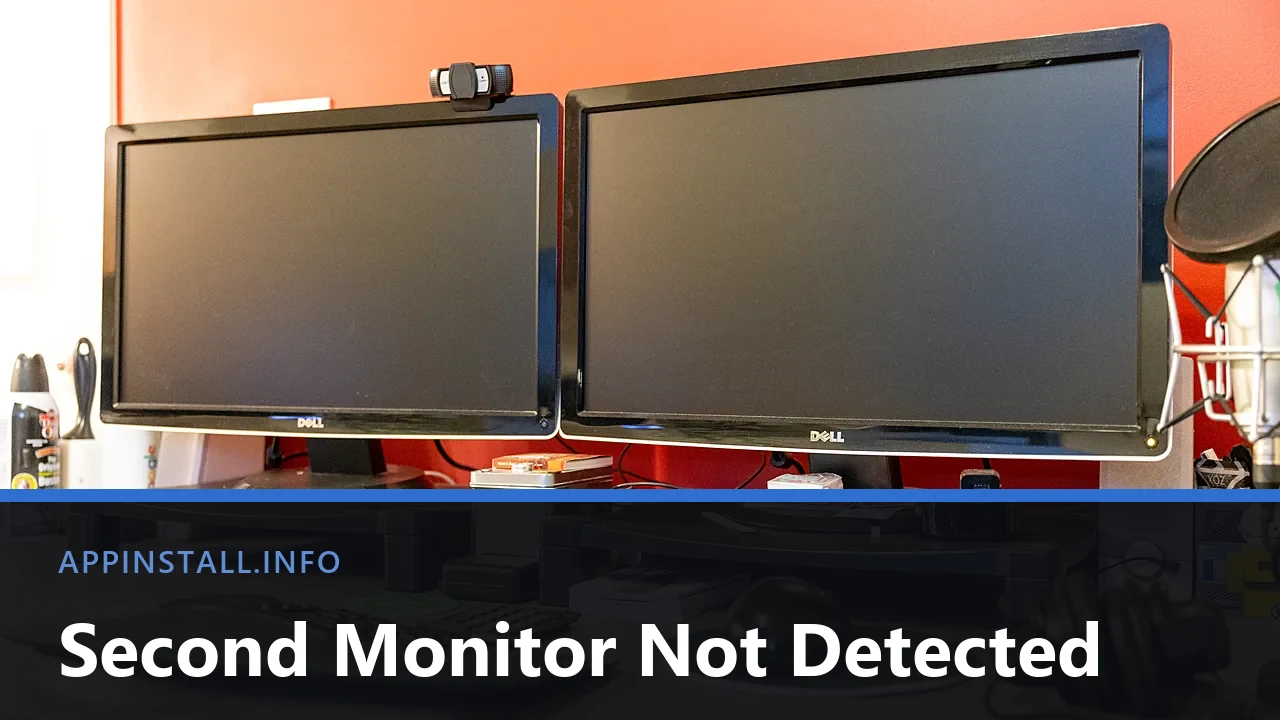
Featured image: Photo: Mack Male / Wikimedia Commons, CC BY-SA 2.0, title text added by AppInstall.info