Quick summary
- Two scanning programs exist on most PCs, and only the older desktop one is guaranteed to be present.
- 300 dpi handles text pages; 600 dpi is reserved for photographs or anything you plan to enlarge later.
- A mark appearing in the same spot on every page comes from the glass rather than the original document.
Short answer: Windows can scan without any extra software. Open Windows Fax and Scan, which is built in, or install the free Windows Scan app from the Microsoft Store, pick your device, choose PDF for documents, and press Scan. Vendor software is only needed for the printer’s own Scan to computer button.
Last checked: October 2026. Tested against Windows 11 version 26H2.
Two apps, both already on your PC
Windows ships with more than one way to scan, and the one people reach for first is usually the one that is missing.
- Windows Scan is the modern app. It is free from the Microsoft Store and is not always preinstalled, so if you cannot find it, that is why.
- Windows Fax and Scan is the old desktop program. It is plainer, but it is part of Windows itself and is always there. Press Win, type
Windows Fax and Scan, and open it.
Neither one needs vendor software. The manufacturer’s suite adds extras such as text recognition or automatic file naming, but for turning paper into a file on your desktop, Windows alone is enough.
Scan with the Windows Scan app
- Put the page face down on the glass, against the arrow marked in the corner, and close the lid.
- Open Scan. Your device should appear in the Scanner list at the top.
- Set Source to Flatbed for a single sheet, or Feeder if you have loaded a stack into the document feeder.
- Choose a File type. PDF for documents, JPEG for photos.
- Click Show more to set the resolution and the save folder, then Preview to check the crop.
- Click Scan. The file lands in Pictures → Scans unless you changed the folder.
Scan with Windows Fax and Scan
Use this when the Store app will not install, or when you want the scan saved somewhere specific without hunting through settings.
- Open Windows Fax and Scan and click New Scan on the toolbar.
- Check the device name at the top of the dialog. If it is wrong, click Change.
- Pick a Profile — Documents or Photo — which sets sensible defaults for the rest of the box.
- Set Colour format, File type and Resolution, then click Preview.
- Drag the crop handles around the part you actually want, then click Scan.
Scans stay inside the program until you export them. Right-click one and choose Save as to put it where you want it, or Forward as attachment to send it straight out by email.
Starting the scan from the machine itself
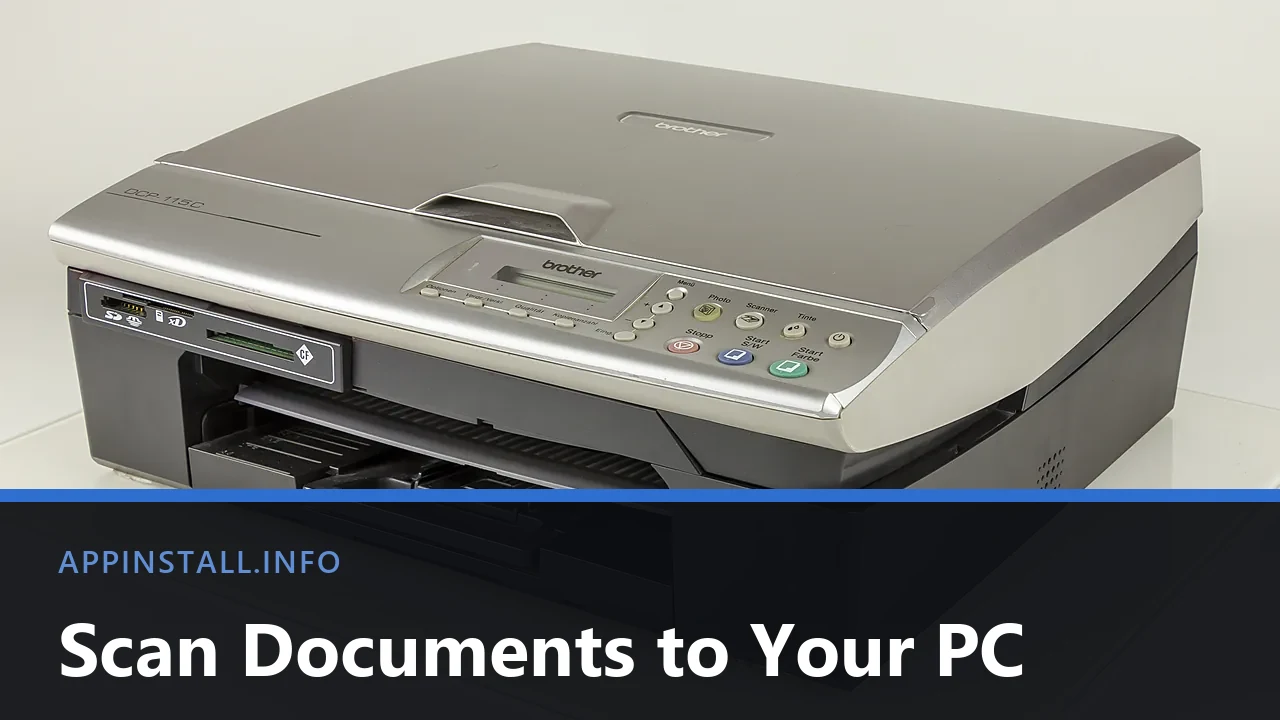
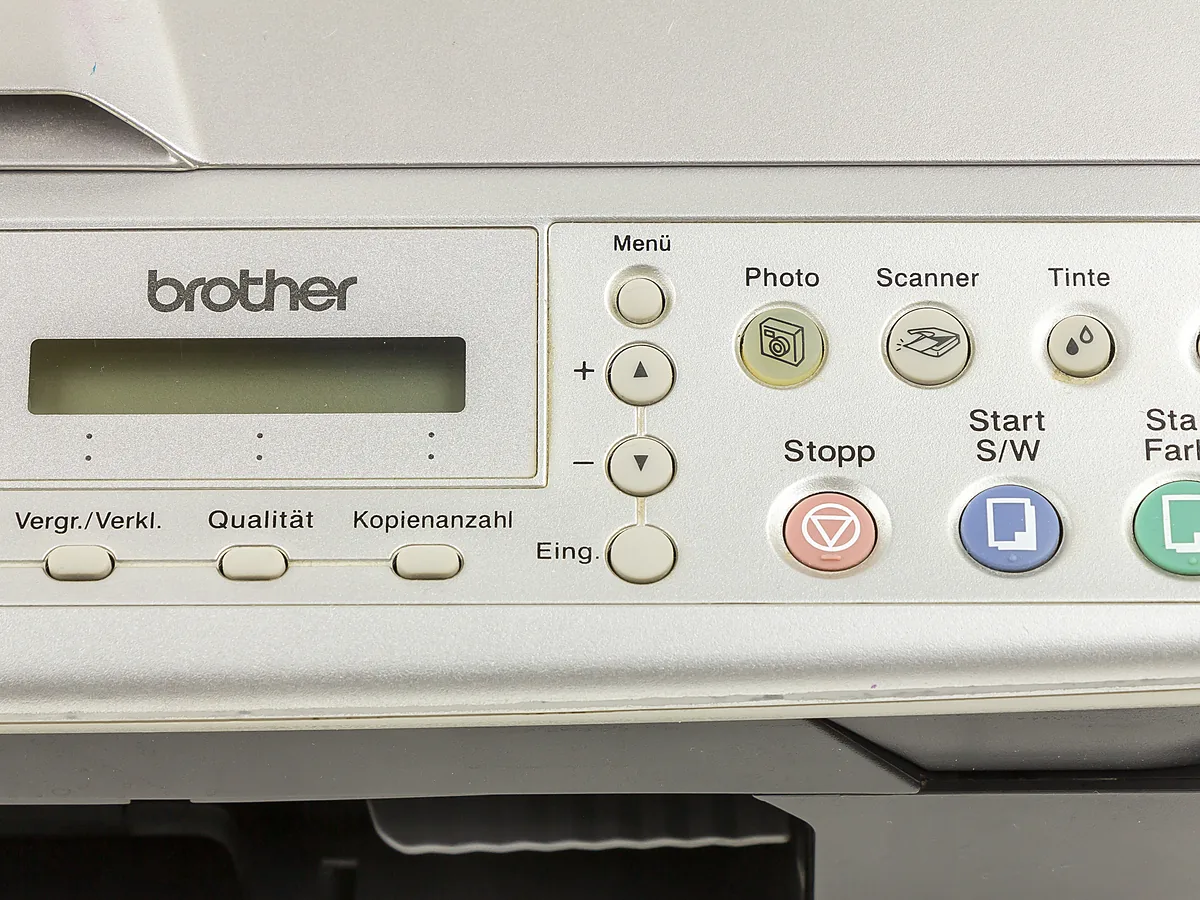
Most all-in-one printers have a Scan button on the front, and on a network model this is often the quicker route: you are walking to the machine with the paper anyway.
The button offers a destination list — typically Scan to computer, Scan to email, Scan to USB or Scan to folder. For Scan to computer to show your PC in that list, the machine has to know the PC exists, which usually means the vendor’s software has been installed at least once and both are on the same network. That is the one case where the manufacturer’s package really is needed.
Older USB models work the other way round: press Scan on the device and whichever scan program is set as the default opens on the PC, already waiting.
Resolution, colour and file type
Scanning at the highest setting available is the most common mistake. It produces enormous files that are slower to send and no easier to read.
- 300 dpi is the usual standard for ordinary text pages, and it is enough for text recognition later.
- 600 dpi is worth it for photographs, or for anything you intend to enlarge or archive.
- Greyscale rather than colour for printed text roughly halves the file size with no loss that matters.
- PDF for anything you will send or sign; JPEG for images; TIFF only when someone has specifically asked for it.
If the finished file is still too big to attach to a message, compressing it is the simplest answer — our guide to making a password-protected ZIP file covers the compression step and the password option together.
Several pages into one PDF
With a document feeder this is automatic: load the stack and choose PDF as the file type. Both apps write a single multi-page file.
On a flatbed with no feeder, Windows Fax and Scan saves each page as its own file and you combine them afterwards. Microsoft Edge will do it without extra software: open the pages, then use Print → Save as PDF. Scanning in order from the start saves a lot of reordering later.
Troubleshooting
No scanner is listed. Open Settings → Bluetooth & devices → Printers & scanners and check the device is there at all. If it is not, it has never been set up — installing a printer on Windows 11 covers USB and network models, and the scanner half arrives with the same driver.
It prints but will not scan. Printing and scanning use separate drivers on many models, and a basic driver installs only the printing half. Reinstall using the full package from the maker’s support page rather than the one Windows found on its own; updating drivers on Windows 11 explains where to get it.
Scanning fails with a service error. The scanning subsystem runs as a Windows service. Press Win + R, run services.msc, find Windows Image Acquisition (WIA), and check it is running with its startup type set to Automatic. Restart it if it is already running.
The network scanner disappears every few days. The printer has probably been handed a different IP address by the router. Reserve a fixed address for it, or reinstall it by hostname instead. The same cause sits behind a printer that keeps dropping out — see fixing a printer stuck offline.
There is a line or a smear down every scan. That is dirt on the glass, or on the narrow strip of glass beside it that the feeder scans through. Wipe both with a soft, lightly dampened cloth. A mark in the same place on every page is the glass, never the document.
The scan comes out blank. Check the page is face down. If it is, the fault may be shared with printing — a printer that prints blank pages works through the overlapping causes.
FAQ
Can I scan without installing anything? Yes. Windows Fax and Scan is part of Windows and needs no download.
Can I scan straight to PDF? Yes, in both apps. Choose PDF as the file type before scanning rather than converting afterwards.
Can I use my phone instead? For a quick copy, yes, and the result is fine for receipts. A flatbed still wins on flat, evenly lit pages and on anything that will be read by text recognition.
Where do scans get saved? The Windows Scan app uses Pictures → Scans by default. Windows Fax and Scan keeps them in its own window until you save them out.
Does the printer need to be a scanner too? It has to be a multifunction or all-in-one model. A printer with no glass bed and no feeder cannot scan, whatever software you install.
Featured image: Photo: Raimond Spekking / Wikimedia Commons, CC BY-SA 4.0, title text added by AppInstall.info