Quick summary
- Correct letters paired with misplaced punctuation marks point to a software mapping problem rather than any damaged hardware underneath.
- Laptops without a number pad can turn part of the letter block into digits when Num Lock is active.
- Filter Keys and Sticky Keys switch themselves on via shortcuts, which explains dropped characters or everything suddenly arriving capitalised.
Short answer: If the letters are correct but the punctuation lands in the wrong place, Windows is using another country’s keyboard layout. Press Win + Space to switch back, then remove the unwanted layout in Language options. Hardware faults look different: dead or repeating keys, not neatly rearranged symbols.
Last checked: October 2026. Tested against Windows 11 version 26H2.
Almost always the layout, not the keyboard
If the letters are right but the punctuation is wrong, the hardware is fine. Windows is mapping your keys to a different country’s layout, and the giveaway is specific: on a UK layout Shift + 2 produces “ instead of @, and the @ moves next to Enter. The # and £ keys swap places in the same way.
That pattern — letters correct, symbols displaced — means a layout mismatch every time. A failing keyboard produces dead keys or repeated characters, not a tidy reshuffle of punctuation.
Switch the layout back
- Press Win + Space. This cycles through the installed keyboard layouts and fixes it instantly if more than one is present.
- To remove the wrong one for good, open Settings → Time & language → Language & region.
- Click the three dots beside your language, choose Language options, and look under Keyboards.
- Add the layout you actually want, then remove the one you do not. Windows often installs a second layout during setup without asking clearly.
Check the taskbar as well: when two layouts are installed, Windows shows a small language indicator near the clock, and it is easy to switch by accident with the keyboard shortcut.
Quotes and apostrophes that refuse to appear
A different complaint, same root cause: you press the apostrophe and nothing happens until you press the next key, and then you get á instead of ‘a. Nothing is broken. You are on the US-International layout, where the quote, apostrophe, tilde and caret are dead keys reserved for building accented characters.
It is a useful layout if you write in Spanish, French or Portuguese, and a constant irritation if you do not. Two ways out: press the spacebar after the apostrophe to force the plain character, or switch to the plain US layout in Language options using the steps above. The same trick applies to the double quote and the tilde.
Letters turning into numbers on a laptop
On compact laptops without a separate number pad, part of the right-hand letter block doubles as an embedded numeric keypad. When Num Lock is on, pressing u, i and o types 4, 5 and 6 instead.
Press Num Lock, or Fn + Num Lock if the key is shared. This is a setting, not a fault, and it survives restarts.
When the F-keys do the wrong thing
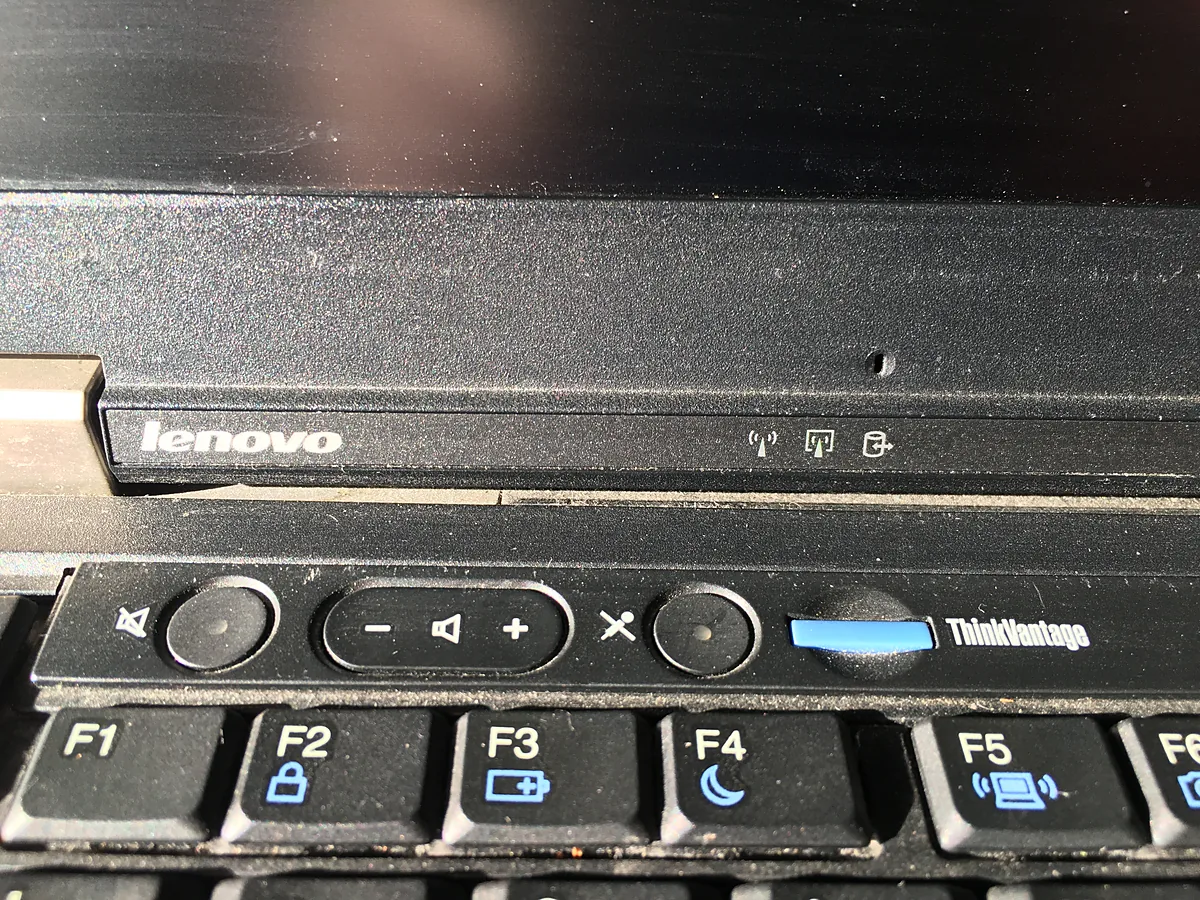
Many laptops ship with the function row acting as media and brightness controls by default, so F5 changes the volume instead of refreshing a page. That is Fn lock, not a broken keyboard.
Toggle it with Fn + Esc on most machines, or change the default in firmware — the setting is usually called Action Keys Mode or Hotkey Mode. Vendor utilities can also control it, which is why the behaviour sometimes returns after a clean Windows install removes them.
Repeated, missing or sluggish keys
Two accessibility features cause this and are easy to switch on by accident:
- Filter Keys ignores brief or repeated keystrokes, so characters go missing. Holding right Shift for eight seconds enables it.
- Sticky Keys latches modifiers, so everything arrives capitalised or with Ctrl held. Pressing Shift five times enables it.
Both live in Settings → Accessibility → Keyboard, where you can also turn off the shortcuts that trigger them.
Troubleshooting
Only one application is affected. Some programs carry their own input handling or a regional setting of their own. Test in Notepad before blaming Windows.
The problem follows a USB keyboard to another PC. Then it is the keyboard. If the board is not detected at all rather than typing wrongly, start with a USB device not recognized in Windows.
A wireless keyboard types randomly or drops characters. That is usually interference or a weak battery rather than a layout problem. For pairing faults, see Bluetooth missing in Windows 11.
Everything was fine until a Windows update. Updates can re-add a language you removed. Check Language options again before touching drivers; our guide to updating drivers on Windows 11 covers the rarer case where the keyboard driver itself is at fault.
Keys stopped after a spill. Stop using it and disconnect it. Liquid damage spreads, and a keyboard that half works today often fails completely within days.
FAQ
Why did Windows add a second layout by itself? Region and language are set separately during installation, so choosing a country can add its layout even when the keyboard is physically a different one.
Does the printed legend on the keys matter? No. The keycaps are paint; Windows decides what each key sends.
Can I use a US layout on a UK keyboard? Yes, and many people prefer it for programming. The symbols will simply not match the printing.
Is a keyboard driver update ever the answer? Rarely. Standard keyboards use a generic Windows driver; only boards with their own software need anything more.
Featured image: Photo: Kskhh / Wikimedia Commons, CC BY-SA 4.0, title text added by AppInstall.info