Quick summary
- An HDMI monitor without speakers still counts as an output, and Windows will happily choose it.
- Each application carries its own level in Volume mixer, which is why one program alone goes quiet.
- An empty output list points at Device Manager; a populated one almost never means a broken driver.
Short answer: Most silent PCs are playing to the wrong place rather than failing. Check the taskbar volume, pick the right output in the device list, and look at the per-application levels in Volume mixer. Only when the list is empty does it become a driver or hardware problem.
Last checked: October 2026. Tested against Windows 11 version 26H2.
Check what Windows is actually playing to
Most silent PCs are not broken. Windows is simply sending audio somewhere you are not listening, and the fix is two clicks rather than a driver reinstall.
- Click the speaker icon in the taskbar and check the slider is not at zero and not muted.
- Click the arrow beside it to see the output device list, then pick the one you are actually using.
- Open Settings → System → Sound and look at Volume mixer. Windows keeps a separate level for each application, so one app can be silent while everything else works.
A monitor connected over HDMI counts as an audio device even when it has no speakers. If Windows picked it as the default, the PC is playing perfectly — into nothing.
Check the physical side once
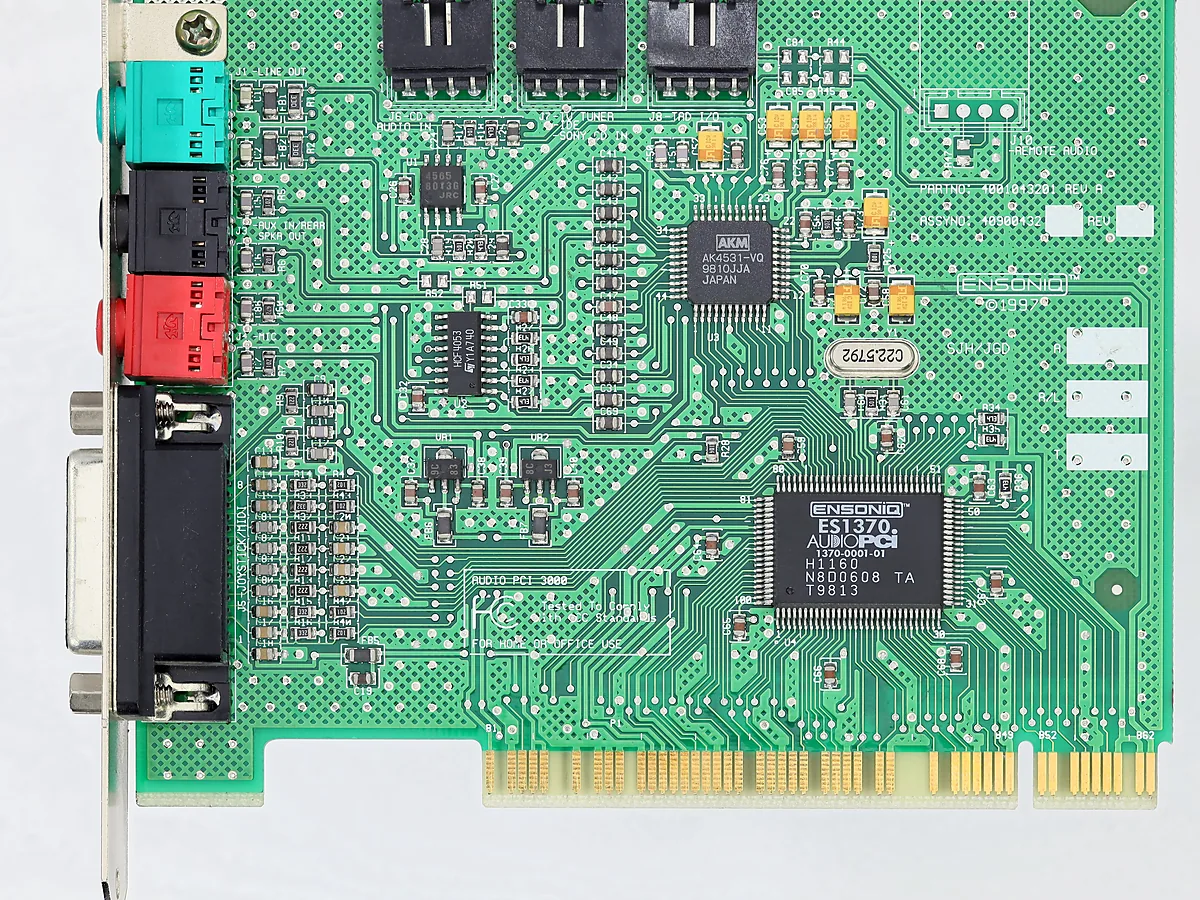
On a desktop, the green socket is line-out and the pink or red one is the microphone input. They are the same size and easy to confuse, and plugging speakers into the wrong one produces exactly this symptom.
Front-panel sockets are also wired to the motherboard by a separate cable that can be unplugged inside the case. If the rear socket works and the front one does not, that is the cause rather than anything in Windows.
Laptops have the opposite problem: one combination socket, and pocket lint that stops the plug a millimetre short so the speakers keep playing. Headphones plugged in but no sound covers that, along with counting the rings on the plug to tell a headset from plain stereo headphones.
Restart the audio service
Windows Audio runs as a background service. When it hangs, every output falls silent at once while the hardware itself stays perfectly healthy.
- Press Win + R, type
services.mscand press Enter. - Find Windows Audio, right-click it and choose Restart.
- Do the same for Windows Audio Endpoint Builder, the service that populates the device list you saw earlier.
If the list was empty and fills up afterwards, the service was the culprit and no driver work is needed at all.
When the output list is empty
An empty device list means Windows cannot see the audio hardware at all, which moves the problem to Device Manager.
- Right-click Start → Device Manager and expand Sound, video and game controllers.
- A yellow warning triangle means the driver failed. Right-click the entry, choose Uninstall device, then restart — Windows reinstalls a working driver on boot in most cases.
- Nothing listed at all? Use View → Show hidden devices and check Other devices for an unknown entry.
If Windows reinstalls a generic driver that works badly, fetch the vendor’s audio package from your laptop or motherboard maker’s support page. Our guide to updating drivers on Windows 11 covers finding the right one and why automatic driver updaters usually make audio worse.
Bluetooth and USB audio are separate paths
A Bluetooth headset that pairs but produces nothing is usually a profile problem: Windows exposes a high-quality stereo output and a low-quality hands-free one, and picks the wrong one when an app grabs the microphone. Select the stereo entry in the output list. If the headset does not appear at all, that is a radio problem rather than an audio one — see Bluetooth missing in Windows 11.
USB speakers and headsets carry their own audio chip, so they arrive as a separate device entirely. When one is not listed, treat it as a connection fault first: a USB device not recognized in Windows starts with the port and cable.
Troubleshooting
Sound works in one app only. Check the per-app levels in Volume mixer, and look inside the application’s own audio settings — browsers, games and conferencing tools all keep their own output choice.
Audio disappeared after a Windows update. Open Device Manager, double-click the audio device, and use Roll Back Driver on the Driver tab if the button is available.
Crackling or stuttering rather than silence. Try a lower sample rate: Sound settings, the output device, then the advanced format option. 24-bit 48000 Hz is a safe default.
Only the front panel is silent. Some vendor audio utilities treat the front jack as a separate output and need jack detection enabled. Check the vendor’s control panel before opening the case.
Everything is correct and it is still silent. Run Settings → System → Troubleshoot → Other troubleshooters → Audio. It resets the audio services, which fixes a stuck endpoint more often than its reputation suggests.
FAQ
Do I need a sound card? No. Onboard audio has been adequate for years; a separate card is for specific recording or headphone-amplifier needs.
Why does my monitor show as a speaker? HDMI and DisplayPort carry audio, so Windows lists the monitor whether or not it can make a noise.
Is it worth installing the vendor audio utility? On laptops, often yes — jack detection and speaker tuning usually live there rather than in Windows.
Can a dirty headphone socket cause silence? Yes, and it is common on laptops carried in bags. The socket also has a switch inside that tells Windows something is plugged in.
Featured image: Photo: Gajarion27 / Wikimedia Commons, CC BY-SA 3.0, title text added by AppInstall.info