Quick summary
- A headset carries its own mute switch on the cable, and nothing in Windows reports that it is engaged.
- Laptops record from the array beside the screen while you speak into a boom you never selected.
- Working everywhere except one program points at that program, because an input can serve several apps at once.
Short answer: Open Settings → System → Sound, say something, and watch the level bar next to your input. If it moves, Windows can hear you and the fault belongs to the app you were using. If it stays flat, either a mute switch is on or Windows is listening to a different microphone than the one you are talking into.
Last checked: October 2026. Tested against Windows 11 version 26H2.
Watch the level bar before you change a setting
Open Settings → System → Sound and look at the Input section. Each listed device has a thin bar beside it that reacts to real sound.
Talk at a normal volume and watch. What happens next splits the problem in two, and the two halves have almost nothing to do with each other.
- The bar moves. Windows is receiving audio. Whatever is failing is the application you noticed the problem in, or its choice of device.
- The bar stays still. Nothing is reaching Windows at all. Work through the hardware and selection sections below.
Thirty seconds here saves most of the time people spend reinstalling drivers for a problem that was never a driver.
Three separate mutes, and Windows only knows about one
A microphone can be silenced in three places that do not talk to each other, which is why the setting you just checked often looks perfectly fine.
- On the cable or the earcup. Headsets commonly put a small slider or button there. Nudged in a bag, it stays that way for weeks.
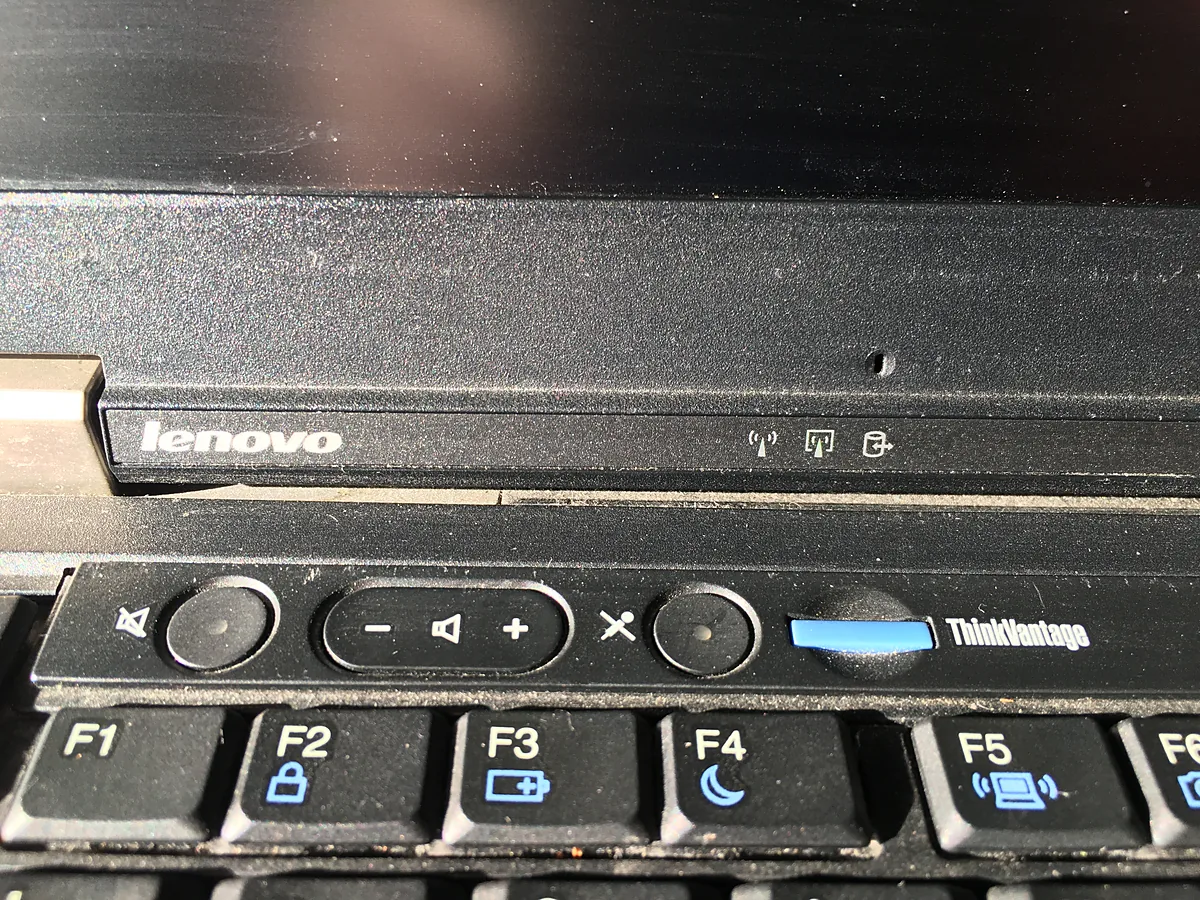
- On the keyboard. Many laptops dedicate a key to this, usually with a small light built into it. The key cuts the signal in hardware, so Windows sees silence rather than a mute.
- Inside the app. Meeting software keeps its own state, and joining a call muted is the default in several of them.
Windows may be listening to something else
Laptops almost always have a built-in array near the screen hinge or above the display, and it stays available even when a headset is plugged in. So two inputs exist at once, and the one you are speaking into is not automatically the chosen one.
In Settings → System → Sound, click the device you actually want and tick Set as default. Then speak again and confirm the bar for that entry is the one responding.
Programs can override this individually. Scroll to Volume mixer, expand the app, and check the input device shown there, because an app set to a device you unplugged weeks ago will keep waiting for it.
If it works but everyone says you are faint
Selection is right, mute is off, and you are still hard to hear. That is a level problem rather than a connection one.
Click the input device in Sound settings to open its page, then raise the Input volume slider. Many headsets arrive set near the middle.
Below it, turn off Audio enhancements and try again. Noise suppression is useful when it works, and when it misjudges a quiet voice it removes the quiet voice.
A laptop array sitting under the screen also picks up the keyboard as clearly as it picks up you. If calls matter, almost any headset improves the result more than any setting will.
Permissions, the same three switches as the camera
Windows gates microphone access the same way it gates the camera: a device-wide switch, a per-app list, and a separate one at the bottom for traditional desktop programs. Any of the three being off blocks the app.
They live in Settings → Privacy & security → Microphone. The walkthrough in a webcam that has stopped working explains the stack in detail, including the desktop apps switch that is easy to scroll past.
Bluetooth headsets behave differently
A wireless headset has to choose between good audio and a working microphone, because the two modes are mutually exclusive over Bluetooth. Using the microphone drops the sound quality to something like a phone call, and this is normal rather than a fault.
That trade and the two confusing entries it creates are covered in connecting Bluetooth headphones to Windows 11.
Troubleshooting
The headset has no microphone entry at all. Count the rings on the plug: a plug with fewer of them physically cannot carry a microphone. Headphones plugged in with no sound explains the difference and what a combo socket expects.
It fails in one browser only. Browsers keep their own permission per website, separate from anything in Windows. Click the padlock in the address bar and check what this site is allowed to do.
It cuts in and out during calls. On a wired headset this is usually the cable near the plug. On a wireless one, distance or a crowded 2.4 GHz band.
It disappeared after an update. Open Device Manager, expand Audio inputs and outputs, uninstall the entry and restart; Windows puts it back. If that fails, updating drivers on Windows 11 covers fetching the right one from the laptop maker.
Playback is broken too. Then this is not an input problem, and no sound in Windows 11 is the better starting point.
FAQ
Where is the microphone on a laptop? Usually one or two pinholes in the screen bezel, sometimes on the side or underneath. They are deliberately small.
Does covering the camera affect it? No. A privacy shutter blocks the lens only, and the holes beside it keep recording.
Why do I hear myself echo? Your voice is leaving the speakers and returning through the microphone. A headset ends it immediately.
Is a USB microphone better than the 3.5 mm one? Usually, because it brings its own converter instead of relying on the laptop’s. It also appears as a separate device you must select.
Can one microphone serve two apps? Yes, unlike a webcam. If a second app gets nothing, the cause is its own settings rather than the first app holding the device.
Featured image: Photo: Evan-Amos / Wikimedia Commons, Public domain, title text added by AppInstall.info