Quick summary
- Clicking the dead key in Windows own on-screen version separates hardware from software in seconds.
- A dead row or block follows the internal wiring, so cleaning will not reach it and the connector will.
- Laptop keycaps sit on fragile scissor clips, unlike the desktop caps that are built to be pulled off.
Short answer: Open the On-Screen Keyboard with osk and click the dead key: if it types there, the fault is physical. One or two neighbouring keys means debris under them, while a whole row or block points at the internal connector instead. Clear the crumbs before you pry anything off.
Last checked: October 2026. Tested against Windows 11 version 26H2.
Find out whether it is the key or the computer
One test settles this, and it takes about fifteen seconds. Press Win + R, type osk and press Enter to open the On-Screen Keyboard.
- Clicking the key on screen types the character. Windows is fine and the physical key is not. Everything below applies.
- Clicking it on screen does nothing either. The problem is in software or in the application, not under your finger.
Try it in Notepad rather than in a browser or a game, since those can swallow keystrokes for reasons of their own. The On-Screen Keyboard also gets you working again in the meantime, which matters if the dead key is one you need for your password.
Which keys are dead tells you where to look
- One key, or two next to each other. Almost always debris or a worn contact under that key. This is the common case and the fixable one.
- A whole row, a block, or one side of the keyboard. That pattern follows the internal wiring rather than the keys, which points at the ribbon connector or the controller. Not a cleaning job.
- The right-hand letters typing numbers. Not a fault at all — that is the embedded number pad, and why your keyboard types the wrong characters covers it along with the layout traps that look similar.
- Characters arriving late, doubled, or going missing at random. Check the accessibility settings before the hardware; the same guide explains which two to look at.
Clear what is under the key
Crumbs, dust and dried drink are the usual culprits, and you can often get at them without removing anything.
- Shut the machine down. Do not do this with Windows running.
- Turn the keyboard or the laptop upside down and tap the base firmly. What comes out is often the answer.
- Work compressed air along the edges of the affected key in short bursts, holding the can upright so it does not spit liquid.
- Press the key fifty times in a row. On a contact that is merely dirty rather than broken, this alone sometimes restores it.
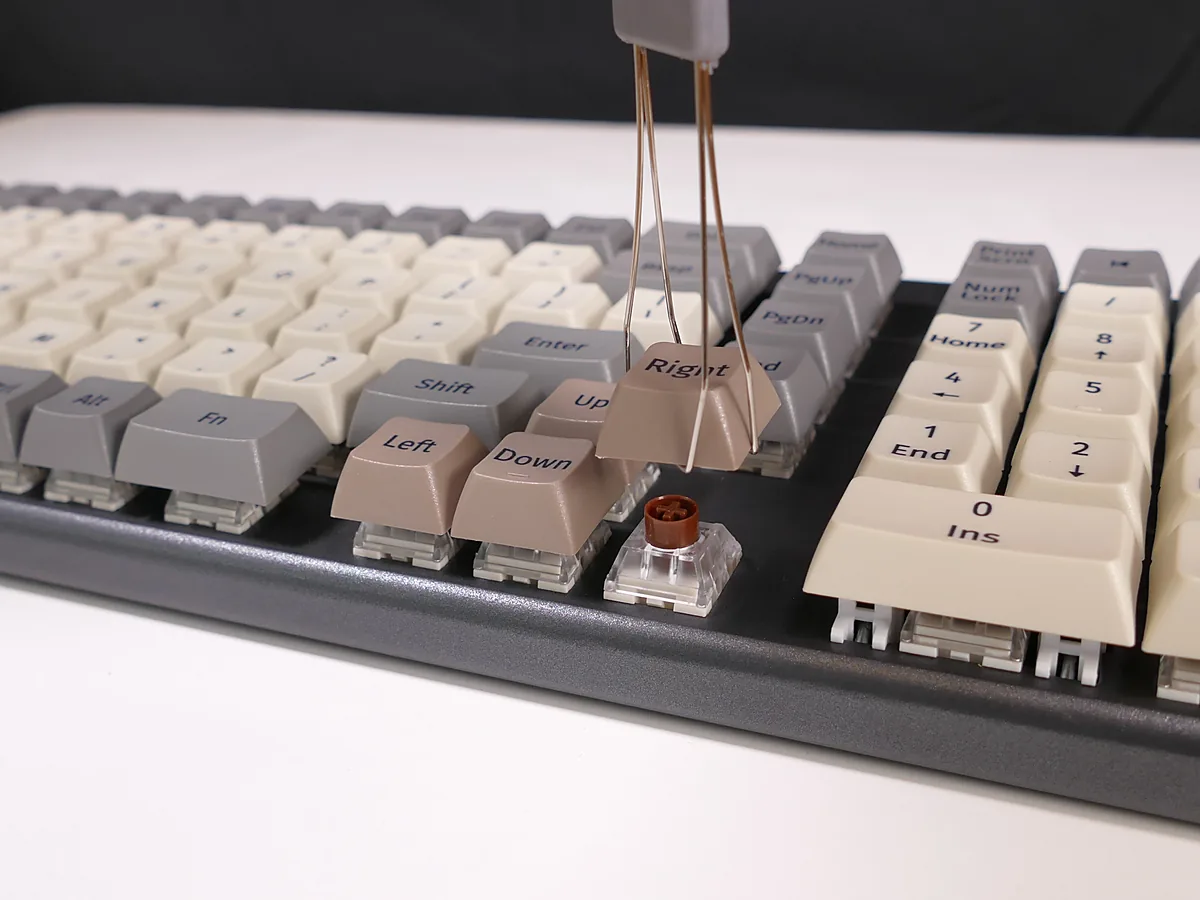
Removing a keycap is not the same job on every keyboard. On a desktop mechanical keyboard the caps are designed to come off and a puller costs very little. On a laptop the retainer underneath is a small plastic scissor that breaks easily and is awkward to refit, so prying one off to clean it is a real risk. If you are not confident, stop at the compressed air.
If liquid has been spilled
- Shut it down immediately by holding the power button, and unplug it. Speed matters more than a clean shutdown here.
- Remove the battery if your model allows it.
- Stand the laptop open and face down, like a tent, so liquid drains away from the board rather than into it.
- Leave it at least twenty-four hours, and ideally forty-eight. No hairdryer; heat damages what the liquid has not.
Water sometimes dries out with no lasting harm. Anything sugary or alcoholic leaves a residue that keeps conducting after it dries, and that needs cleaning by someone who will open the machine.
The software side, briefly
It is worth ten minutes before deciding the hardware has failed.
- Right-click Start, open Device Manager, expand Keyboards.
- Right-click the entry — usually HID Keyboard Device — choose Uninstall device, and restart. Windows reinstalls it automatically.
- If a vendor driver is involved, fetch it from the laptop maker rather than letting Windows choose; updating drivers on Windows 11 explains why.
Another test that costs nothing: see whether the key works at the sign-in screen, before your account loads. If it works there and fails afterwards, something that starts with your account is interfering, not the keyboard.
Troubleshooting
An external keyboard works perfectly. That confirms the built-in keyboard rather than Windows, and it is also a usable workaround for as long as you need one.
A wireless keyboard has several dead keys at once. Suspect the batteries before the keys. A weak cell produces dropped keystrokes that look exactly like failing hardware — the same pattern described in a wireless mouse that is not working.
The key works, but only if pressed hard or in the centre. A worn contact. Cleaning may buy time; it does not reverse wear.
It started after a Windows update. Uninstall the keyboard device in Device Manager and restart before assuming anything physical.
Several keys stopped at once, and the touchpad is odd too. Those share a connector inside many laptops, so a single loose ribbon can explain both — see a touchpad that has stopped working to confirm the pattern before booking a repair.
FAQ
Can I replace a single key on a laptop? Individual keycaps and retainers are sold for many models. Fitting one is fiddly but possible; replacing the whole keyboard assembly is the more reliable repair.
Is it worth cleaning a keyboard with water? Not a laptop. A detached desktop keyboard can usually be washed if it is fully dried for days first, but a replacement costs less than the risk.
Why do the same keys fail on many keyboards? Because they are used most. Space, E and the arrow keys wear first.
Does the On-Screen Keyboard work for passwords and sign-in? Yes. The sign-in screen has its own accessibility button that opens it.
Will a keyboard cover prevent this? It keeps crumbs out, which is the main cause. Some trap heat on thin laptops, so take it off while the machine is working hard.
Featured image: Photo: Dejan Krsmanovic / Wikimedia Commons, CC BY 2.0, title text added by AppInstall.info