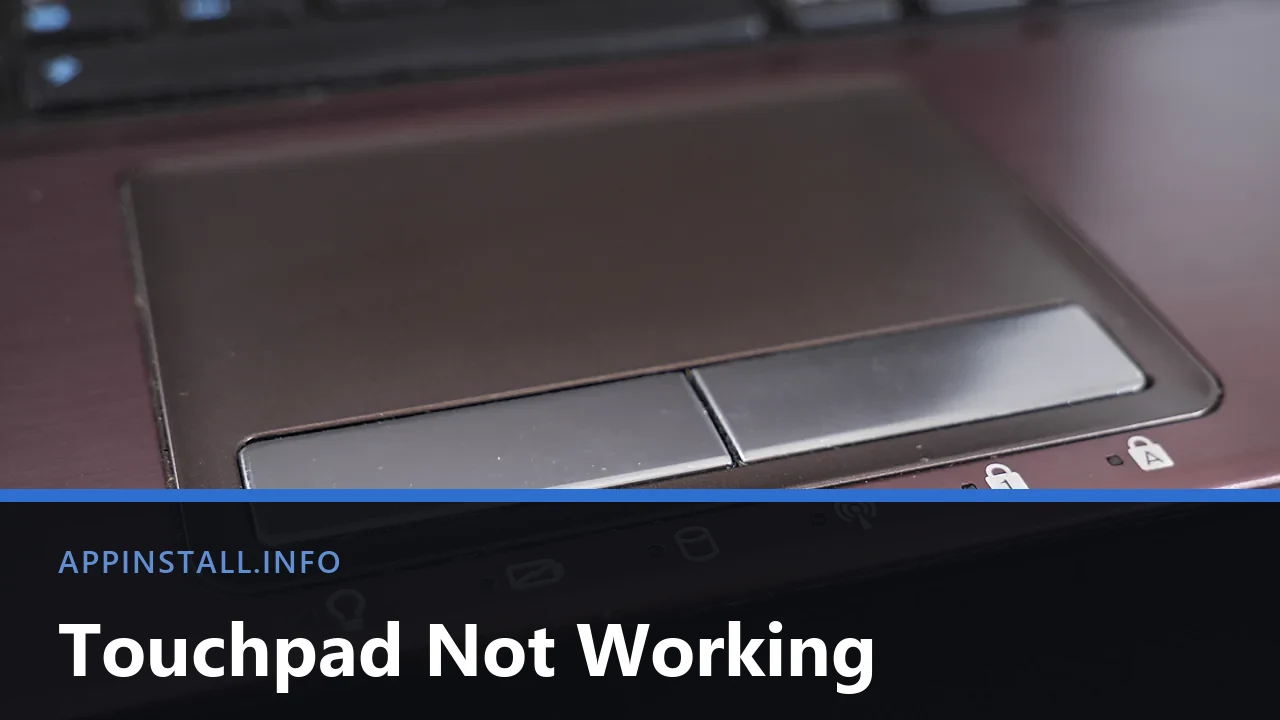
Quick summary
- Three separate switches can disable a touchpad, and two of them sit outside Windows on the laptop itself.
- A mouse plugged into the laptop normally switches the pad off, and Windows does not always bring it back.
- A pad that clicks but will not move, or the reverse, has two mechanisms and only one has failed.
Short answer: Plug in a USB mouse so you can work, then check the three switches: the Fn touchpad key, the double-tap corner on some models, and the toggle in Settings under Bluetooth & devices. If Windows lists no touchpad at all, reinstall it from Device Manager and restart.
Last checked: October 2026. Tested against Windows 11 version 26H2.
First, get a pointer back
Fixing this is much easier with something to click. Plug in any USB mouse; Windows finds it without asking and it works immediately.
If there is no mouse to hand, the keyboard will do. Win + I opens Settings, Tab and the arrow keys move between items, Space toggles a switch and Enter activates. Every step below can be done that way.
The switch you may have pressed by accident
Most touchpad failures are a toggle, not a fault, and there are three separate ones.
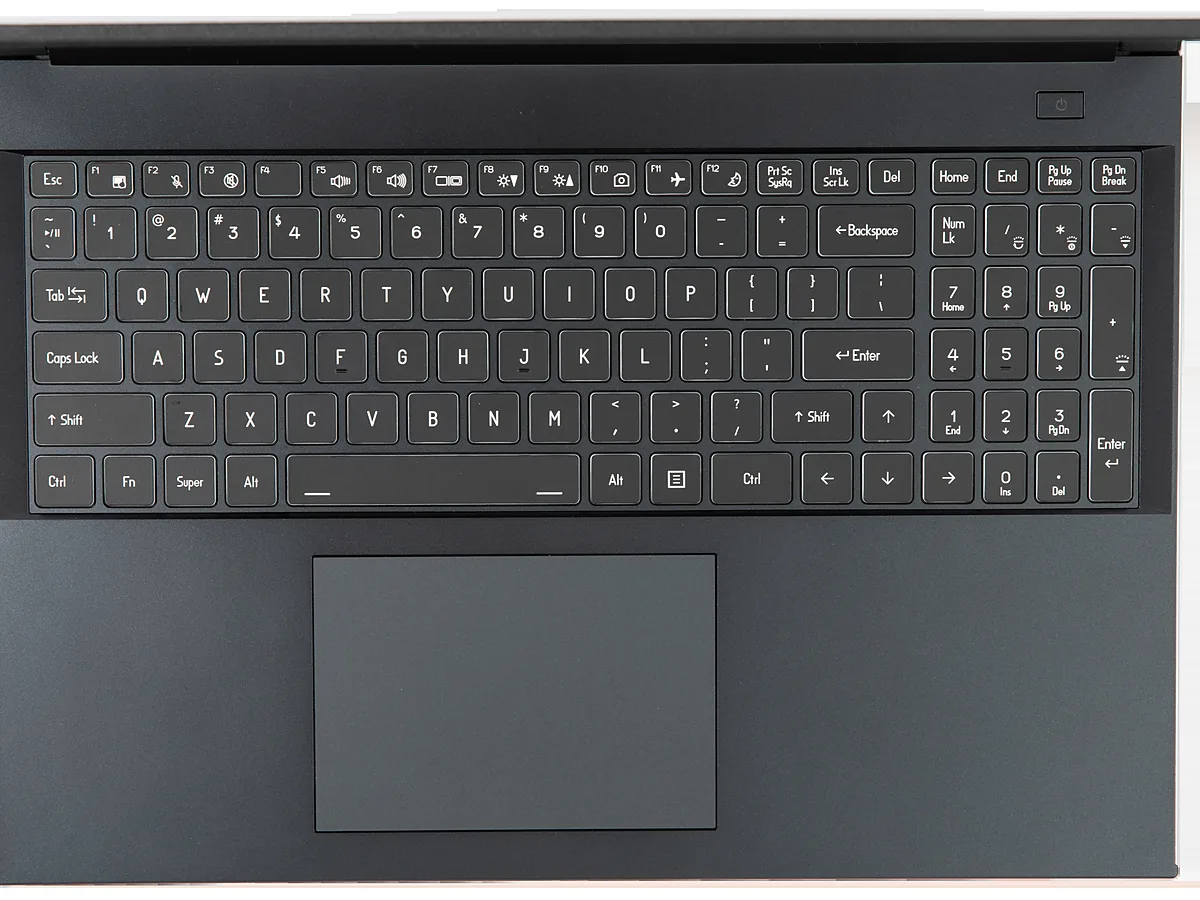
- The function key. Many laptops put a touchpad symbol — a small rectangle with a line through it — on one of the F-keys. Press it with Fn held, and again without, since the two behave differently depending on the Fn lock state.
- The corner tap. Some HP and ASUS models disable the pad when you double-tap its top-left corner, often with a tiny light to show the state. It is easy to trigger while reaching for a key.
- The Windows switch. Open Settings → Bluetooth & devices → Touchpad and check the toggle at the top is on.
If the F-key route does nothing at all, the function row may be in media mode rather than function mode. That behaviour is the same one described in why your keyboard types the wrong characters, and Fn + Esc usually flips it.
Windows turns it off when a mouse is connected
This one catches people who work at a desk with a mouse and then unplug it. On most machines Windows is set to switch the touchpad off while a mouse is attached, and it does not always switch it back promptly.
In the same Touchpad settings page, expand the top section and tick Leave touchpad on when a mouse is connected. Then unplug and replug the mouse once to see the behaviour change.
Precision touchpad or vendor driver
Open Settings → Bluetooth & devices → Touchpad and look for the line that says your PC has a precision touchpad.
- If it is there, Windows owns the gestures directly and the settings page controls everything, including the multi-finger actions.
- If it is absent, the pad runs on a Synaptics, Elan or Alps driver with its own control panel, usually buried in Control Panel under Mouse. Gestures are limited and configured there instead.
Replacing a vendor driver with the Precision one is possible on some models and not on others. It is not worth attempting while the pad is already misbehaving — get it working first.
Reinstall the driver
- Right-click Start and open Device Manager.
- Look under Mice and other pointing devices first. A precision touchpad often appears under Human Interface Devices instead, as an I2C HID device.
- Right-click the entry, choose Uninstall device, then restart. Windows reinstalls it on boot.
- If it comes back broken, install the touchpad driver from the laptop maker’s support page rather than letting Windows choose.
Getting the right file means knowing the exact model, which is not always the name on the lid — checking your PC specs on Windows 11 shows where the System SKU lives. The wider routine is in updating drivers on Windows 11.
It moves, but badly
A pad that responds yet behaves oddly is a settings problem rather than a broken one.
- Scrolling goes the wrong way. In Touchpad settings, open Scroll & zoom and change the scrolling direction.
- The cursor jumps while typing. Lower the sensitivity in the same page. This is the palm-rejection setting under another name.
- Multi-finger gestures do nothing. Almost always a non-Precision driver. Check the line described above before hunting for a setting that is not there.
- Clicks register but movement does not, or the reverse. On pads with separate physical buttons these are different mechanisms, and one can fail while the other works.
Troubleshooting
Nothing in Device Manager looks like a touchpad. Open View → Show hidden devices, then check Other devices for an unknown entry with a yellow triangle. If there is genuinely nothing, the pad may be switched off in firmware: look for an internal pointing device option in the UEFI setup screen.
It stopped after a Windows update. Open the device’s Driver tab in Device Manager and use Roll Back Driver if the button is available. Updates sometimes replace a working vendor driver with a generic one.
It works at the sign-in screen but not after logging in. That points at software loading with your account rather than at the hardware. Vendor utilities and gesture tools are the usual culprits; disable them one at a time.
The touch screen works but the touchpad does not. They are separate devices with separate drivers. Our guide to disabling the touch screen in Windows 11 explains which entry is which, so you do not disable the wrong one while testing.
It is intermittent and the laptop has been dropped or opened recently. The pad connects by a short ribbon cable that can work loose. That is a repair rather than a setting.
FAQ
How do I turn the touchpad off deliberately? The same toggle in Settings, or the F-key. Disabling the device in Device Manager also works and survives restarts.
Why does my touchpad feel slower than it used to? Check the cursor speed slider first, then whether a different driver was installed. Precision and vendor drivers have noticeably different feels.
Can I use gestures without a precision touchpad? Some, through the vendor control panel. The full Windows gesture set needs the Precision driver.
Does a touchpad wear out? The surface rarely does. The physical buttons underneath, where fitted, are the part that fails with age.
Will cleaning it help? If the surface is greasy, yes. Wipe with a barely damp cloth; a wet pad registers phantom touches until it dries.
Featured image: Photo: Santeri Viinamäki / Wikimedia Commons, CC BY-SA 4.0, title text added by AppInstall.info