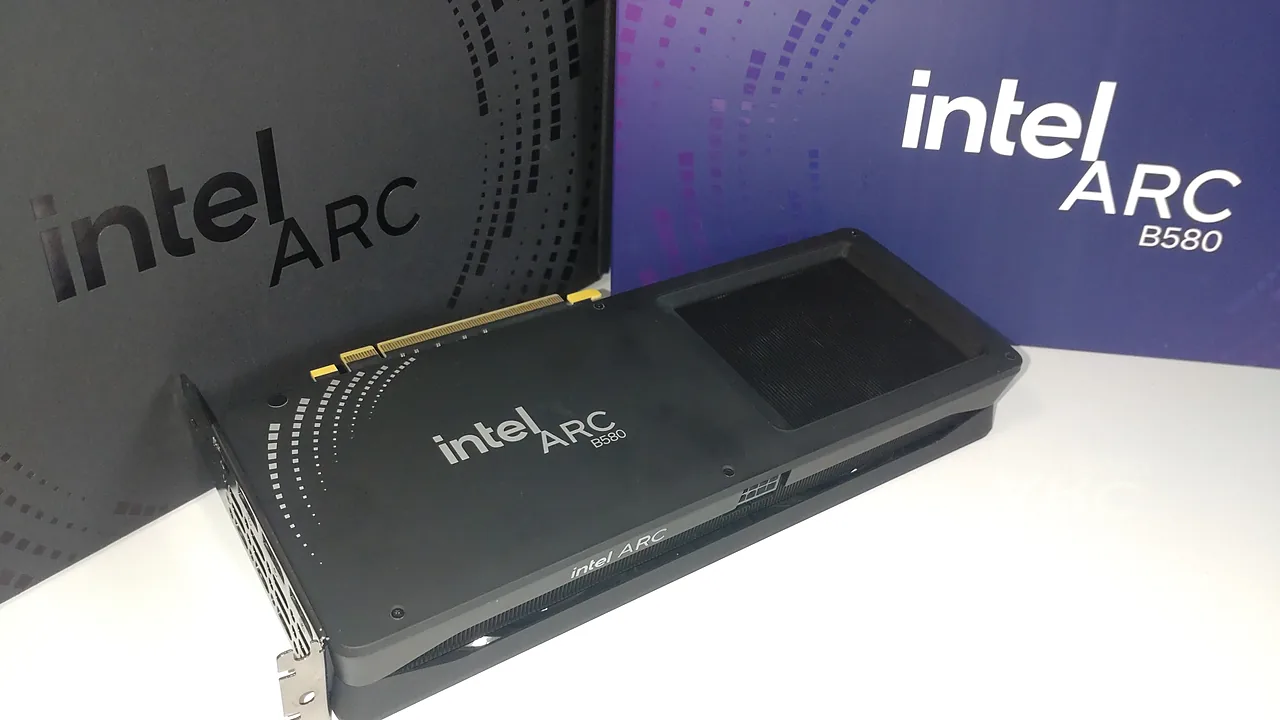
Intel graphics power most laptops and many desktops, and keeping their driver current fixes flickering, black screens, and game glitches — and adds performance for Intel Arc cards. The catch is getting the driver from the right place and installing it cleanly. Here’s how.
Last checked: September 2026. Intel’s official tool is the Intel Driver & Support Assistant (DSA).
Know which Intel graphics you have
Press Win+R, type dxdiag, and check the Display tab. You’ll see one of:
- Intel Arc (discrete graphics card, e.g. A- or B-series) — gets frequent gaming-focused driver updates.
- Intel Iris Xe / UHD Graphics (integrated into the CPU) — updated less often, but still worth keeping current.
Note: as of April 2026 Intel removed the oldest graphics drivers (7th–10th Gen and legacy Arc) from its Download Center, steering everyone to current versions. Very old integrated GPUs may only have what’s already installed.
The easy way: Intel Driver & Support Assistant
- Go to intel.com’s Driver & Support Assistant page and download the tool from Intel directly — never a third-party “driver updater.”
- Install it and let it open in your browser. It scans your PC and lists available updates for graphics, networking, and chipset.
- Click Download next to the graphics driver, then follow the installer.
DSA is the simplest route because it always matches your exact hardware. If you’d rather do it by hand, search your CPU or Arc model at Intel’s Download Center and grab the graphics driver there.
Install it cleanly
- Close games and GPU overlays first.
- Run the installer. For a troubled system or a big version jump, choose the clean install option so old settings are wiped.
- Let the screen flicker/blank briefly — that’s the display driver reloading — then reboot.
On a laptop, if the maker (Dell, HP, Lenovo) ships its own validated Intel driver and the machine is under warranty, that version can be the safer pick; otherwise Intel’s generic driver is usually newer.
Troubleshooting
- “The driver being installed is not validated for this computer” (laptops). The maker locked graphics drivers to their own build. Get the driver from the laptop maker’s support page, or use their update utility.
- Black screen or flicker after updating. Wait two minutes first. If it persists, boot into Safe Mode and roll back: Device Manager → Display adapters → your Intel GPU → Properties → Driver → Roll Back Driver.
- Installer won’t run. Right-click → Run as administrator, and temporarily pause third-party antivirus.
- DSA keeps offering the same update. A laptop-locked driver can report a lower version; the maker’s driver is expected there.
How often should you update?
For Intel Arc gamers: take new drivers when they name a game you play. For integrated Iris Xe/UHD: every few months, or when you hit a display bug, is plenty. The same clean-install discipline applies to NVIDIA and AMD graphics, and you can keep other apps current automatically with winget.
For hardware that is not graphics at all, the general driver update routine for Windows 11 covers Device Manager and rollbacks — a missing Bluetooth adapter is the example that comes up most.
Featured image: Intel Arc B580 — Photo: Jiahwang / Wikimedia Commons, CC0