Quick summary
- Two USB-C ports on one laptop can differ completely, and only the marked ones carry a display signal.
- A hub without its own power supply divides one port’s current between everything plugged into it.
- Cutting mains power to the dock for half a minute resets it; pulling the laptop cable alone does not.
Short answer: If everything on the dock fails together, you have one fault, not several. Check the symbol beside the laptop’s USB-C port, because only some carry video. Then reset the dock by unplugging its own power for thirty seconds, and install the dock maker’s driver if the screens stay black.
Last checked: October 2026. Tested against Windows 11 version 26H2.
Everything stopped at once, which is the useful clue
When the monitor, the keyboard, the mouse and the network all fail the moment you unplug and replug one cable, you do not have five faults. You have one, and it sits between the laptop and everything else.
That narrows it immediately to four candidates: the single cable to the laptop, the port it goes into, the dock’s own power, or the dock’s driver. Everything below works through those in the order that costs least.
If instead one device on the dock misbehaves while the rest carry on, this is the wrong guide. That is an ordinary single-device problem — a USB device not recognized in Windows covers it.
Not every USB-C port can run a dock
USB-C describes the plug shape and nothing else. Two ports that look identical on the same laptop can have completely different abilities, and this catches people constantly.
- Data only. It will run a keyboard and a drive, and it will never drive a monitor.
- Data and video. Usually marked with a small display symbol beside the port. This is what a dock with screens attached needs.
- Thunderbolt. Marked with a lightning bolt. The widest capability, and what a two-monitor dock generally expects.
Look at the symbols printed beside each port, then move the dock to a different one and try again. On many laptops only one port is fully capable, and it is rarely the most convenient one.
Power is the second most common cause
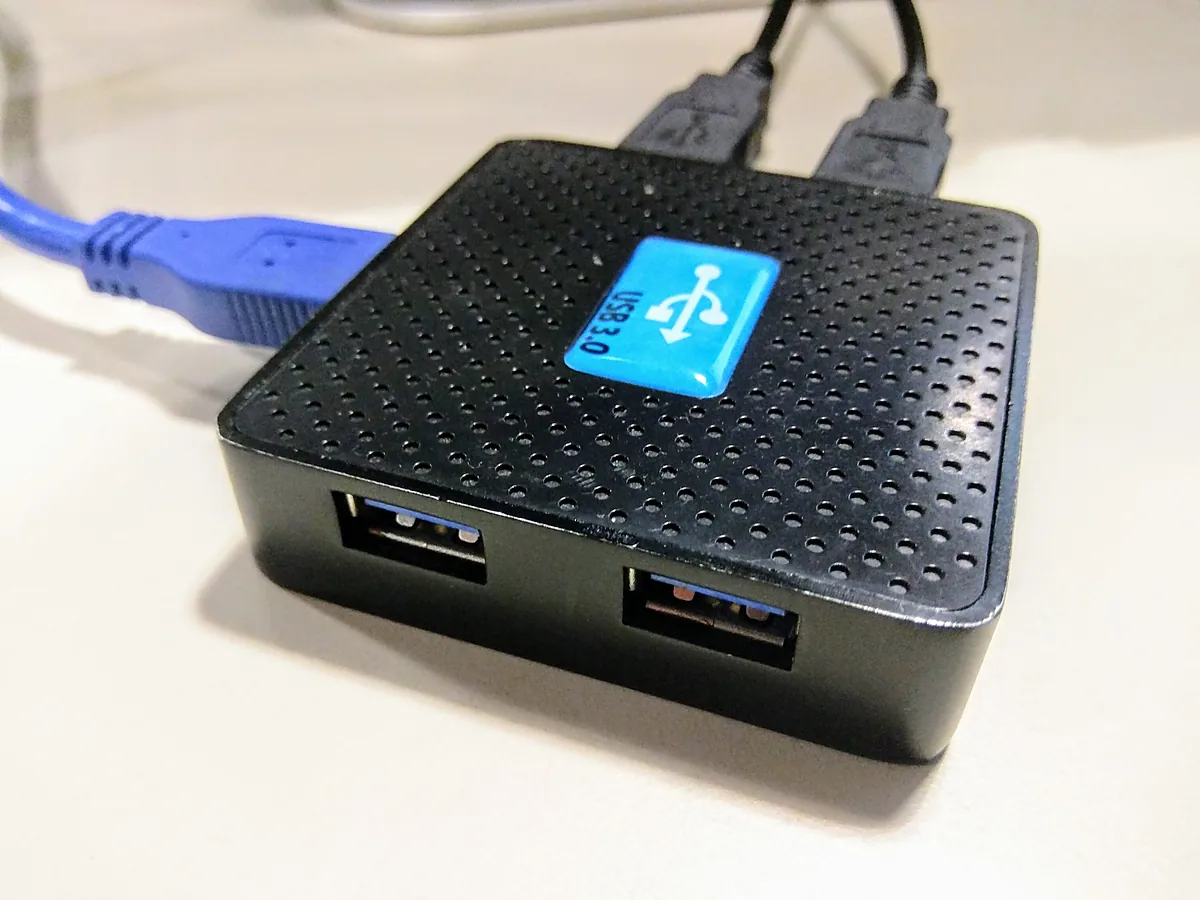
A small hub with no power supply of its own draws everything from the single port it is plugged into, and divides that budget among whatever you attach. One keyboard is fine. A portable hard drive, a webcam and a phone charging at once is not, and the symptom is devices dropping out apparently at random rather than a clean failure.
A proper dock ships with its own power brick for exactly this reason. If yours has one, use it; a dock run without its supply behaves like the small hub above.
Many vendors also advise a specific order: connect the dock to its power supply first, let it settle, and only then connect it to the laptop. It sounds like superstition and it genuinely helps on several models.
If the laptop charges through the dock, check that side too — a dock that cannot supply enough power leaves the battery slowly draining while it looks plugged in, which is one of the cases in a laptop battery that will not charge.
Reseat it properly
- Unplug the dock from the laptop.
- Unplug the dock’s own power and wait about thirty seconds. This is what actually resets it; the controller inside holds state while it has power.
- Reconnect the power, then the laptop.
- If nothing changes, try the other end of the cable, then a different cable altogether. A USB-C cable rated only for charging will carry power and no data, and it looks exactly like the right cable.
Docks need drivers more often than you would expect
A simple hub needs nothing. A dock that drives two monitors over one cable usually does, and Windows Update will not always supply it.
- DisplayLink docks use a software driver to compress and send the display signal. Without it, the USB ports work and the screens stay black. The driver comes from the chipset vendor, not from your laptop maker.
- Vendor docks from Dell, Lenovo and HP ship firmware updaters. A firmware update genuinely fixes dropouts on these, and it is one of the few cases where that is true.
- Everything else uses the standard Windows drivers, in which case the fault is elsewhere.
Install the driver from the dock maker’s support page rather than letting Windows pick, for the reasons set out in updating drivers on Windows 11.
Troubleshooting
The USB ports work but no monitor appears. Either the host port has no video capability, or a DisplayLink driver is missing. Check the port symbol first, since that costs nothing. The rest of the display side is in a second monitor not detected on Windows 11.
It works, then drops out after a few minutes. Heat or power. Docks run warm and some throttle when stacked under a laptop; give it air and try it with fewer devices attached.
Only one of two monitors appears. A single port usually carries one display stream unless the dock and the laptop both support splitting it. Two screens from one cable is a capability, not a given.
It broke after a Windows update. Reinstall the dock driver. Updates replace these more often than they replace ordinary ones, because the dock driver is not a Microsoft component.
Everything works except the Ethernet port. That port has its own driver inside the dock. Check Device Manager under network adapters for an entry with the dock’s chipset name and a warning triangle.
FAQ
Will any USB-C dock work with any laptop? No. It depends on what the laptop’s port supports, which is why two people can buy the same dock and get different results.
Is Thunderbolt worth paying for? If you want two monitors and fast storage over one cable, yes. For a keyboard, a mouse and one screen, a plain USB-C dock is enough.
Can I use a longer cable? Shorter is safer. USB-C carries a lot over a short run and much less reliably over a long one, especially for video.
Does the dock slow my drive down? It can. Everything on the dock shares one connection to the laptop, so a drive copying files while a monitor is running has less bandwidth to itself.
Should I leave the dock plugged in all the time? Yes, that is what it is for. Just unplug it from the mains if the machine is going away for weeks.
Featured image: Photo: RuinDig/Yuki Uchida / Wikimedia Commons, CC BY 4.0, title text added by AppInstall.info