Quick summary
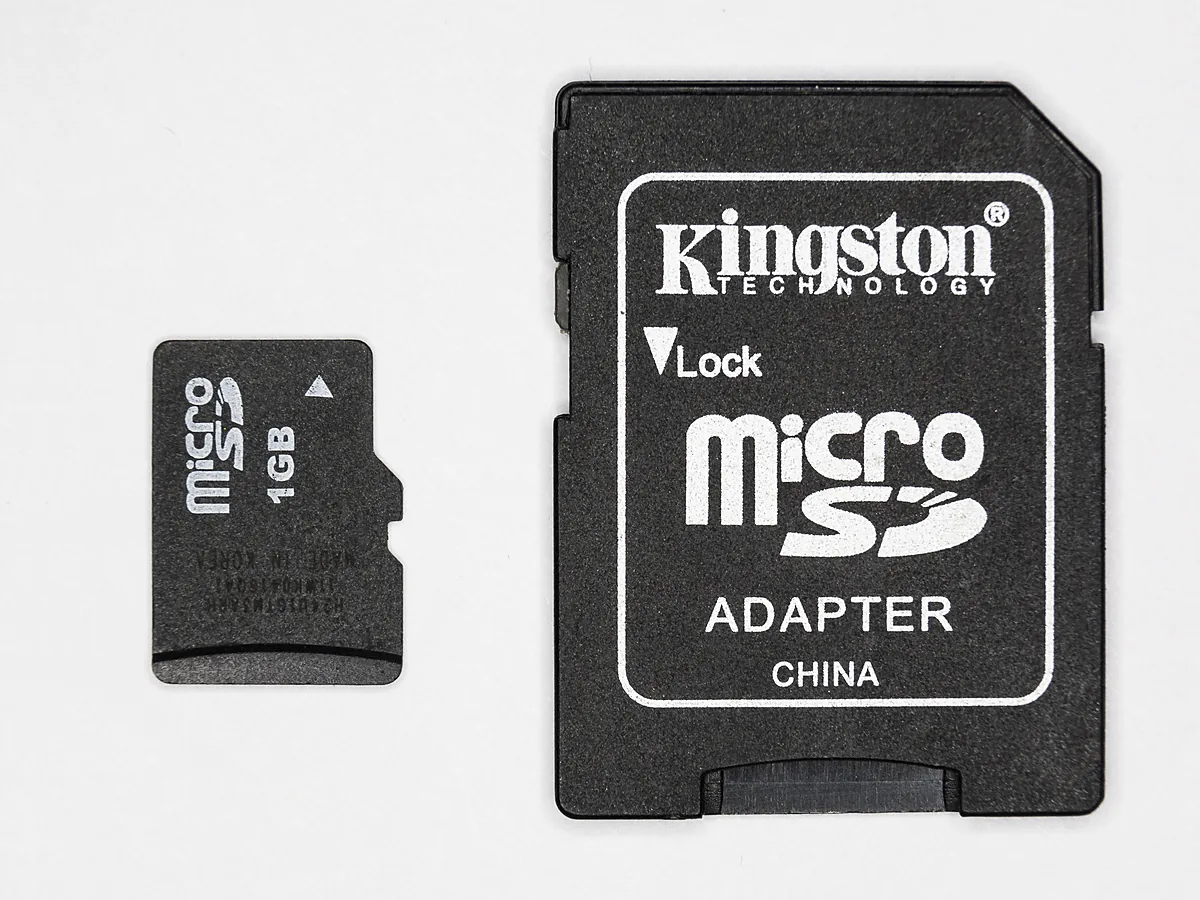
- The write-protect slider belongs to the adapter, not to the microSD card inside it, so a worn adapter is enough.
- Generation matters more than drivers: a slot older than SDXC simply cannot address a 128 GB card.
- Trying that card elsewhere, and another card in the same slot, separates the two faults within minutes.
Short answer: Check the Lock slider on the card’s edge, or on the adapter if it is a microSD — a worn switch is the most common cause. Then prove whether the card or the reader is at fault by testing each one separately. An old reader cannot read a 64 GB SDXC card at all.
Last checked: October 2026. Tested against Windows 11 version 26H2.
Check the lock switch first
Full-size SD cards have a small slider on one edge marked Lock. Slid down, the card becomes read-only, and depending on what you are doing Windows either refuses to write to it or does not mount it usefully at all.
Two things about that switch catch people out:
- It wears loose. An older card’s slider can move on its own as the card goes into the slot, so it reads as locked even though it looked right in your hand.
- A microSD card has no switch. The switch belongs to the adapter it sits in, which means a faulty adapter locks a perfectly good card. If you have a second adapter, swapping it takes ten seconds and rules this out.
The contacts and the slot
- Take the card out and look at the gold contacts. Dust and fingerprints are enough to stop a reliable connection on a worn card.
- Wipe them gently with a dry lint-free cloth. Nothing wet, and nothing abrasive.
- Push the card back in until it clicks. Spring-loaded slots need that click; a card resting halfway looks seated and is not.
- Look into the slot itself for a bent or flattened pin, which usually follows a card going in the wrong way round.
Is it the card or the reader?
This is the question that saves the most time, and it needs two minutes rather than two hours.
- Put the card in a phone or a camera. If it reads there, the card holds data and the reader is the problem.
- Put a different card in the reader. If that one works, the first card is at fault.
- No second card or device? A USB card reader costs very little and settles the question permanently, since it bypasses the built-in slot entirely.
The reader is its own device in Windows
A built-in slot is a separate piece of hardware with its own driver, and it can fail while every USB port on the machine still works.
- Right-click Start and open Device Manager.
- Look under Memory technology devices, and also under Universal Serial Bus controllers, where some readers appear instead.
- A down-arrow on the icon means it is disabled; right-click and choose Enable device.
- If it is present but useless, uninstall it and restart so Windows reinstalls the driver.
Where Windows does not find a working driver on its own, the one from your laptop maker usually does; updating drivers on Windows 11 covers where to get it and why the generic version is sometimes worse. For a USB reader that Windows ignores completely, start instead with a USB device not recognized in Windows.
Capacity and format, which is not the same problem
Cards come in generations, and a reader only speaks the ones it was built for.
- SDHC covers 4 GB to 32 GB and normally uses FAT32.
- SDXC starts at 64 GB and normally uses exFAT.
A reader made before SDXC existed will not read a 128 GB card, and no driver changes that. The card is fine; it simply does not belong in that slot. A USB reader bought this decade solves it.
Separately, a card formatted by a phone, a Mac or some cameras can carry a file system Windows does not mount. The symptom is a drive that appears and then asks to be formatted, which is the same trap described in an external hard drive not showing up on Windows 11 — and the same advice applies: do not accept that offer until you know what is on the card.
Troubleshooting
It appears in Disk Management but not in File Explorer. It has no drive letter. Assigning one is harmless, and the external drive guide above walks through it.
Windows says the card is write-protected. Check the lock switch again, including the adapter’s. If the switch is genuinely open, the card’s controller may have put itself into permanent read-only mode, which some cards do as they wear out. Copy the data off while you still can.
The photos are gone but the card shows as full. Stop writing to it. Recovery software can often retrieve files that have only had their index entry removed, but every new write reduces the chance.
It works in the camera and not in the PC. Usually the reader, sometimes the generation mismatch above. Test with a second card before buying anything.
A brand-new high-capacity card is unreadable everywhere. Counterfeit cards that report a size they do not have are common on marketplaces. A card that fails on three different devices was probably never what the label claimed.
FAQ
Can I format the card to fix it? Only once you are sure nothing on it matters. Formatting is the last step, not the first.
Which file system should I use? exFAT for 64 GB and larger, FAT32 below that. Format in the device that will use the card, such as the camera, rather than in Windows.
Do SD cards wear out? Yes. They have a finite number of writes, and a card used daily in a dash cam or a camera has a working life measured in years, not decades.
Is a faster card worth it? For video recording, yes. For storing files on a PC, the reader and the port limit the speed long before the card does.
Should I leave the card in the laptop permanently? It is fine mechanically, though a card left in a slot is easy to forget about when it holds the only copy of something.
Featured image: Photo: Dinkun Chen / Wikimedia Commons, CC BY-SA 4.0, title text added by AppInstall.info