7-Zip and WinRAR both compress and extract files, both handle almost every archive format, and both are safe, mature tools. So which should you install? The short answer: install 7-Zip unless you specifically need to create .rar files. Here is the honest comparison, feature by feature, so you can decide for your own use.
Last checked: September 2026. 7-Zip is free and open source (GNU LGPL); WinRAR is paid (about $40) but runs indefinitely in trial mode.
Cost and licensing — the biggest difference
- 7-Zip is completely free, open source, forever. No trial, no nag screen, no license to buy.
- WinRAR is technically paid. It keeps working after the 40-day trial, but shows a purchase reminder every time you open it. For a business, buying licenses is the correct thing to do; for a home user, it is nagware.
Neither needs a “crack.” A WinRAR crack solves a problem that does not exist (the trial never stops working) and only adds malware risk — a recurring theme in our WinRAR guide.

Compression: 7-Zip wins on size, WinRAR on speed
7-Zip’s own .7z format produces the smallest files of any mainstream tool, and it has for years. WinRAR is often faster in raw compression speed, but 7-Zip usually wins once you account for the smaller output. For everyday zipping the difference is minor; for archiving large folders to save space, 7-Zip’s .7z is the better choice.
Format support
Both open practically everything — ZIP, 7z, RAR, TAR, GZIP, and more. The decisive gap: only WinRAR can create .rar files. 7-Zip can extract RAR archives but not make them. If someone needs you to send a .rar specifically, that alone is a reason to have WinRAR. For everything else, ZIP (universal) or 7z (smallest) covers you.
Interface
WinRAR feels more polished — colorful icons, themes, a wizard mode for beginners. 7-Zip is utilitarian and plain, closer to a bare file manager. Neither is hard to use; if you value a friendly UI, WinRAR is nicer, but the plainness of 7-Zip is not a real obstacle.
Security
Both offer strong AES-256 encryption and can password-protect archives and encrypt file names. They are equal here — the weak point is always the password you choose, not the tool. And remember: there is no recovery for a forgotten archive password in either program.
Do you even need either one?
Windows 11 now opens ZIP, 7z, RAR, and TAR natively — right-click, Extract All, done. If all you do is occasionally unpack a download, you may need neither. You still want a dedicated tool to create archives, split large files, add recovery records, or password-protect — that is where 7-Zip and WinRAR earn their place.
The verdict
| Your situation | Install |
|---|---|
| General use, want it free, smallest files | 7-Zip (7-zip.org) |
| Need to create .rar files | WinRAR (win-rar.com) |
| Want a polished UI and don’t mind the nag | WinRAR |
| Only ever extract the odd download | Neither — Windows 11 handles it |
Installing both is also perfectly reasonable: extract with whatever opens first, create with whichever fits the job. Just download each from its official site above — archive tools are a favorite disguise for malware, and there is nothing a third-party mirror adds. New to either? See our WinRAR beginner’s guide.
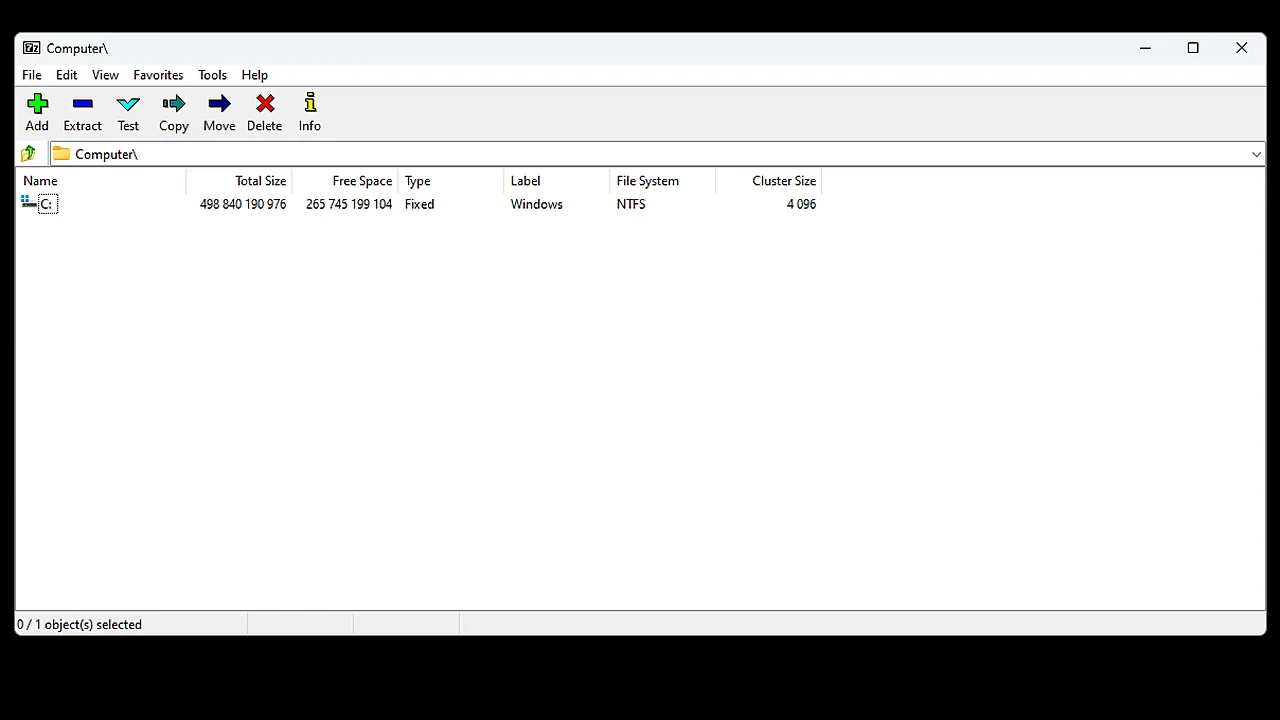
Featured image: the 7-Zip file manager on Windows — Screenshot: Igor Pavlov / Wikimedia Commons, LGPL (7-zip.org)