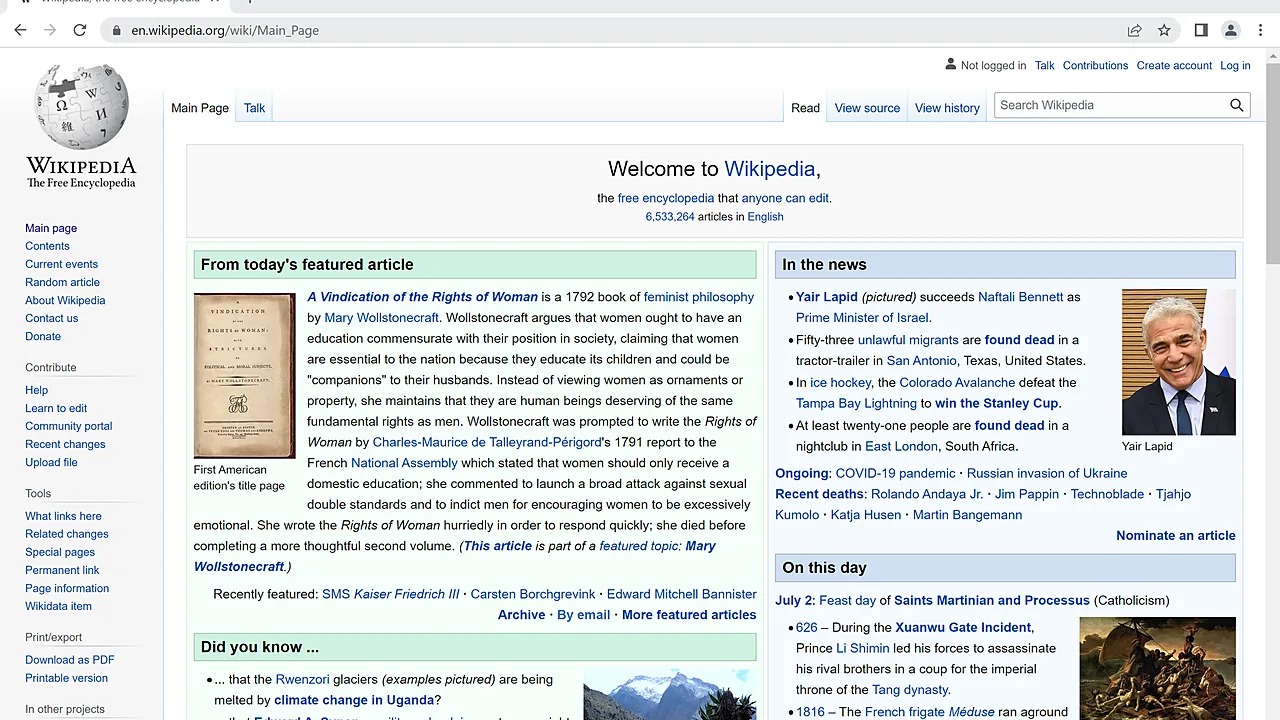
When Google Chrome keeps crashing, won’t update, or behaves strangely no matter what you try, a clean uninstall and reinstall usually fixes it — but only if you remove it completely, including the leftover profile data that carries the problem into the fresh copy. This guide walks through both the quick reinstall and the thorough one, and how to keep your bookmarks and passwords through it.
Last checked: September 2026.
First: back up what matters
The safe way to keep your data is to turn on Chrome Sync before uninstalling: open Chrome, sign in with your Google account, and confirm bookmarks, passwords, and history are syncing. After reinstalling, signing back in restores everything. If you can’t open Chrome at all, your bookmarks still live in a file you can copy first (see the thorough method below).
Quick uninstall and reinstall
- Close Chrome completely. Open Task Manager (Ctrl+Shift+Esc), and end any lingering chrome.exe or Google Chrome processes — Chrome keeps background tasks alive, and they block a clean removal.
- Go to Settings → Apps → Installed apps, find Google Chrome, and uninstall it. On the removal dialog, tick “Also delete your browsing data” only if you have Sync on or want a truly fresh start.
- Download a fresh copy from google.com/chrome — the official source, never a mirror.
- Install, sign in, and let Sync restore your data.
Thorough uninstall (for stubborn problems)
If the quick method didn’t fix it, the culprit is almost always the leftover profile folder. Remove it too:
- Uninstall Chrome as above.
- Press Win+R, paste
%LOCALAPPDATA%\Google, and press Enter. Delete the Chrome folder here (this is the profile and cache). Back it up first if you’re unsure — copy it somewhere safe rather than deleting outright. - Optionally, also check
%PROGRAMFILES%\Googleand remove any leftover Chrome folder. - Reboot, then install a fresh copy from google.com/chrome.
Your bookmarks, if you need them from the old profile, are in a file literally named Bookmarks (no extension) inside that Chrome profile folder — copy it out before deleting.
Troubleshooting
- “Please close all Google Chrome windows and try again.” A background process is still running. End every chrome.exe in Task Manager, or reboot, then uninstall.
- Chrome won’t uninstall from Settings. Try again in Safe Mode, or use Microsoft’s Program Install and Uninstall troubleshooter — the same approach in our stubborn-program guide.
- Same problem after reinstalling. You reused the old profile. Redo it with the thorough method above and delete the
%LOCALAPPDATA%\Google\Chromefolder. - Reinstalling to remove ads/redirects. Those are usually a malicious extension or notification permission, not Chrome itself — a reinstall without clearing the profile won’t help. See our spyware removal guide first.
- Enterprise or managed device. If Chrome is installed by your organization, you may not be able to remove it — that’s policy, not a bug.
Faster than reinstalling: try a reset first
Before the full uninstall, it’s worth trying Chrome’s built-in reset: Settings → Reset settings → Restore settings to their original defaults. It clears the most common sources of trouble (startup pages, extensions, search engine) while keeping bookmarks and passwords. If that fixes it, you’ve saved yourself the reinstall entirely; if not, the clean reinstall above is the reliable next step.
Rethinking which browser to use? See how to choose the right web browser and the best browsers for programmers.
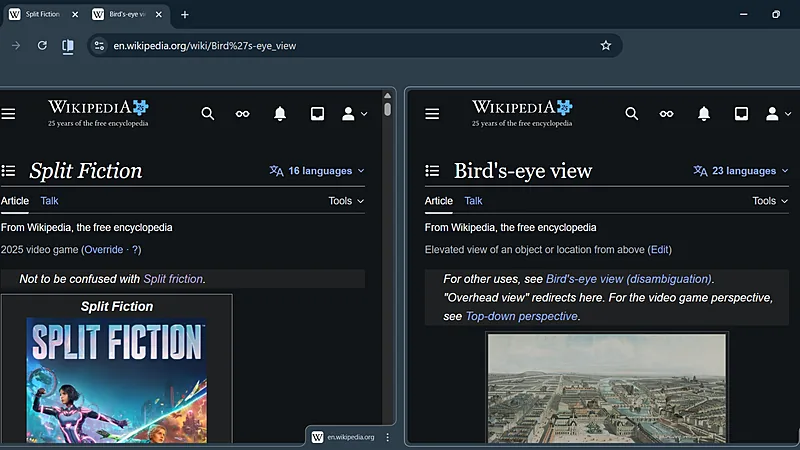
Google Chrome on Windows 11 — Screenshot: Megamanfan3 / Wikimedia Commons, public domain