You double-click a program you just downloaded and Windows throws up: “This app can’t run on your PC.” It’s a vague message with a small set of real causes — almost always an architecture mismatch, a blocked or broken download, or a permissions issue. This guide walks through them in order, from the one-second checks to the real fixes.
Last checked: September 2026. Applies to Windows 10 and Windows 11.
The most common cause: wrong architecture
The error’s usual meaning is “this file isn’t built for this Windows.” Two versions of that:
- 32-bit vs 64-bit: a 64-bit program won’t run on 32-bit Windows. Check yours under Settings → System → About → System type. If it says 32-bit, download the 32-bit (x86) build of the app.
- ARM vs x64: on an ARM-based Windows PC (Snapdragon), older x64-only apps may refuse to run. Look for an ARM64 build, or a version the app’s site marks as ARM-compatible.
Fix: go back to the software’s official download page and pick the build that matches your System type. This single check resolves most cases.
Second cause: the download is blocked or corrupt
- Unblock the file. Windows tags files from the internet. Right-click the installer → Properties → if you see an “Unblock” checkbox at the bottom, tick it, Apply, and run again.
- Re-download it. A truncated download produces this error too. Delete the file and download it fresh from the official source — and confirm the file size looks right if the site lists it.
Third cause: permissions and account
- Run as administrator. Right-click the installer → Run as administrator. Some installers fail silently without elevation.
- Standard/child account restrictions. Microsoft Family or a managed work account can block unrecognized apps. If it’s your machine, check Settings → Apps → Advanced app settings → Choose where to get apps — if it’s set to “The Microsoft Store only,” change it to “Anywhere” (or “Anywhere, but warn me”).
If it still won’t run
- SmartScreen is stopping it. A blue “Windows protected your PC” box is different — click More info → Run anyway, but only for a file you got from the official source. If you’re unsure where it came from, don’t.
- The app is genuinely incompatible. Very old programs may not run on Windows 11 at all. Right-click → Properties → Compatibility → run in compatibility mode for an older Windows, or look for a modern alternative.
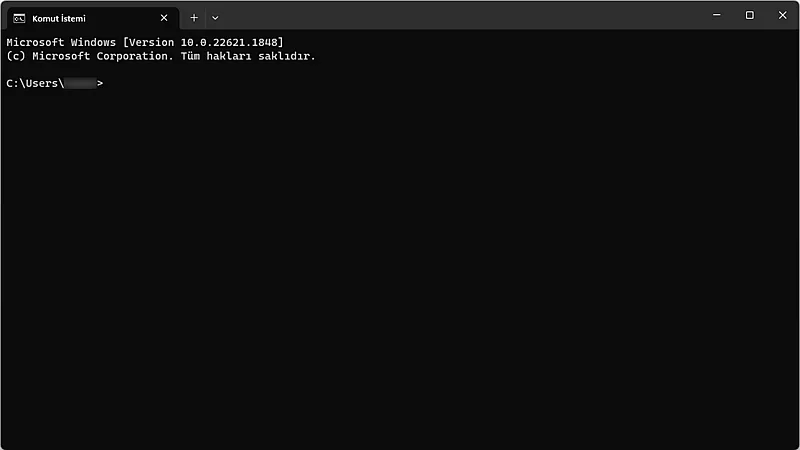
- Check the file in a command prompt. Open Command Prompt and you can inspect or run the installer with full messages — sometimes it reveals a clearer error than the generic dialog.
- Try installing via winget. If the app is in the repository,
winget installfetches the correct build and runs the installer with clean switches, sidestepping architecture and block issues — see our winget guide.
When it’s actually something else
If the error appears for every program you try, including ones that worked yesterday, that points at a system problem rather than a bad download — a corrupted user profile or, occasionally, malware. Run sfc /scannow from an admin Command Prompt, and if the machine is also behaving oddly elsewhere, work through our spyware removal guide. For a single stubborn program that half-installed, our uninstall guide clears the remnants so you can install cleanly.
Featured image: a Windows blue-screen error on a laptop — Photo: Saud / Wikimedia Commons, CC BY-SA 4.0