There is exactly one place you should download a Windows 11 ISO from, and it is Microsoft’s own software download page. Every other site offering “Windows 11 ISO direct link” is either mirroring that file with no guarantee it is unmodified, or bundling something you did not ask for. This guide covers getting the official 64-bit image, checking it is intact, and what to do with it once it has downloaded.
Last checked: October 2026. Current release offered: Windows 11 2026 Update, version 26H2, generally available since 29 September 2026.
The only download page you need
Go to microsoft.com/software-download/windows11. The page offers three different things, and people often grab the wrong one:
- Windows 11 Installation Assistant — upgrades the PC you are sitting at, in place. No ISO involved. It only runs on x64 processors.
- Create Windows 11 Installation Media — the Media Creation Tool. Writes a bootable USB directly, or produces an ISO.
- Download Windows 11 Disk Image (ISO) for x64 devices — the plain file. This is the one you want if you plan to mount it, keep it, or use your own USB tool.
The ISO section sits below the other two, so scroll past them. For ARM-based PCs there is a separate ARM64 ISO on its own Microsoft page — the x64 image will not install on those machines.
Download the ISO
- Under Download Windows 11 Disk Image (ISO) for x64 devices, select the edition from the dropdown and click Download Now.
- Choose your product language and confirm. Pick carefully — the language is baked into the image, and changing it later means downloading again.
- Click the 64-bit Download button that appears.
- Save the file. Expect roughly 6 GB, so make sure the destination drive has room.
The generated download link expires after 24 hours. If you come back to it the next day it will simply fail; return to the page and generate a new one.
Check the file is intact
A truncated or corrupted ISO produces install errors that look like hardware faults, so it is worth two minutes to verify. Microsoft publishes SHA-256 hashes for the images on the download page.
- Open PowerShell in the folder containing the file.
- Run
Get-FileHash .\Win11_26H2_English_x64.iso -Algorithm SHA256, substituting your actual filename. - Compare the result with the hash listed for your language and edition. They must match exactly.
What to do with the ISO
Upgrade the PC you are on. Right-click the ISO and choose Mount. Windows gives it a drive letter; run setup.exe from there and choose to keep your files and apps. No USB stick needed.
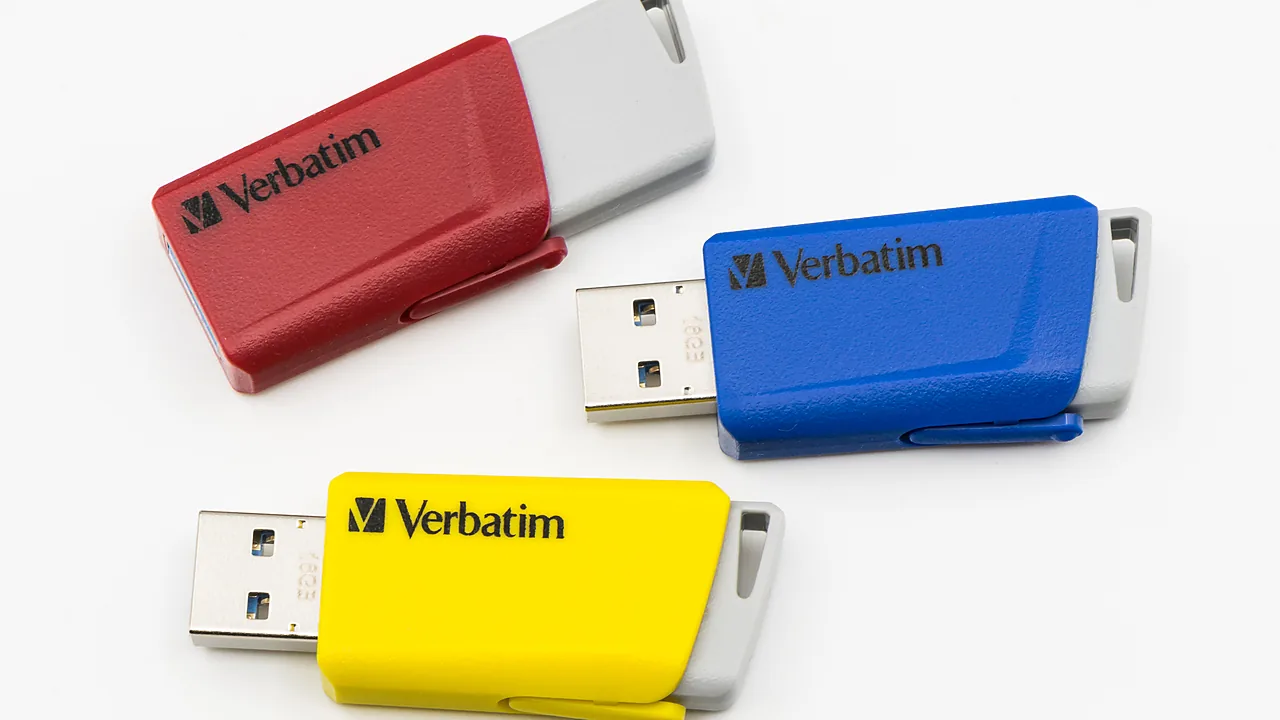
Install on another machine. You need bootable media. The Media Creation Tool on the same Microsoft page will write a USB for you. Alternatively a multi-boot tool lets one stick hold several images — worth it if you install Windows regularly.
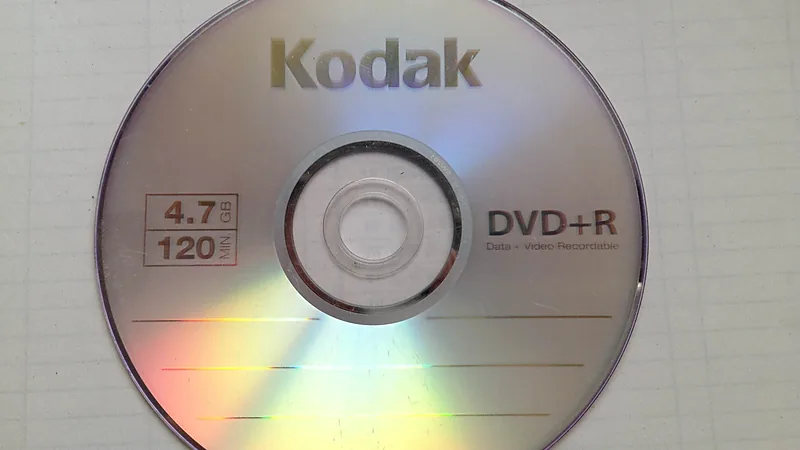
A note on DVDs: the Windows 11 ISO is close to 6 GB and will not fit on a single-layer 4.7 GB DVD. Use an 8 GB or larger USB flash drive instead. Dual-layer discs technically fit, but most modern PCs no longer have an optical drive to boot from.
Troubleshooting
The page only shows the Installation Assistant. Scroll down. All three options live on the same page, and the ISO section is the last one. Browser extensions that block scripts can also stop the edition dropdown from rendering — disable them for that page and reload.
The download stops partway or is extremely slow. Microsoft’s CDN throttles some connections. Pause and resume in your browser’s download manager, or try a wired connection. Avoid download accelerators that open many parallel connections; they are a common cause of corrupted images.
“Windows cannot open the file” when mounting. That almost always means the download is incomplete. Check the hash before anything else. It also happens when a third-party tool has taken over the .iso file association — right-click, Open with → Windows Explorer.
Setup runs but reports the PC does not meet requirements. The ISO is fine; the hardware check is failing. See our guides to checking and enabling TPM 2.0 and enabling Secure Boot, which are the two settings behind most of these refusals.
Not enough disk space to download and install. You need room for the ISO plus the installation itself. Our guide to freeing up disk space on Windows 11 covers clearing the space without deleting anything you will miss.
FAQ
Is the ISO free? The download is free. A licence is separate — Windows will run with reduced personalisation until it is activated.
Which edition should I choose? The multi-edition ISO includes Home and Pro, and setup picks based on your licence or lets you choose. There is no need to hunt for an edition-specific image.
Can I use this ISO to reinstall on the same PC? Yes. A digital licence tied to the hardware reactivates automatically once you are online.
Will version 26H2 install on my PC? It is offered to eligible devices running version 25H2 and 24H2, and ships with 24 months of support for Home and Pro editions, 36 months for Enterprise and Education.
Once the image is downloaded, the next step is writing it to a stick — and if you keep more than one ISO around, a multi-boot drive saves a lot of re-flashing. Our roundup of the best utility software covers the tools worth having on hand for jobs like this.
Featured image: Photo: Jacek Halicki / Wikimedia Commons, CC BY-SA 4.0