Quick summary
- Check status in seconds by running tpm.msc, or read the security processor details inside Windows Security.
- Firmware hides the switch under different names: Intel calls it PTT, while AMD labels it fTPM.
- Always save your BitLocker recovery key before touching these settings, because clearing the module locks the drive.
Short answer: Windows 11 setup stops with “This PC can’t run Windows 11” far more often because of TPM than because of a genuinely old machine. Most PCs built since about 2016 already have TPM 2.0 — it is just switched off in firmware, where nobody thinks to look. This guide covers checking it, switching it on, and the checks that still fail afterwards.
Last checked: October 2026. Current Windows 11 release: version 26H2, generally available since 29 September 2026.
What TPM 2.0 actually is
A Trusted Platform Module is a small, isolated processor that stores encryption keys and measurements of how your PC booted. Windows uses it for BitLocker drive encryption, Windows Hello sign-in, and to verify that nothing tampered with the boot chain.
It comes in two forms, and this is the part most people miss:
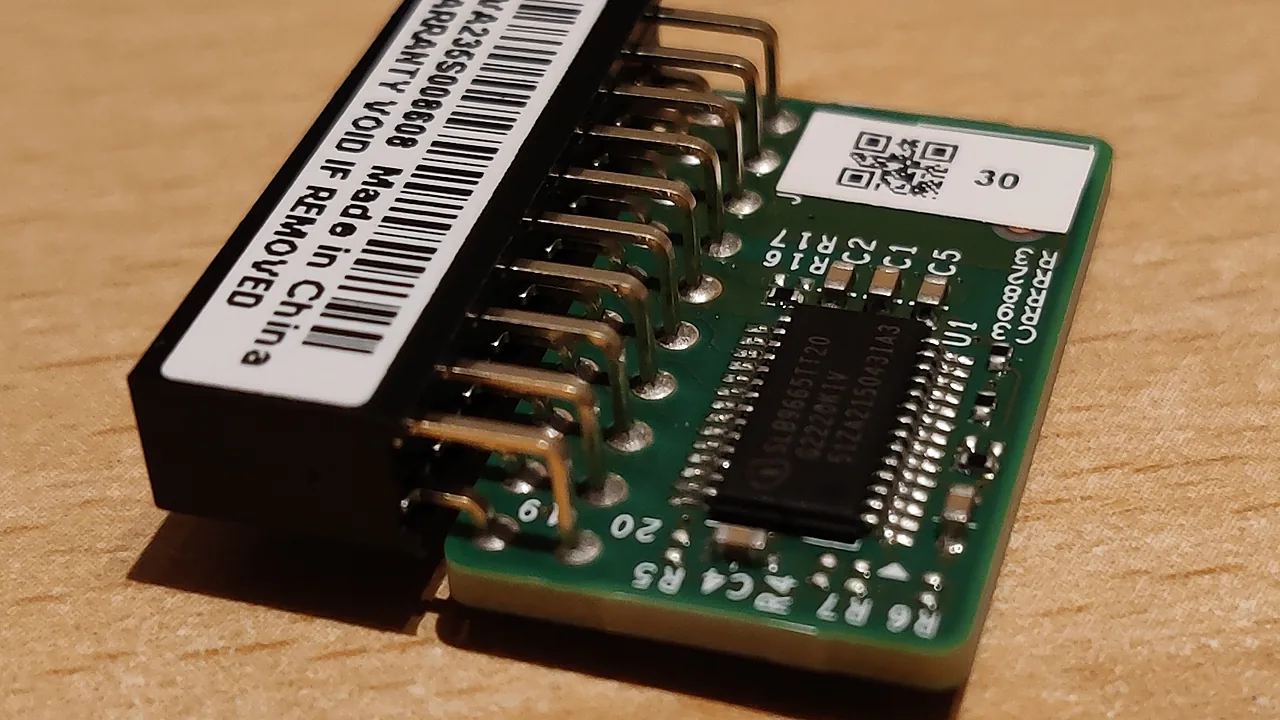
- A discrete TPM — a physical chip soldered to the motherboard or plugged into a header.
- A firmware TPM — the same functions running in a protected part of the CPU. Intel calls it Platform Trust Technology (PTT); AMD calls it fTPM.
Windows treats both as equally valid. You almost certainly do not need to buy a chip: if your CPU is recent enough to be supported at all, it has a firmware TPM built in. The toggle is simply off by default on a lot of motherboards.
Has Microsoft relaxed the requirement?
No. Microsoft has restated several times that TPM 2.0 is a non-negotiable requirement for Windows 11 and has no plans to lower the bar for future releases. Workarounds that bypass the check exist, but a PC installed that way is unsupported and may be refused feature updates. Treat enabling TPM properly as the real fix and bypasses as a last resort on hardware you are willing to risk.
Check your TPM status in Windows
Three ways, in order of how much they tell you.
- Press Win + R, type
tpm.mscand press Enter. The TPM Management console opens. Look at Specification Version under “TPM Manufacturer Information” — it must read 2.0. If the window says “Compatible TPM cannot be found”, the module is disabled or absent. - Open Settings → Privacy & security → Windows Security → Device security, then click Security processor details. The specification version appears there too.
- Open Device Manager and expand Security devices. A healthy system lists Trusted Platform Module 2.0.
For a one-line answer, open PowerShell as administrator and run Get-Tpm. The fields to read are TpmPresent and TpmReady — both must be True.
While you are gathering facts about the machine, msinfo32 reports the BIOS Mode and the Secure Boot State on one screen, alongside the motherboard model you will need if the fix turns out to be a firmware update. Checking your PC specs on Windows 11 walks through that tool and the three others worth knowing.
Turn TPM on in UEFI firmware
If Windows reports no TPM, the setting lives in firmware. The reliable way in is through Windows itself rather than guessing which key to mash at boot:
- Go to Settings → System → Recovery and click Restart now next to Advanced startup.
- Choose Troubleshoot → Advanced options → UEFI Firmware Settings, then Restart.
- In the firmware, find the setting under Security, Advanced, or Trusted Computing. On Intel boards look for PTT or Intel Platform Trust Technology; on AMD boards look for fTPM or AMD CPU fTPM.
- Set it to Enabled. If there is a separate TPM Device Selection entry, choose the firmware option rather than “Discrete” unless you actually have a chip installed.
- Press F10 to save and exit, then let Windows boot and re-run
tpm.msc.
If you prefer the boot-time route, the key is usually Del or F2 on desktops and F1, F2 or Esc on laptops — it varies by manufacturer, and fast boot can make the window very short.
Troubleshooting
tpm.msc still says no compatible TPM after enabling it. Check you saved the firmware change (F10, not Esc) and that you enabled the firmware TPM rather than selecting “Discrete” on a board with no physical module. Selecting Discrete when no chip is fitted produces exactly this symptom.
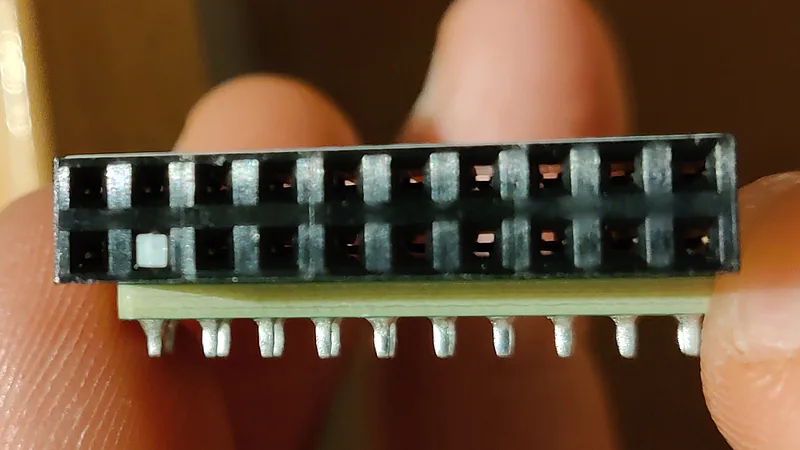
It reports version 1.2. Some business machines from around 2015–2016 shipped with a discrete TPM 1.2 that the vendor later made upgradeable to 2.0 through a firmware tool. Check your manufacturer’s support page for your exact model. Where no upgrade exists, a plug-in TPM 2.0 module fits boards that have the header — but confirm the pin count and vendor part number first, because these modules are not interchangeable between brands.
The PC stutters after enabling fTPM. This was a real bug on a range of AMD boards, where fTPM access caused brief system-wide pauses. AMD shipped AGESA firmware updates to fix it. Update the BIOS from your motherboard maker’s official support page — never from a mirror site.
BitLocker now asks for a recovery key. Changing or clearing the TPM invalidates the keys sealed to it. Before touching TPM settings on an encrypted machine, suspend BitLocker or save the recovery key somewhere outside that PC. If you are already locked out, the key is in your Microsoft account under recovery keys, or wherever your organisation stores it. Never use “Clear TPM” on an encrypted drive without the key in hand.
TPM is on but the PC still fails the upgrade check. TPM is one of several requirements. Secure Boot must be on, the firmware must be in UEFI mode rather than Legacy, and the CPU must appear on Microsoft’s supported processor list. An unsupported CPU is the one blocker you cannot fix in firmware. If your error looks different, our guide to fixing “this app can’t run on your PC” covers the other common setup failures.
FAQ
Does enabling TPM erase anything? Enabling it does not. Clearing it does — that wipes the stored keys and will lock out BitLocker without a recovery key.
Do I need a physical TPM chip? Almost never. A firmware TPM (Intel PTT or AMD fTPM) satisfies the requirement in full.
Can I run Windows 11 without TPM 2.0? Unofficially, yes, through registry or install-media workarounds. Microsoft does not support it, and such installs can be denied feature updates, so it is not a position to put a main machine in.
Is TPM worth enabling if I stay on Windows 10? Yes. BitLocker and Windows Hello both get stronger protection from it, independently of which Windows version you run.
Once TPM is sorted, the next thing setup checks is Secure Boot, and after that you need the installation media — the official Windows 11 ISO, written to a bootable USB with Ventoy if you set up more than one machine. After installation the first job is usually drivers; our guide to updating drivers on Windows 11 covers doing that without third-party driver updaters. If you are still deciding whether to move at all, we also looked at whether Windows 11 is worth the upgrade.
Featured image: Photo: Kent Madsen / Wikimedia Commons, CC BY-SA 4.0