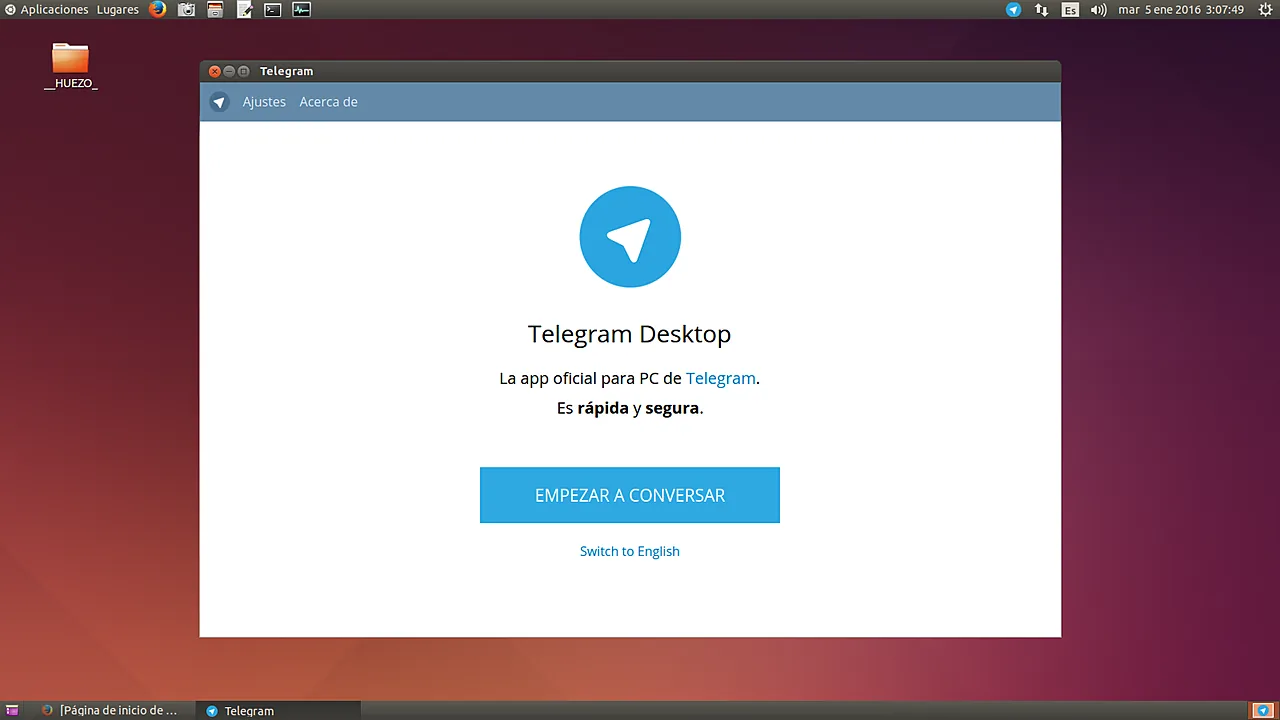
Telegram Desktop is one of the few messengers whose PC app is a first-class citizen: fast, open source, genuinely standalone (your phone can be off), and available straight from the developer. Setup takes five minutes; the one thing that trips almost everyone is where the login code arrives. This guide covers the safe download, the login gotcha, and the fixes worth knowing.
Last checked: September 2026.
Download — official sources only
- Direct from Telegram: desktop.telegram.org — Windows installer or a portable version that runs from a folder or USB stick without installation.
- Microsoft Store / Mac App Store: fine too, and they auto-update. The Store build is sandboxed, which occasionally delays new features by a version.
- Skip every “Telegram PC latest version” download portal. Modified Telegram clients with added “features” are a documented malware channel — the real app is free and unrestricted, so there is nothing a third-party build can legitimately add.
Install and log in
- Run the installer (or unzip the portable build) and start Telegram.
- Choose QR login (scan with the phone app: Settings → Devices → Link Desktop Device) — fastest and skips codes entirely. Or enter your phone number.
- If you entered the number: the login code arrives in Telegram on your phone, not by SMS. Open the Telegram app and look for the message from “Telegram”. SMS is only used when no logged-in device exists at all.
- Optional but smart: set a two-step verification password (Settings → Privacy and Security) so a stolen SIM alone can’t log into your account.

Troubleshooting
- “I never get the code.” Ninety percent of cases: the code went to Telegram on another logged-in device — check your phone’s Telegram messages, not your SMS inbox. No other device? Wait for the SMS fallback timer on the login screen.
- Stuck on “Connecting…”. Usually a network or proxy issue: if you use a proxy/VPN, configure or disable it in the app’s connection settings (gear icon on the login screen → Connection type). Corporate firewalls that block messengers do hit Telegram.
- Huge disk usage over time. Telegram caches every photo and video you view. Settings → Advanced → Manage local storage lets you cap the cache size and auto-delete old media — set a limit once and forget it. Clearing cache never deletes your messages; they live on Telegram’s servers.
- Notifications silent on Windows. Check Telegram’s Settings → Notifications, then Windows Settings → System → Notifications, then Focus assist. Also look at the specific chat — per-chat mute is easy to hit by accident.
- Log out a lost device. From any logged-in Telegram: Settings → Devices → terminate the session. Do this immediately if a laptop is stolen; desktop sessions stay live until revoked.
Small things that make it better
Telegram Desktop supports multiple accounts (Settings → Add Account) with separate notification rules, global search that actually works, and a system-tray mode so closing the window doesn’t quit the app (change under Settings → Advanced if you prefer a real exit). Since the app updates itself from Telegram’s servers, version-chasing is pointless — install once from the official source and it stays current.
FAQ
Is Telegram Desktop free? Yes, completely free and open source, with no ads or account fees.
Do I need my phone connected? No. Once linked, Telegram Desktop works on its own even when your phone is off.
Related on AppInstall.info: Messenger on desktop, the Slack app, and installing apps via winget.
Featured image: Telegram Desktop’s welcome screen — Huezohuezo1990 / Wikimedia Commons, CC BY-SA 4.0