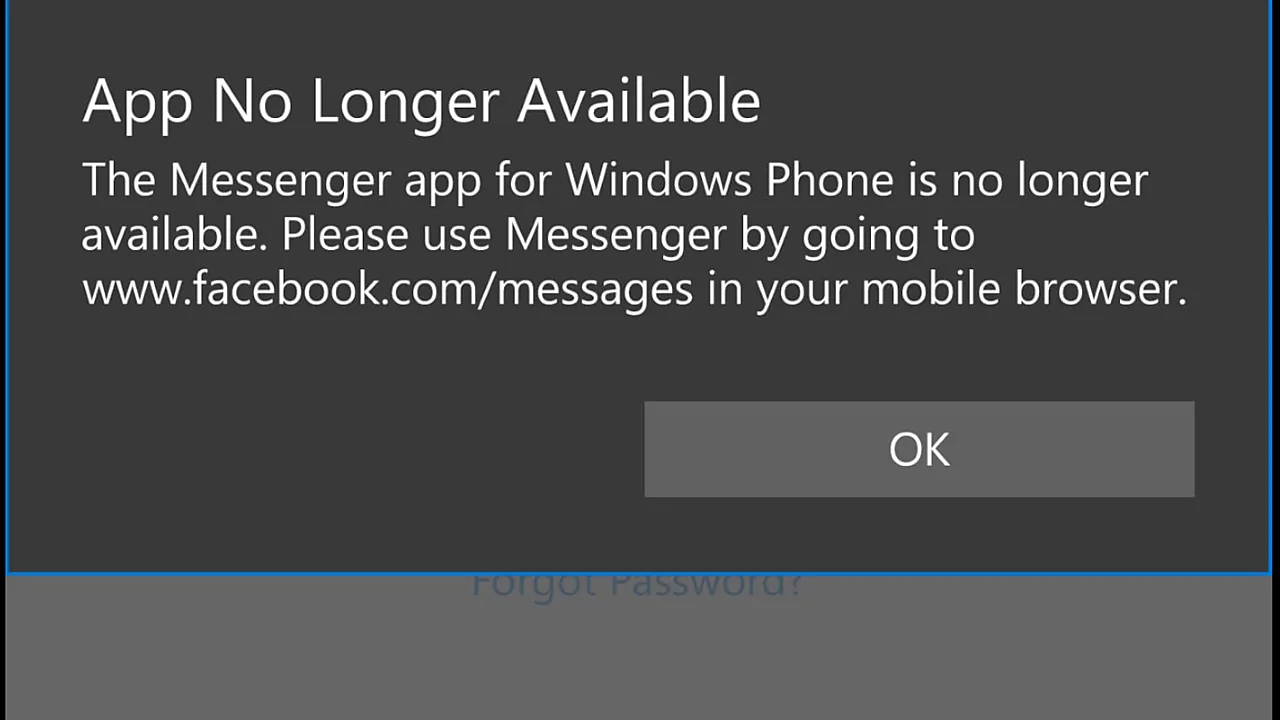
The Messenger desktop app for Windows and Mac is gone. Meta announced the retirement in October 2025 and shut the apps down on December 15, 2025 — opening them now just redirects you to the website. So if you are searching for a “Messenger for PC download,” stop: every site offering one today is repackaging a dead app or worse. The good news is that the web version plus a two-minute browser trick gets you almost everything the app did.
Last checked: September 2026.
What happened
Meta folded Messenger back into Facebook over several years, and the desktop apps — born in the 2020 video-call boom — were the last piece to go. Windows users are pointed to the Facebook site or messenger.com; Mac users the same. Accounts, messages, and contacts are untouched; only the app wrapper died. It follows a pattern: Messenger has retired platforms before, as Windows Phone users saw years earlier.
Set up Messenger as a “desktop app” again
Browsers can install a website as a windowed app with its own icon, taskbar presence, and notifications — which is functionally what the old app was:
- Open messenger.com and sign in. (No Facebook profile? messenger.com supports Messenger-only accounts after the shutdown.)
- Edge (Windows): menu (⋯) → Apps → Install this site as an app. Chrome: menu (⋮) → Cast, save and share → Install page as app (wording varies slightly by version).
- Accept the browser’s prompt to allow notifications for messenger.com — without it, the “app” is silent.
- Pin the new icon to the taskbar or Dock. It opens in its own window, boots with a click, and behaves like the app did for chat, calls, and video.
Before you lose your history: the PIN
Messenger’s end-to-end encrypted chats sync through secure storage protected by a PIN. If you never set one, do it in Messenger’s settings (on the website or phone app) under privacy/security — it is what lets a new device, including this reinstalled web app, restore your encrypted history. Without the PIN, moving devices can mean starting some conversations blank.
Troubleshooting the web version
- No notifications. Three layers again: the site permission in the browser, the browser allowed in Windows Settings → System → Notifications, and Focus/Do Not Disturb off. All three must pass.
- Calls without sound or camera. The browser needs microphone/camera permission for messenger.com (click the padlock in the address bar), and Windows’ own privacy toggles (Settings → Privacy & security → Microphone/Camera) must allow desktop apps.
- The installed app opens as a plain tab. Reinstall it from the browser menu as in step 2 — this happens after profile resets or browser reinstalls.
- Old desktop app still on your machine. Uninstall it; it will never work again and only takes up space.
If someone offers you the app anyway
Meta distributes no Messenger installer for Windows or macOS anymore — not through the Microsoft Store, not as a download. An installer from anywhere else is at best the abandoned app (which redirects to the web) and at worst malware wearing its icon. The web app above is the entire, official story now — same as it already is for services like Telegram’s web version, except Telegram still ships a desktop app too.
FAQ
Is there still a Messenger app for PC? No. Meta shut down the Windows and Mac desktop apps in December 2025; use messenger.com, optionally installed as a browser app.
Will I lose my chats? No, if you set a PIN: it lets end-to-end encrypted chats restore on a new device.
Related on AppInstall.info: Telegram Desktop and Slack for messaging, or install apps with winget.
Featured image: Messenger’s earlier platform retirement notice on Windows Phone — Facebook, Inc. / Wikimedia Commons, public domain